
In aviation MRO operations, the date your shop commits to finish a repair is one of the most important pieces of information you share with your customers. That date often changes along the way: a part fails inspection, a component is back-ordered, or the customer takes longer to approve a quote. When those changes aren't recorded, it's hard to explain to the customer why the date moved, and hard for supervisors to see which units are falling behind.
With the Shop Commit Date (SCD), Smart 145 lets you record the date your shop commits to on each Work Order, add a note explaining every change, keep a full history of those changes, and notify your team by email whenever the date is updated.
Note: The Shop Commit Date must be enabled for your account. To request activation, contact our Support team at support@smart145.com.
How to Set the Shop Commit Date on a Work Order
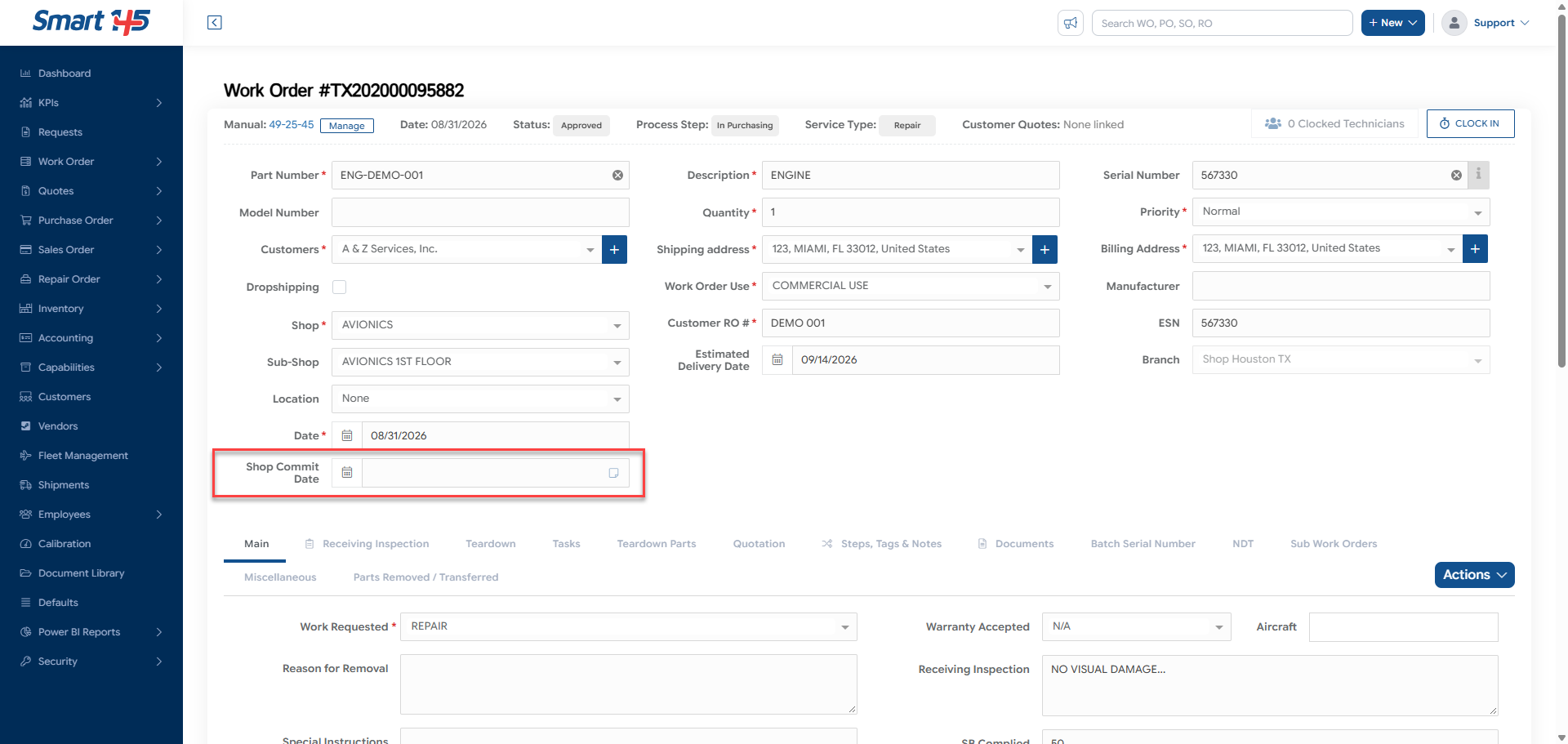
Open the Work Order. In the Main section you'll find the Shop Commit Date field. Click the calendar icon and select the date your shop commits to.
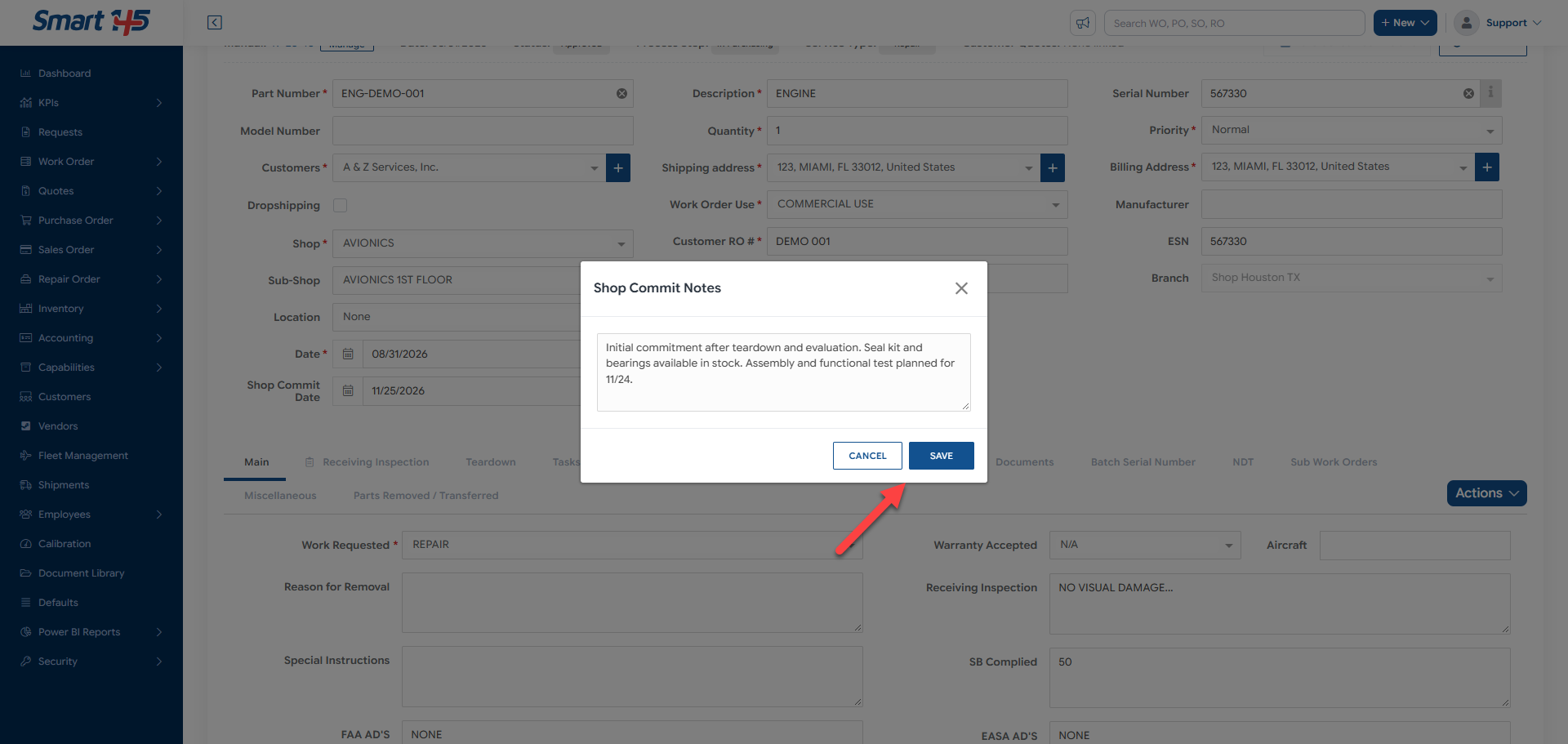
After selecting the date, the Shop Commit Notes window opens. Write the reason for the date, for example "Initial commitment after teardown and evaluation. Seal kit and bearings available in stock. Assembly and functional test planned for 11/24.", and click SAVE. Then save the Work Order.
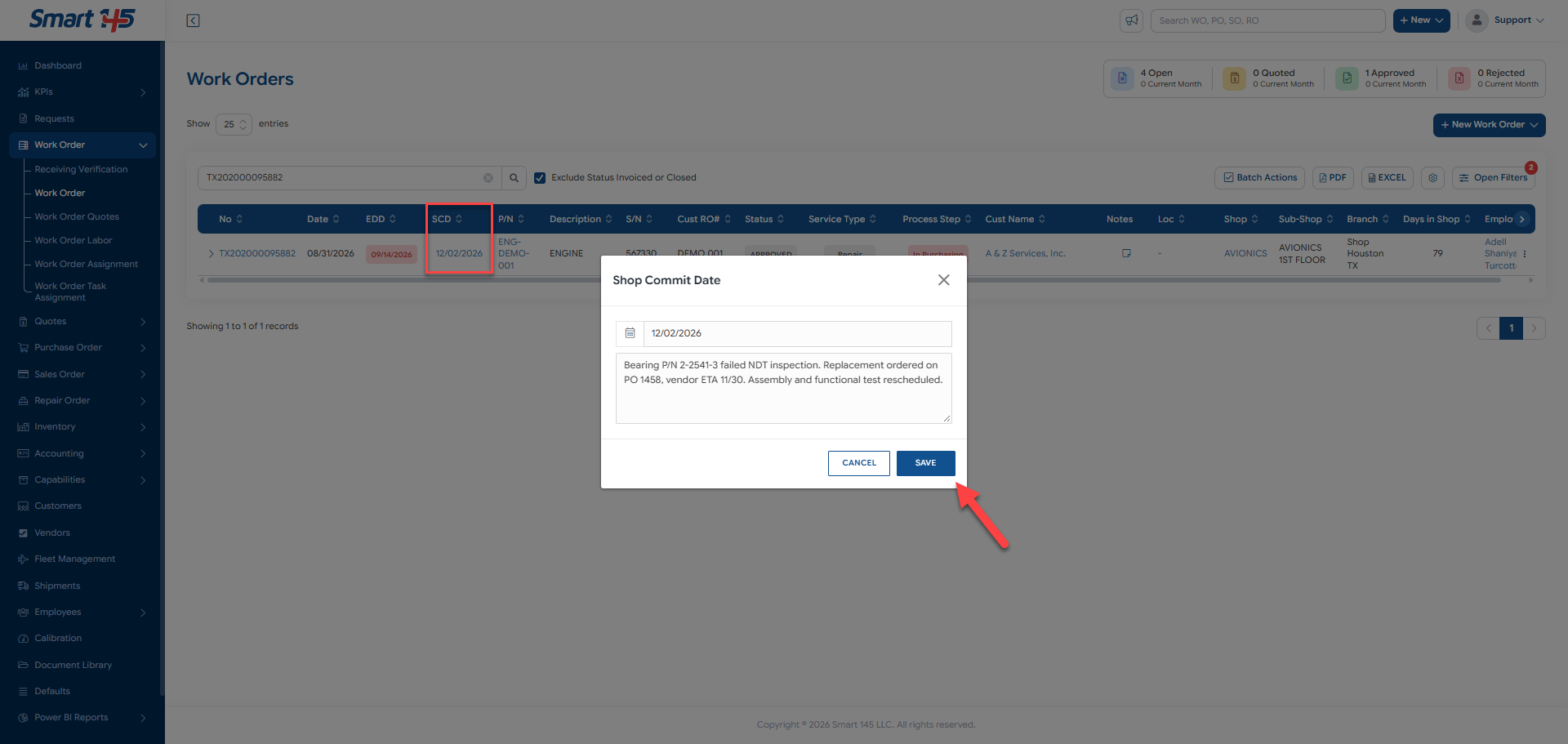
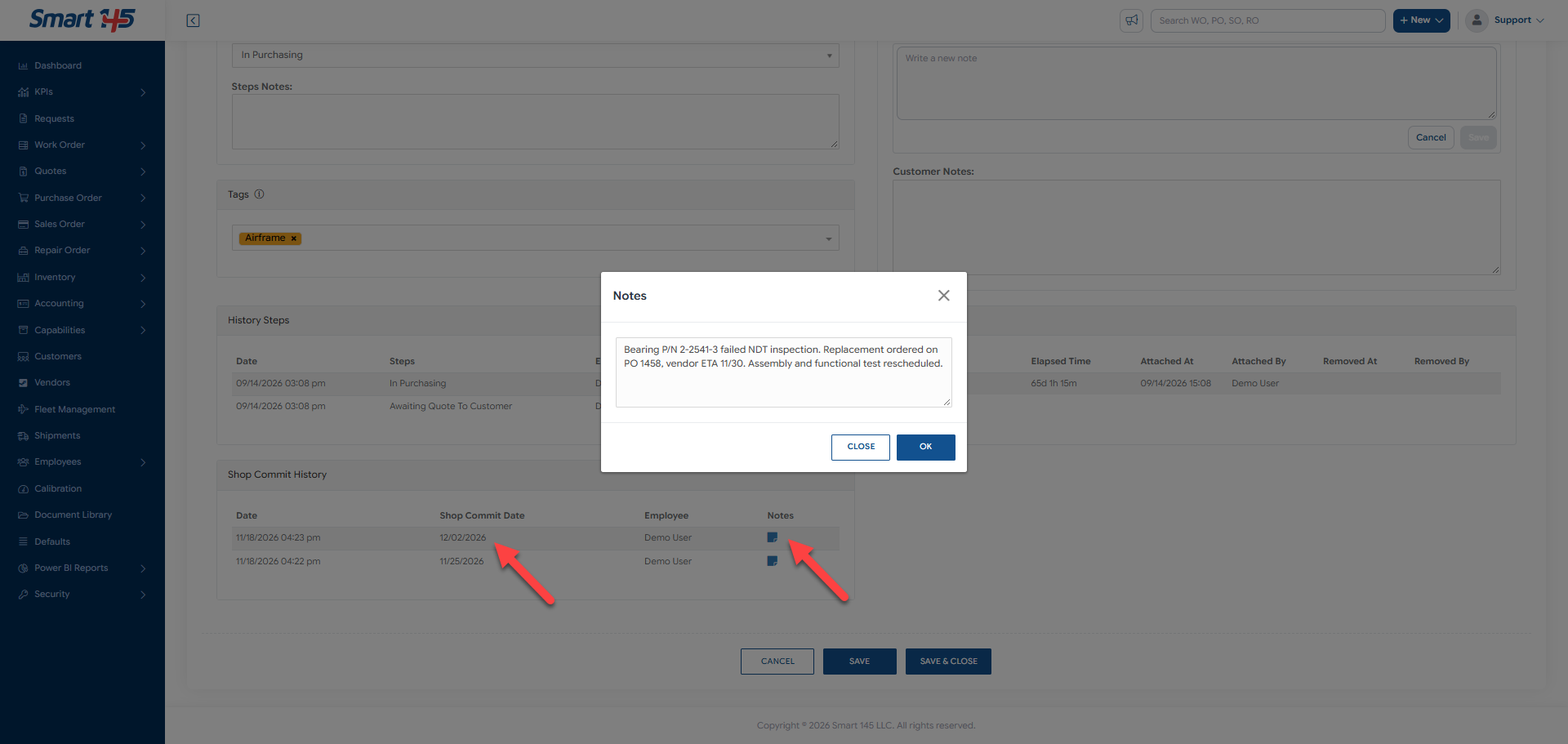
Every time the date changes, follow the same steps and explain the reason in the note, for example "Bearing P/N 2-2541-3 failed NDT inspection. Replacement ordered on PO 1458, vendor ETA 11/30. Assembly and functional test rescheduled." These notes give your team, and anyone who talks to the customer, the full story behind each date.
How to Update the Shop Commit Date from the Work Order List
You don't need to open each Work Order to update its date. In Work Order → Work Order, the list shows the SCD column. Click the date of a Work Order to open the Shop Commit Date window, select the new date, write the note, and click SAVE.
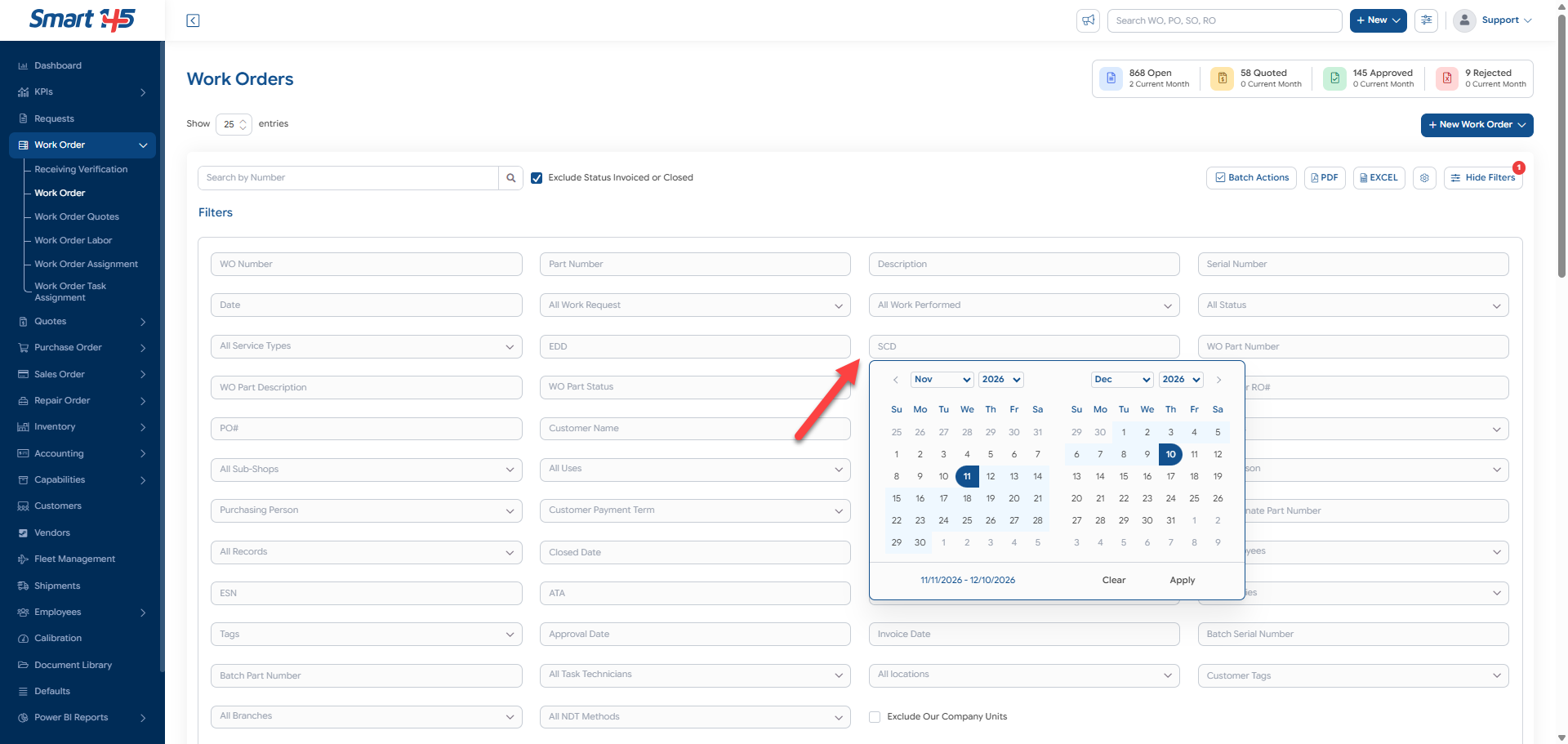
The SCD column can also be sorted, so you can quickly see which units are due first. You can also filter the list by Shop Commit Date: click Show Filters, open the SCD filter, select a date range in the calendar, and click Apply. For example, you can list every Work Order committed for the next two weeks and focus your team on the units that are due soon.
Review the Shop Commit History
Every change is recorded. Open the Work Order and go to the Steps, Tags & Notes tab. The Shop Commit History section lists each change with the date it was made, the Shop Commit Date set, and the employee who made it.
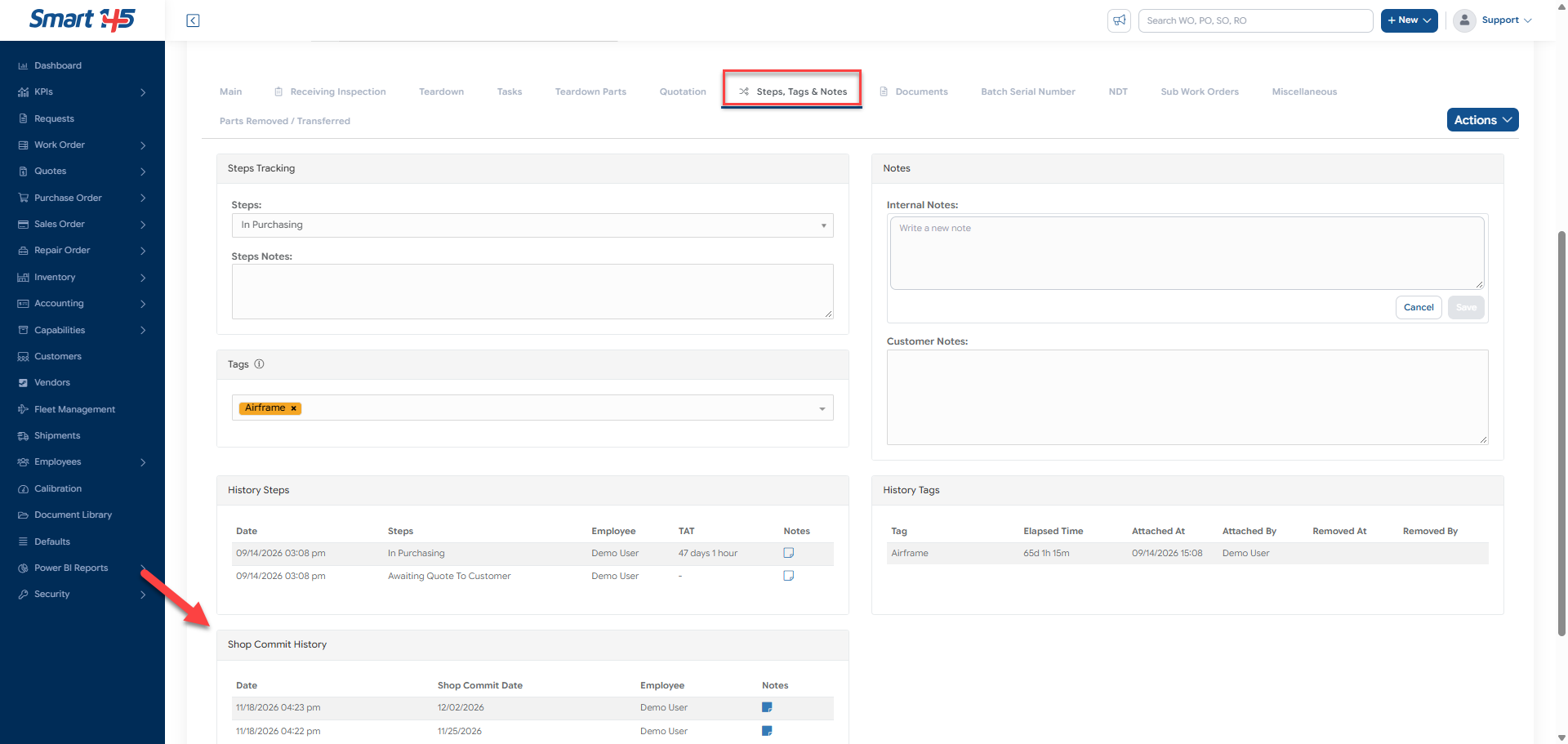
Click the note icon in the Notes column to read the reason for that change.
Get Notified by Email When the Shop Commit Date Changes
You can have Smart 145 send an email to the right people every time the Shop Commit Date of a Work Order is updated.
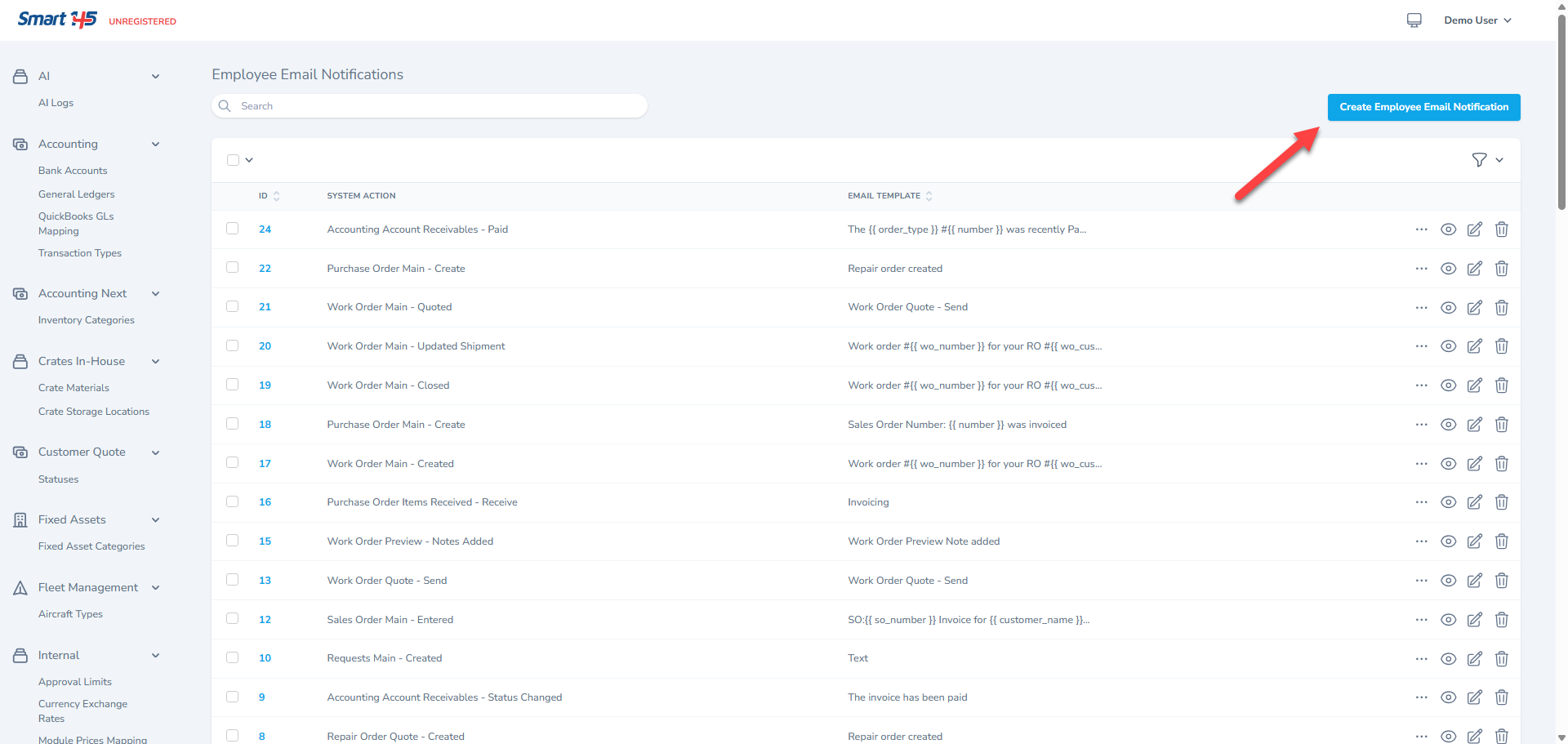
In Administration, go to Employee Email Notifications and click Create Employee Email Notification.
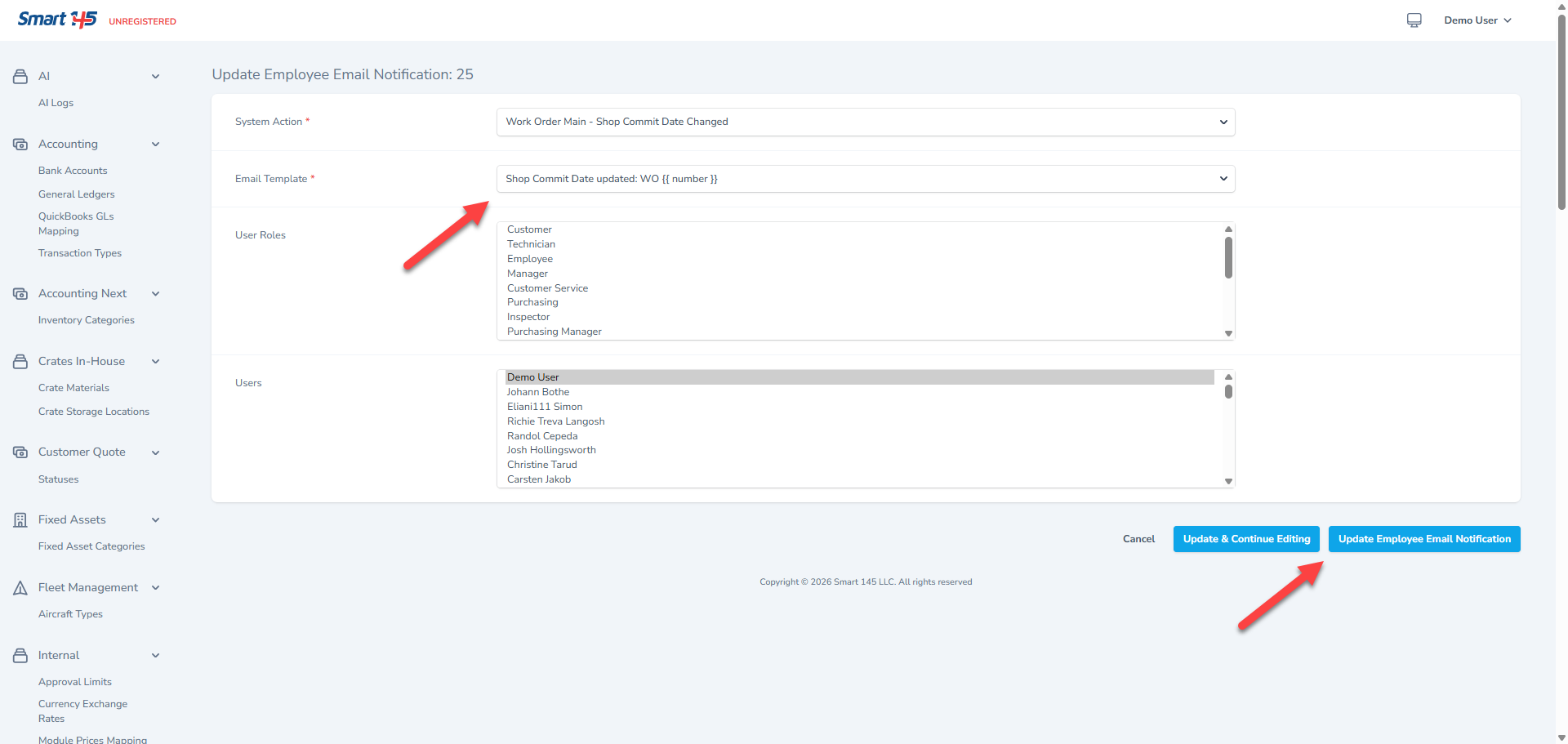
In System Action, select Work Order Main - Shop Commit Date Changed. Select the Email Template to use, and choose the User Roles or Users who should receive the notification. Then click Create Employee Email Notification to save it.
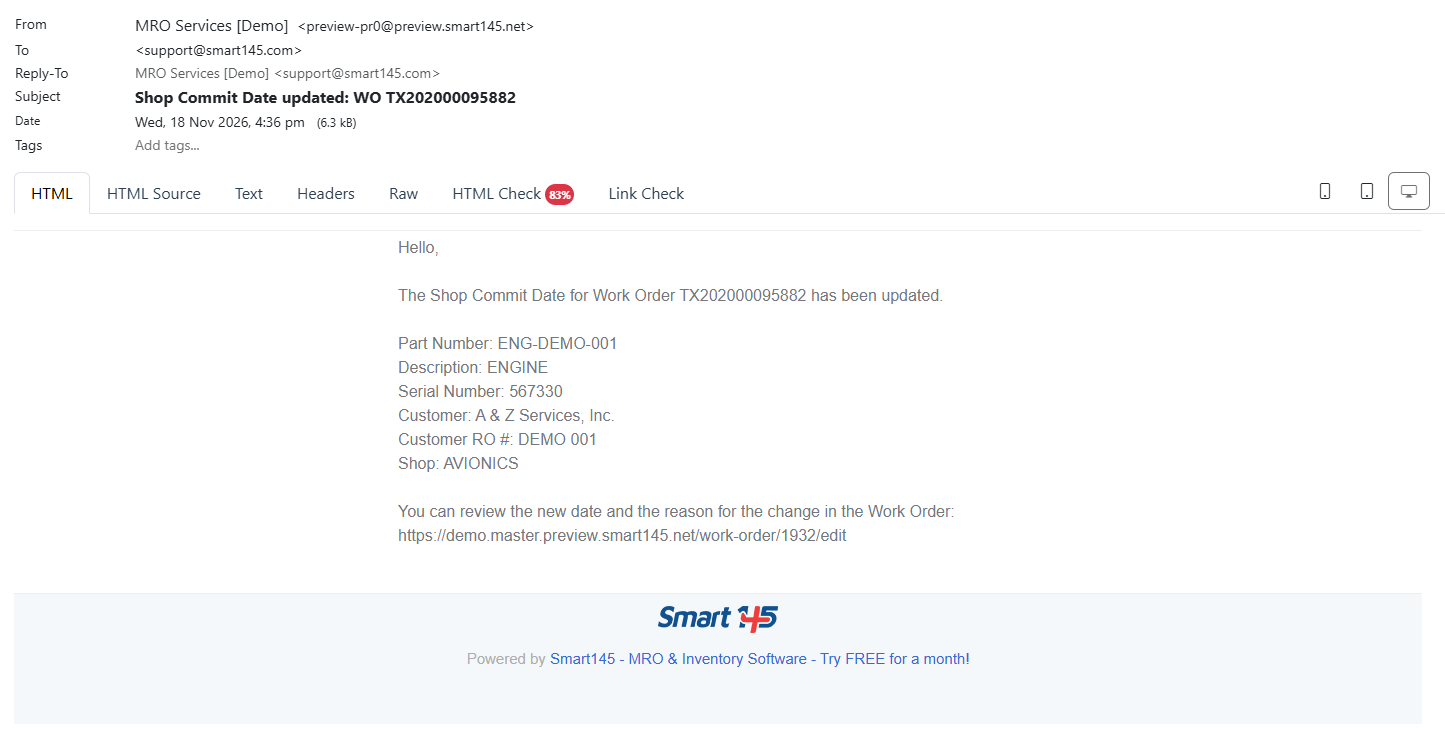
From then on, every change to the Shop Commit Date sends an email with the Work Order number, part number, serial number, customer, Customer RO #, shop, and a link to open the Work Order.
Permissions
Two permissions control who can work with this field: View Shop Commit Date and Edit Shop Commit Date. To assign them, go to Security → Roles, open Manage Permissions for the role, type "shop" in the search box to find them quickly, and select them under Work Order › Work Order.
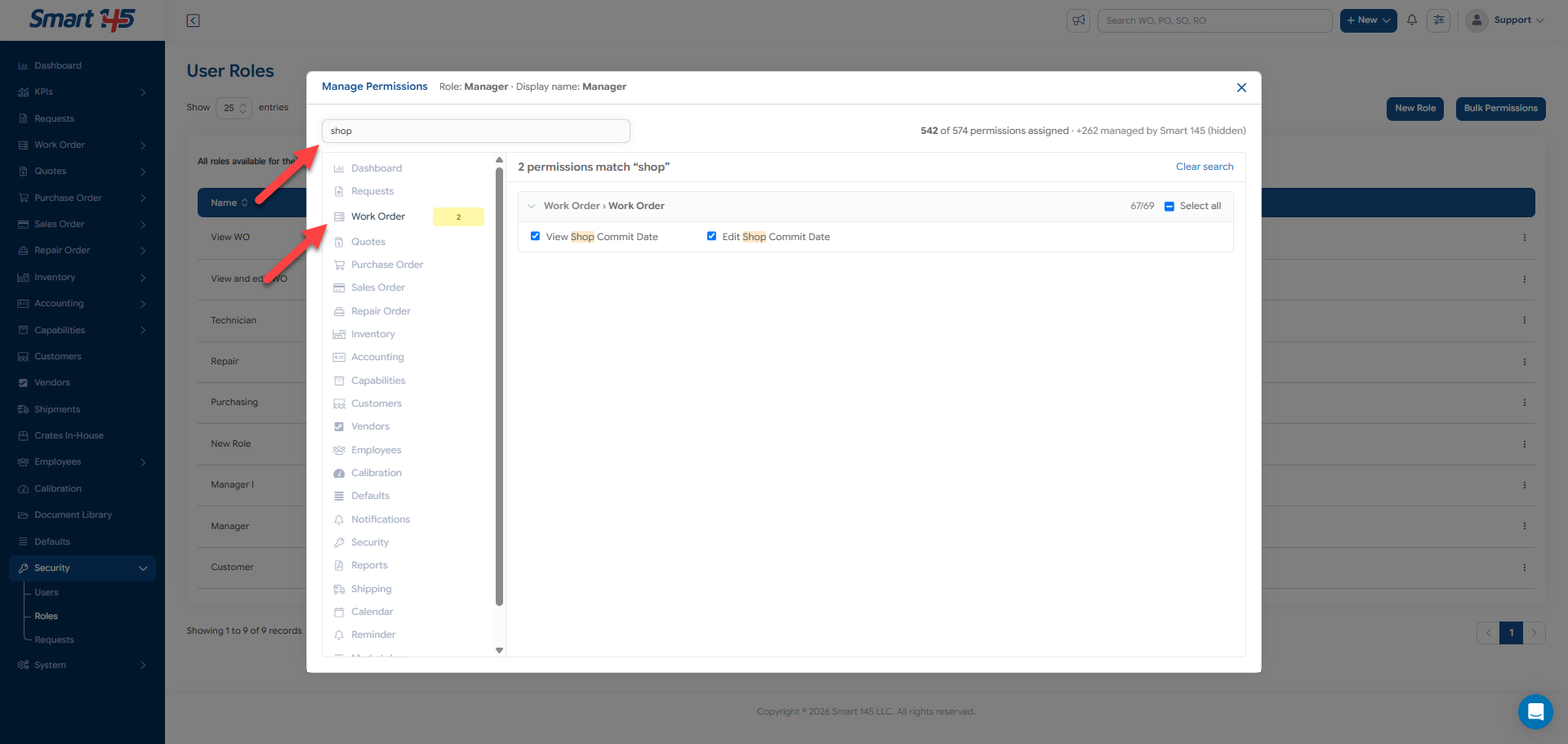
For example, you can let everyone in the shop see the date while only supervisors or planners can change it.
Why This Matters for Aviation MRO Operations
Customers plan their aircraft schedules around the dates you give them. With the Shop Commit Date, your team works with one clear commitment per unit, every change is explained and recorded, and the people who need to know are notified right away.
Customer service can answer "when will my unit be ready?" with confidence, supervisors can prioritize the work that's due first, and you build a history that shows how well your shop meets its commitments.