
In aviation MRO operations, much of the work happens away from a desk: at the bench, in receiving, in the stockroom, or on the shipping dock. Technicians and inventory teams often need to check a Work Order, find a part, or record their hours without walking back to a computer.
The Smart 145 mobile app brings your account to the shop floor. From your phone you can review Work Orders and their reports, scan QR codes and labels, search inventory by part number, check shipments, upload documents, and clock in and out of tasks. This article walks you through the app, screen by screen.
Log In and the Home Screen
Download the Smart 145 app from the Apple App Store or Google Play Store. Open it, enter your company domain identifier (for example, yourcompany.smart145.com), and log in with the same email and password you use in the web application. If you work with more than one company, tap Change Company on the login screen.
The Home screen gives you a quick overview of your operation. The Overview section shows the number of Request Orders, Purchase Orders, Sales Orders, and Repair Orders, plus the amount pending Invoicing. The Modules section gives you direct access to Work Order, Work Order Labors, Document Library, Shipments, and Inventory. Pull down on the screen to refresh the numbers.
The bar at the bottom is always available: Home, Scan, and Profile.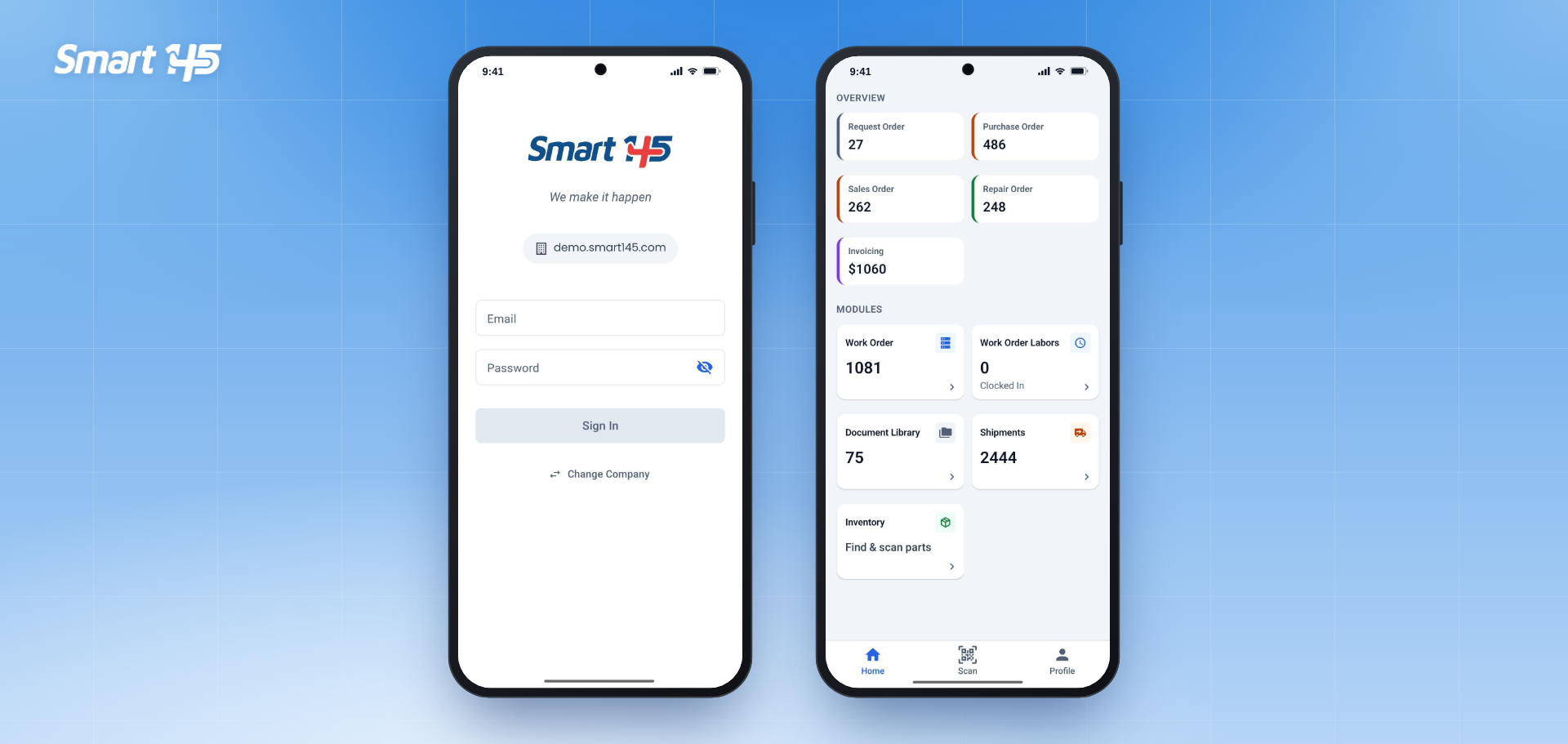
Work Orders
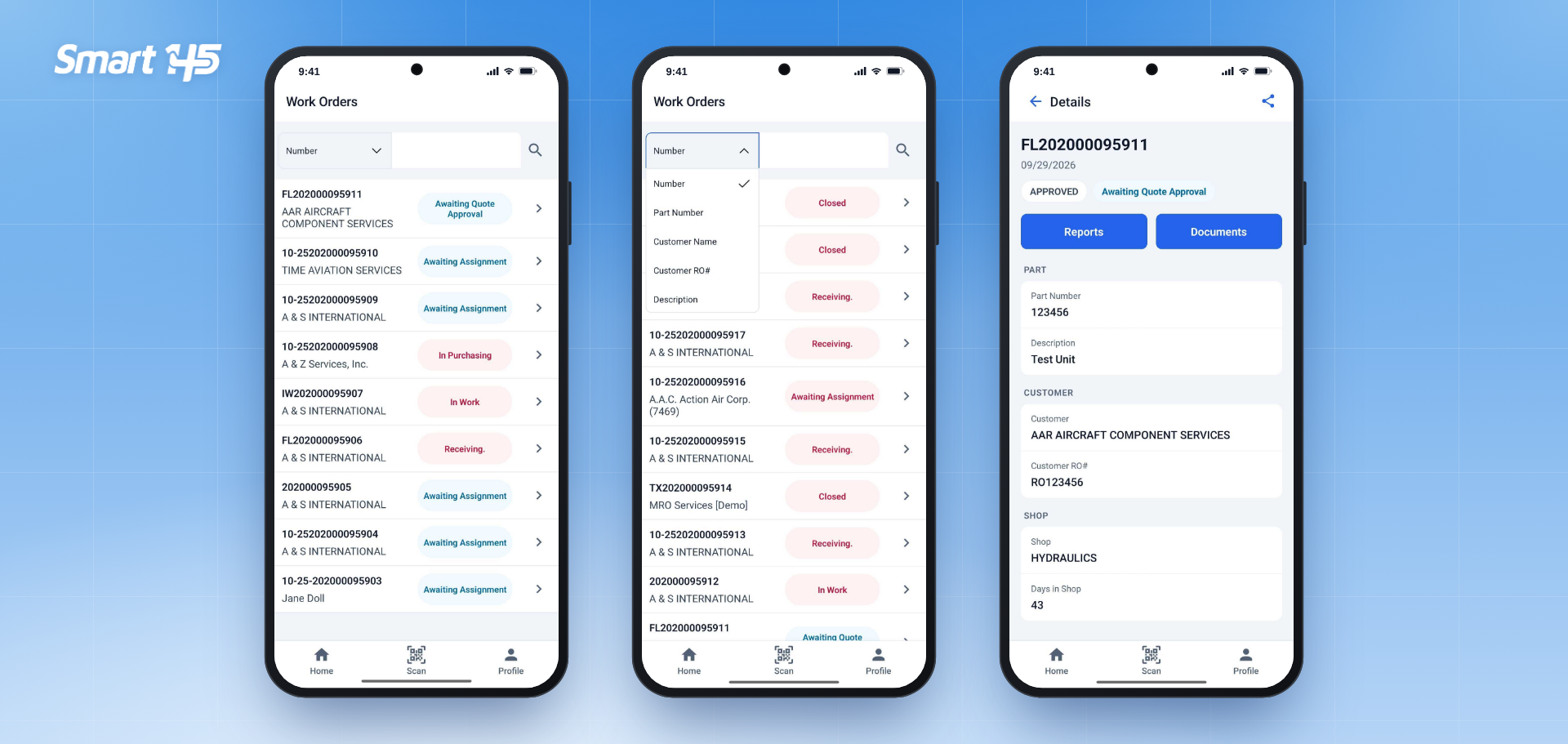
Tap the Work Order card to see the list of Work Orders, each with its customer and current process step (for example, Awaiting Assignment, In Purchasing, or In Work). Use the search bar to find a Work Order by Number, Part Number, Customer Name, Customer RO#, or Description.
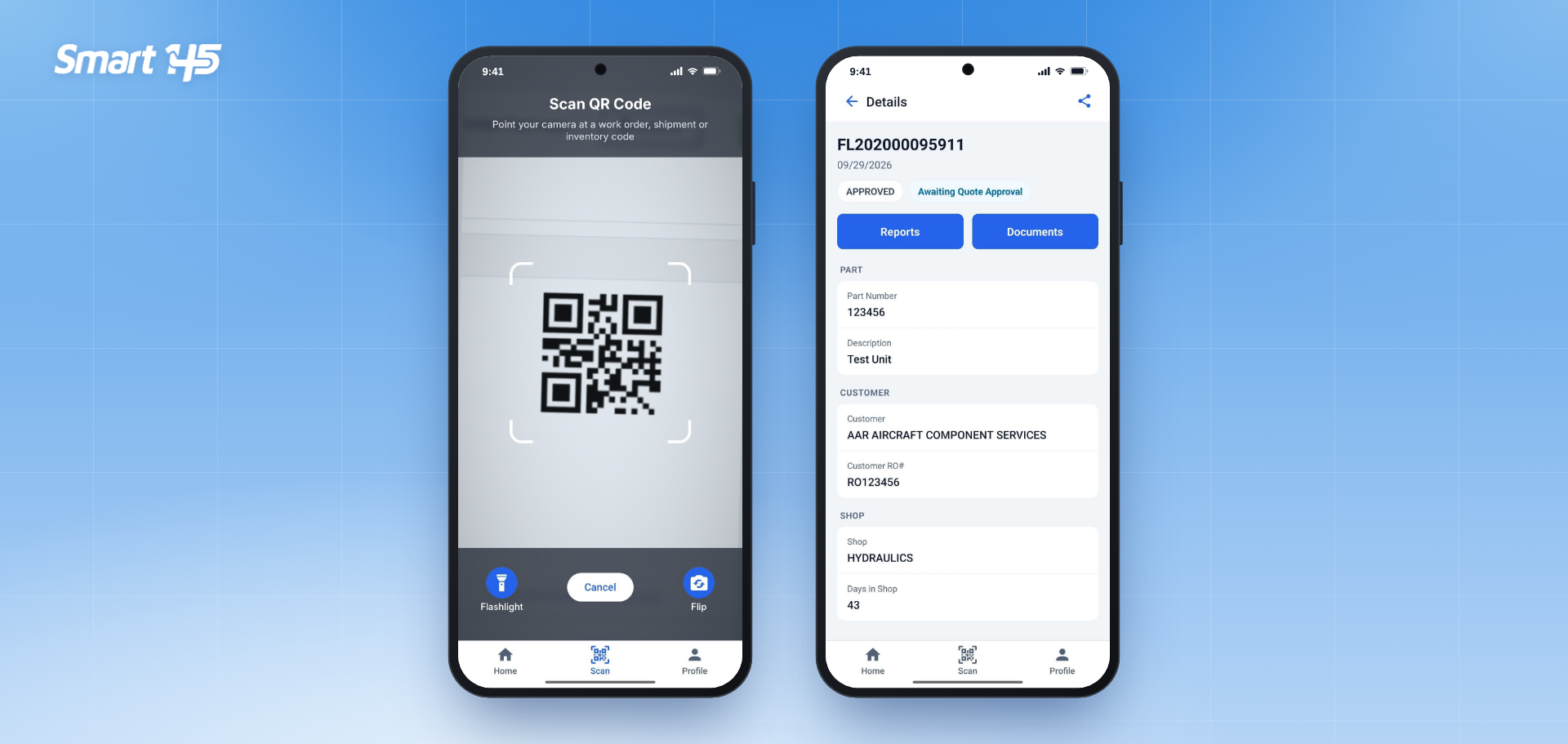
Tap a Work Order to open its Details: status, process step, Part Number and Description, Customer and Customer RO#, Shop, and Days in Shop. Use the share icon in the upper-right corner to send the Work Order information.
From the Details screen, tap Reports to view the Work Order reports in PDF, such as the Work Order, Receiving Inspection, Teardown, 8130, Quote, Part Issue, and Label. Tap the eye icon to open a report, and use the arrow in the upper-right corner to share it. Tap Documents to see the files attached to the Work Order.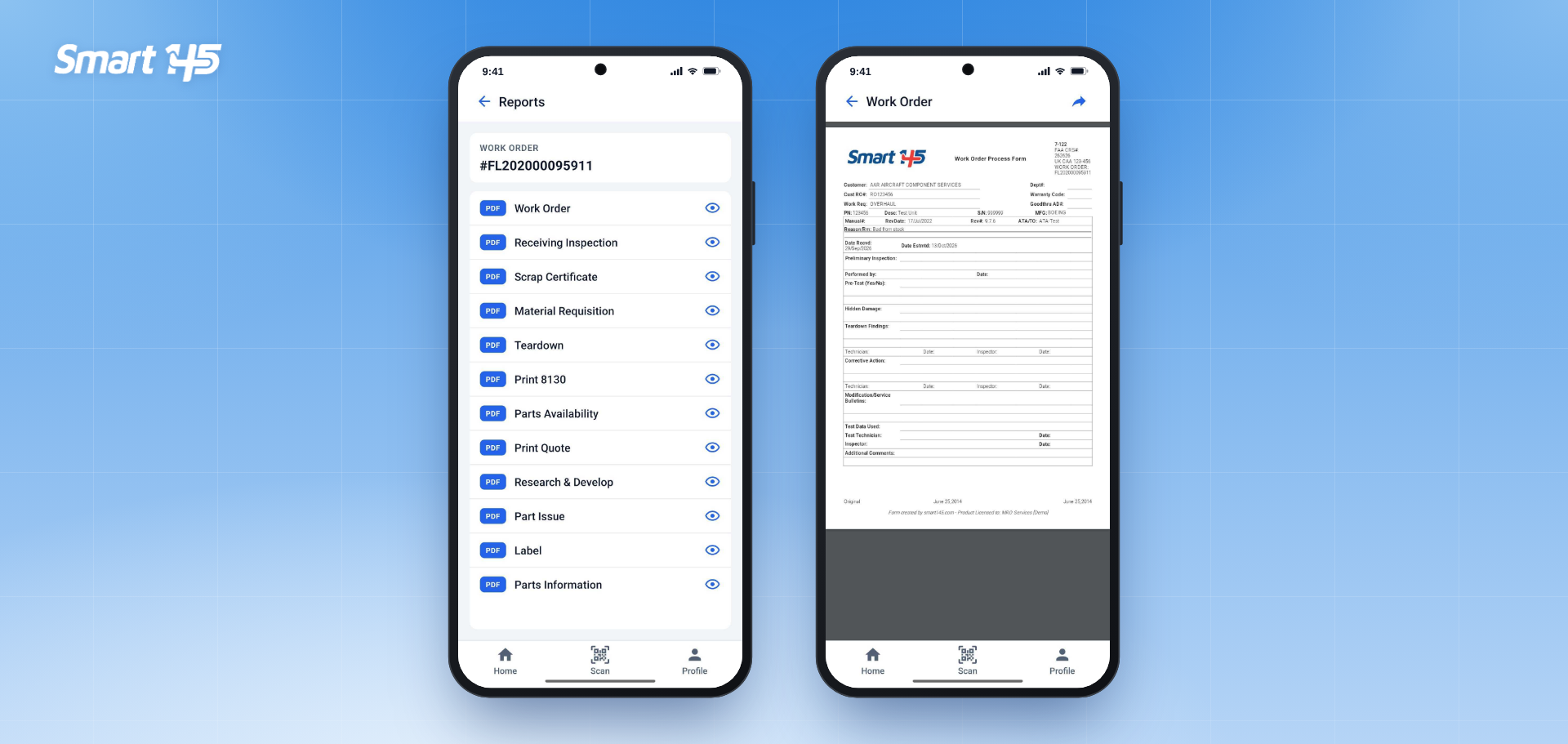
Scan QR Codes
Every Work Order in the web application shows a QR code in the General Information section of its main view.
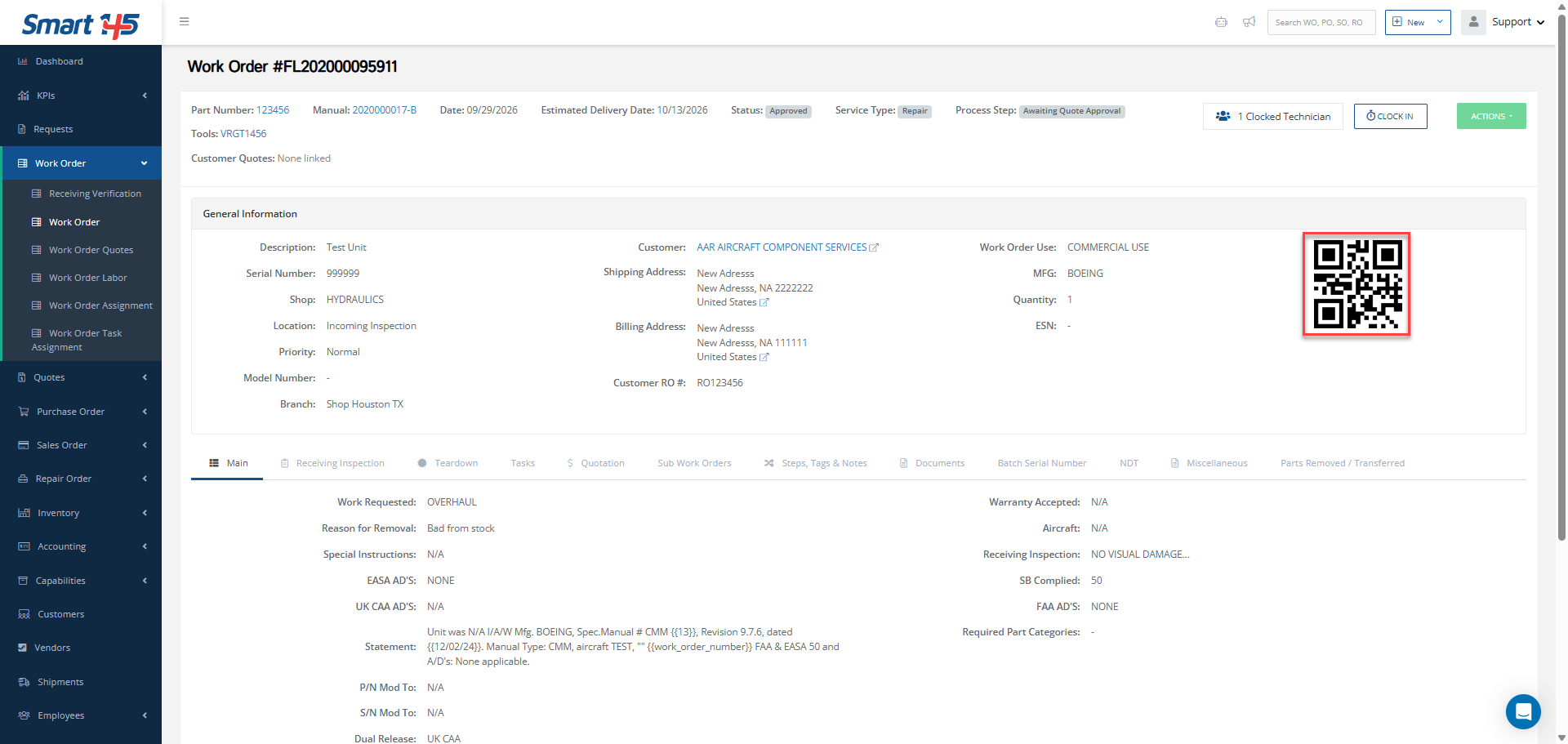
In the app, tap Scan in the bottom bar and point your camera at the code. The scanner reads Work Order, shipment, and inventory codes. Use Flashlight in low light and Flip to switch cameras. Once the code is read, the app opens the matching record directly, for example the Work Order Details screen.
Shipments
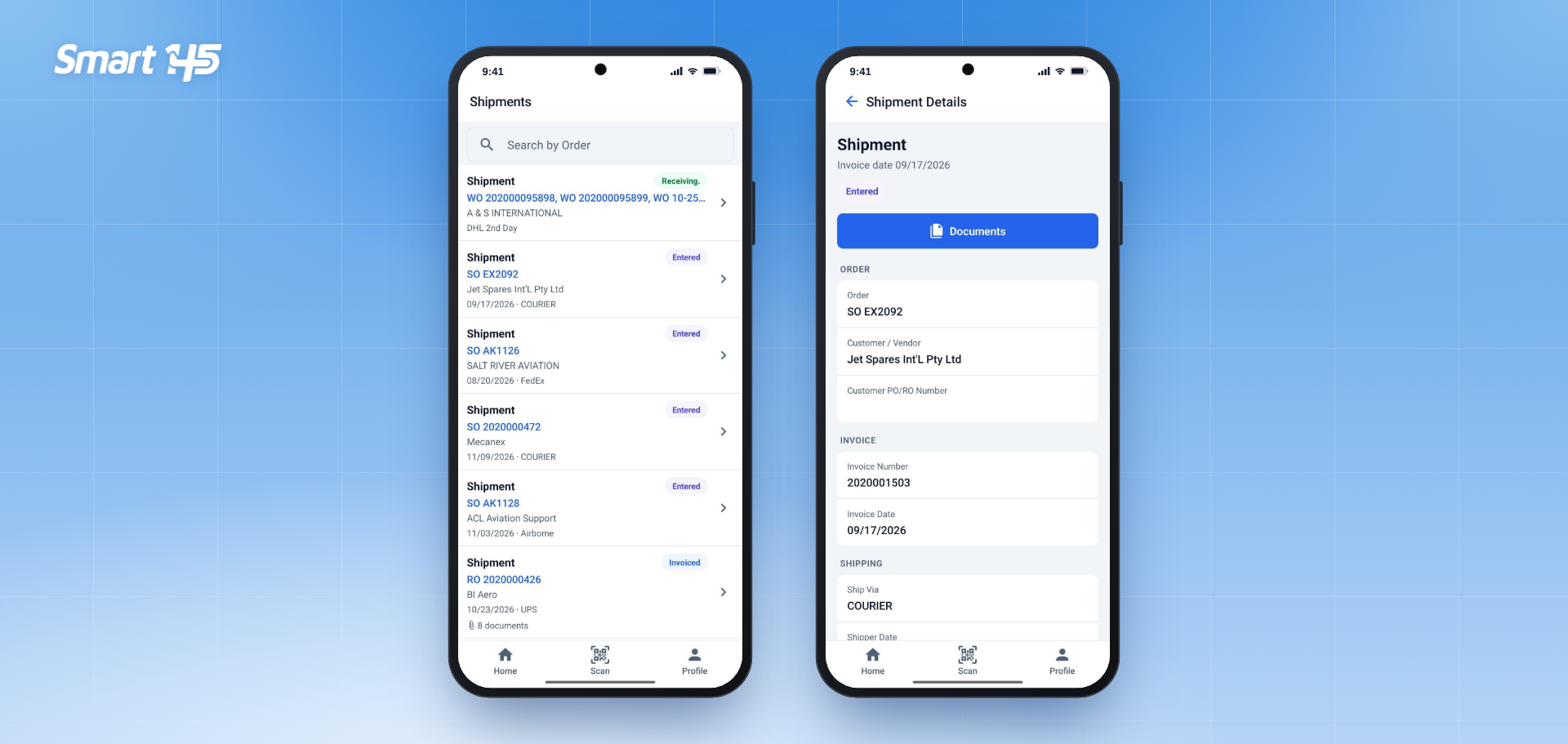
Tap the Shipments card to see recent shipments with their related order (WO, SO, or RO), customer or vendor, date, carrier, and status, such as Entered, Receiving, Partially Shipped, or Invoiced. Use Search by Order to find a specific shipment.
Tap a shipment to open its Shipment Details: the order, customer or vendor, Customer PO/RO Number, invoice number and date, and shipping information such as Ship Via and Shipper Date. Tap Documents to see the files attached to the shipment.
Inventory
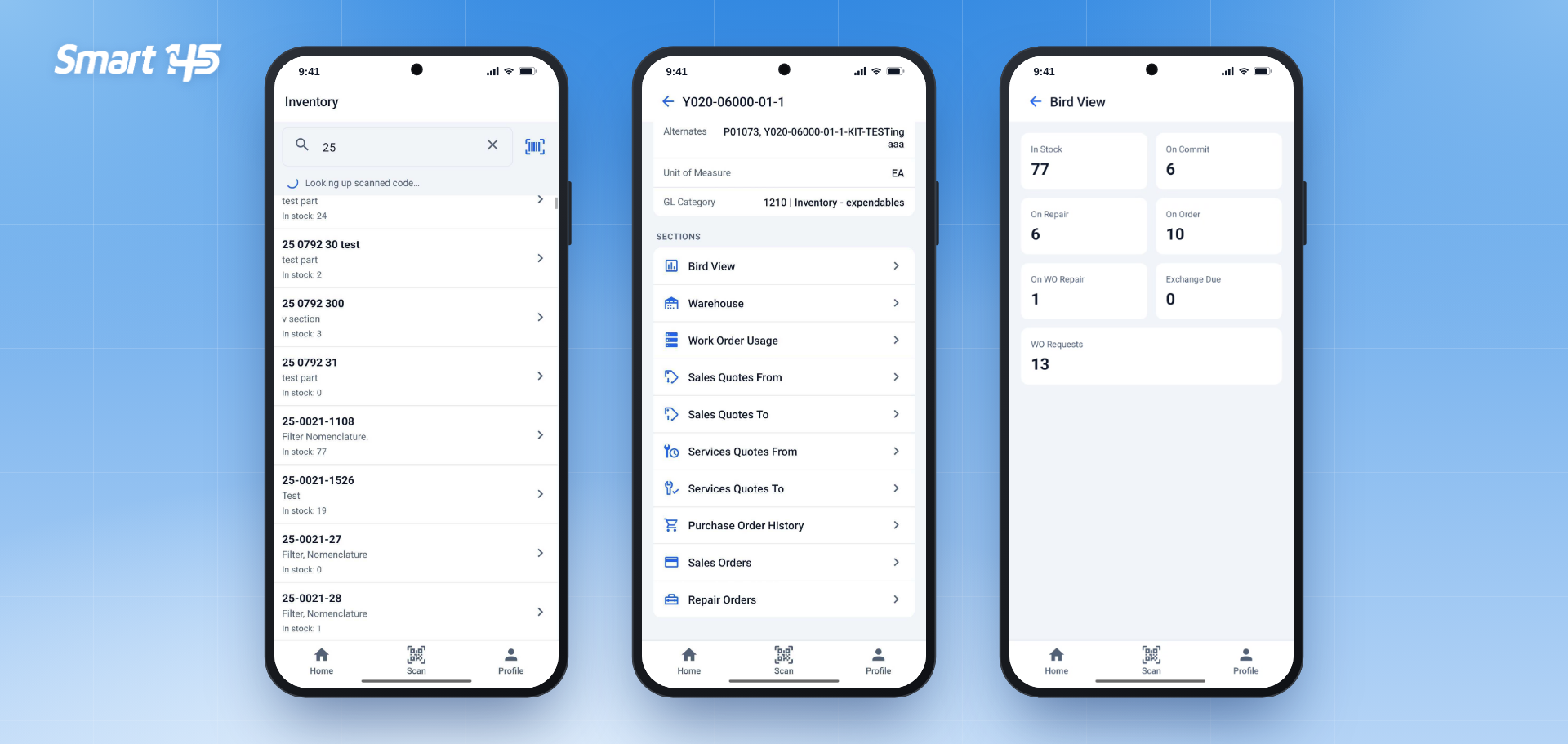
Tap the Inventory card and type at least two characters of a part number in the search bar. The results show each P/N with its description and quantity in stock.
Tap a part number to open its details: description, manufacturer, cost and sell prices, alternates, unit of measure, and GL category. Below, the Sections list gives you access to the same views you use in the web application: Bird View, Warehouse, Work Order Usage, Sales and Services Quotes, Purchase Order History, Sales Orders, and Repair Orders. Bird View summarizes the part's quantities at a glance: In Stock, On Commit, On Repair, On Order, On WO Repair, Exchange Due, and WO Requests.
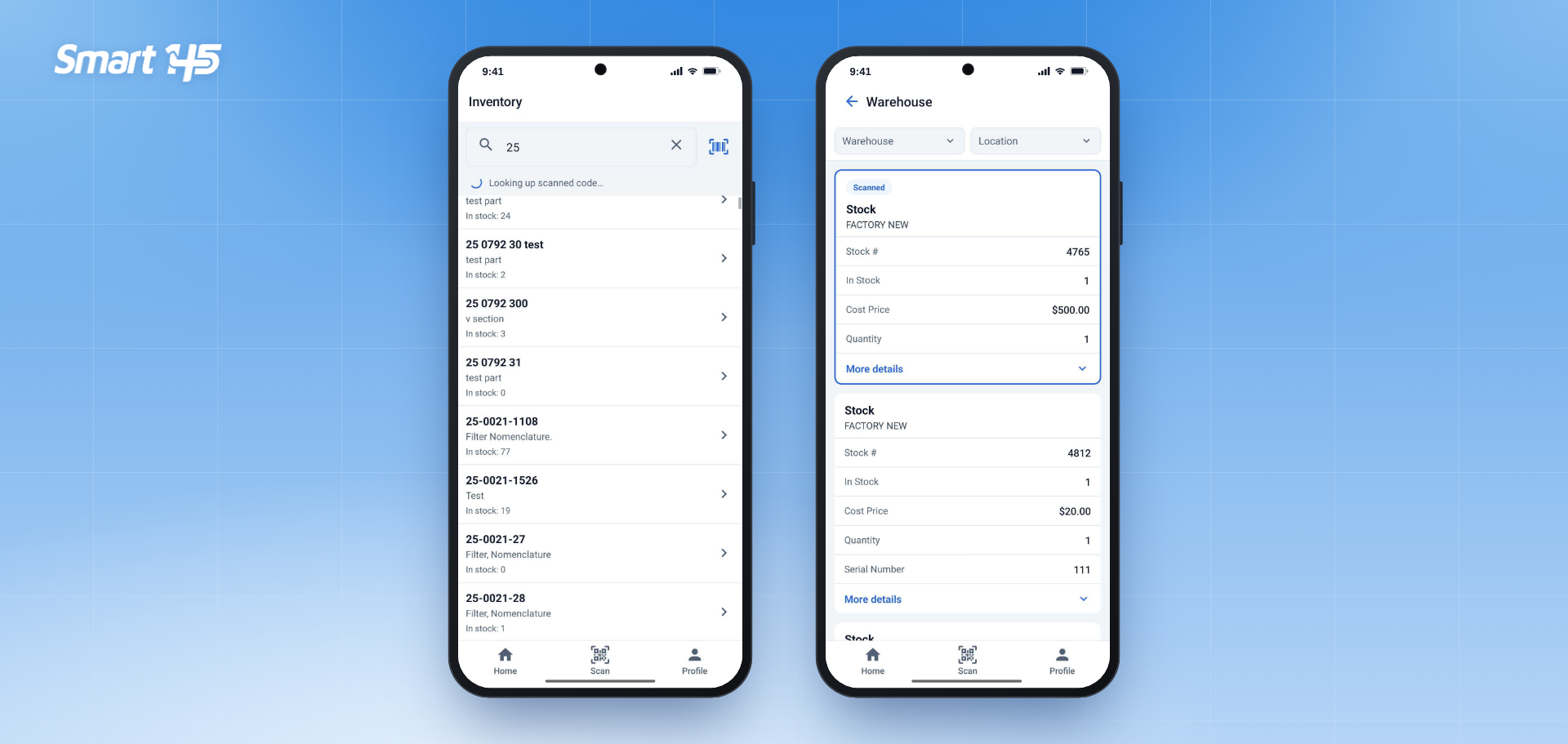
To find a part even faster, tap the barcode icon next to the search bar and scan the inventory label. The app opens the Warehouse view of that part and highlights the scanned stock line with the Scanned tag, along with its condition, stock number, quantity, and cost.
Document Library
Tap the Document Library card to see your company's stored documents, with their size, upload date, and who uploaded them. Use the search bar to find a document by description or file name.
To add a document, tap the upload icon in the upper-right corner. Tap + to browse and choose the files from your phone, such as photos taken at the bench, add a Description, and tap Upload. Each file can be up to 20 MB. Documents uploaded from the app are available in the Document Library of the web application, where they can be attached to Work Orders with the Copy From option.
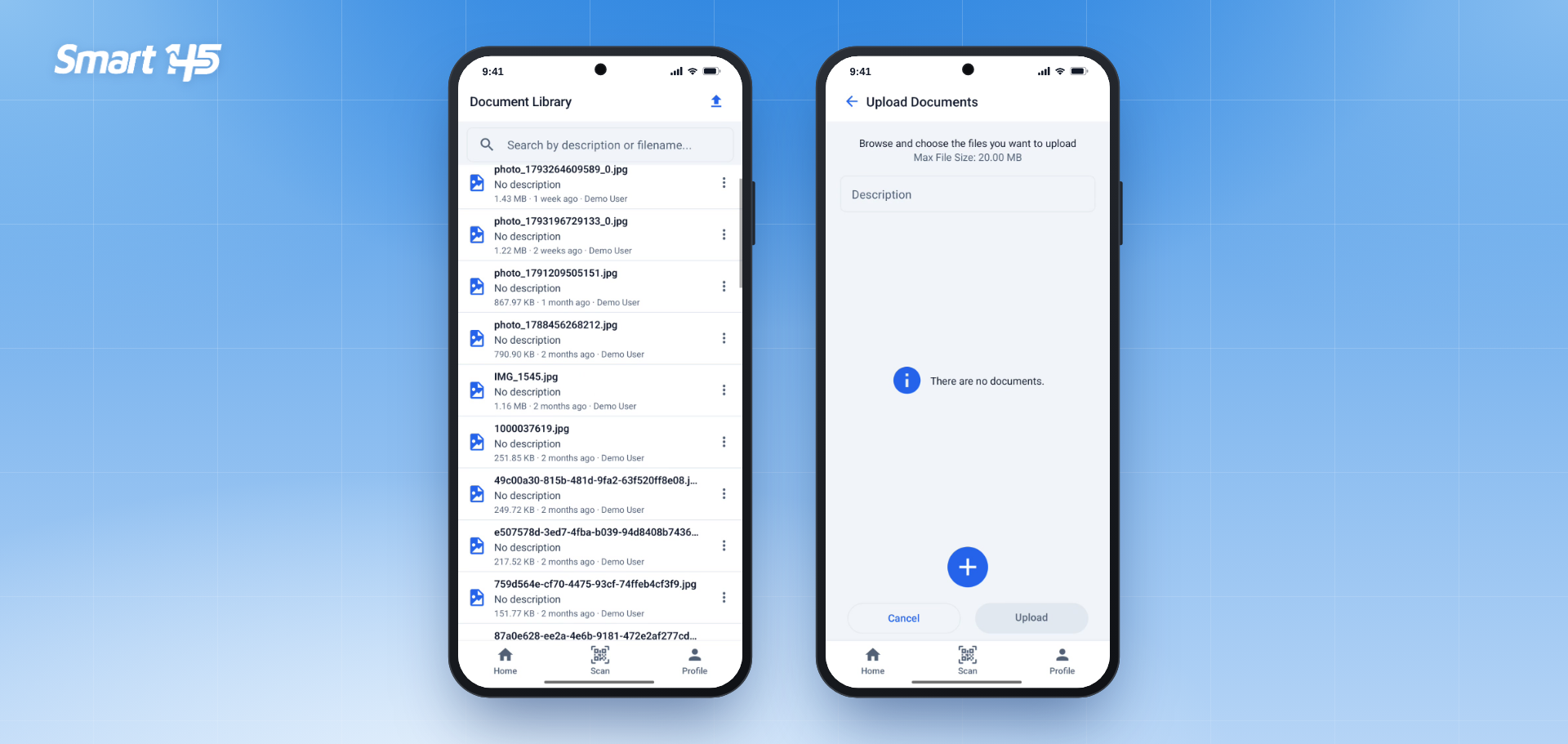
Note: The Document Library must be enabled for your account. Contact support@smart145.com if you don't see it.
Work Order Labors: Clock In and Out
The Work Order Labors card shows how many tasks you currently have clocked in. From there, technicians can clock in and out of Work Order tasks by scanning the Start and Complete barcodes on the Work Order Traveler, or by selecting the tasks manually. See the step-by-step guide in How Can I Clock In and Out of Work Orders from the Smart 145 Mobile App?
Profile and Appearance
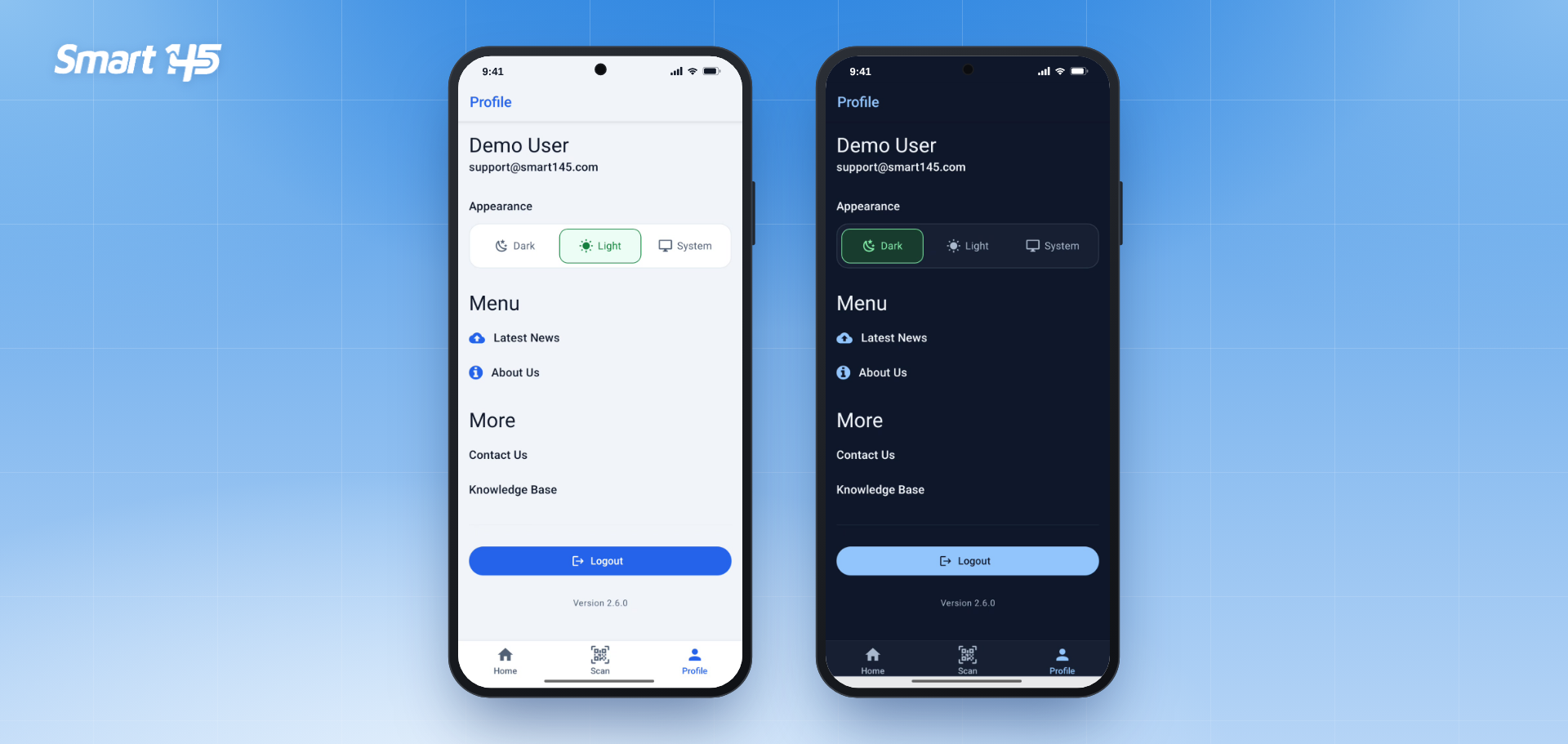
Tap Profile in the bottom bar to see your username and email. Under Appearance, choose Dark, Light, or System, which follows your phone's setting. Dark mode is easier on the eyes in low-light areas of the shop.
The Menu gives you access to Latest News and About Us, and under More you'll find Contact Us and the Knowledge Base. Tap Logout to sign out of the app.
Why This Matters for Aviation MRO Operations
In a repair station, information is needed where the work happens. With the mobile app, technicians can check a Work Order and its reports at the bench, receiving and stockroom teams can scan a label to find a part instantly, and shipping can confirm a shipment without leaving the dock.
This reduces trips to the computer, speeds up daily tasks, and keeps the records in Smart 145 accurate and up to date, from the moment a unit is received until it ships back to the customer.