How Can I Create a Work Order from a Document Using AI?
In aviation MRO operations, creating a Work Order often starts with reviewing documents provided by the customer, such as a customer Repair Order (RO), a quotation, or other documents containing information about the component being sent for repair. Manually transferring this information into the system can take time, especially when processing multiple units, and increases the risk of data entry errors that may affect the repair workflow.
Smart 145 now offers an AI-powered Import from Document option directly from the Work Order creation screen. This functionality extracts relevant information from the uploaded document and populates the corresponding fields in the new Work Order, helping teams register incoming components faster, reduce repetitive data entry, and maintain consistency between customer documentation and operational records.
How It Works
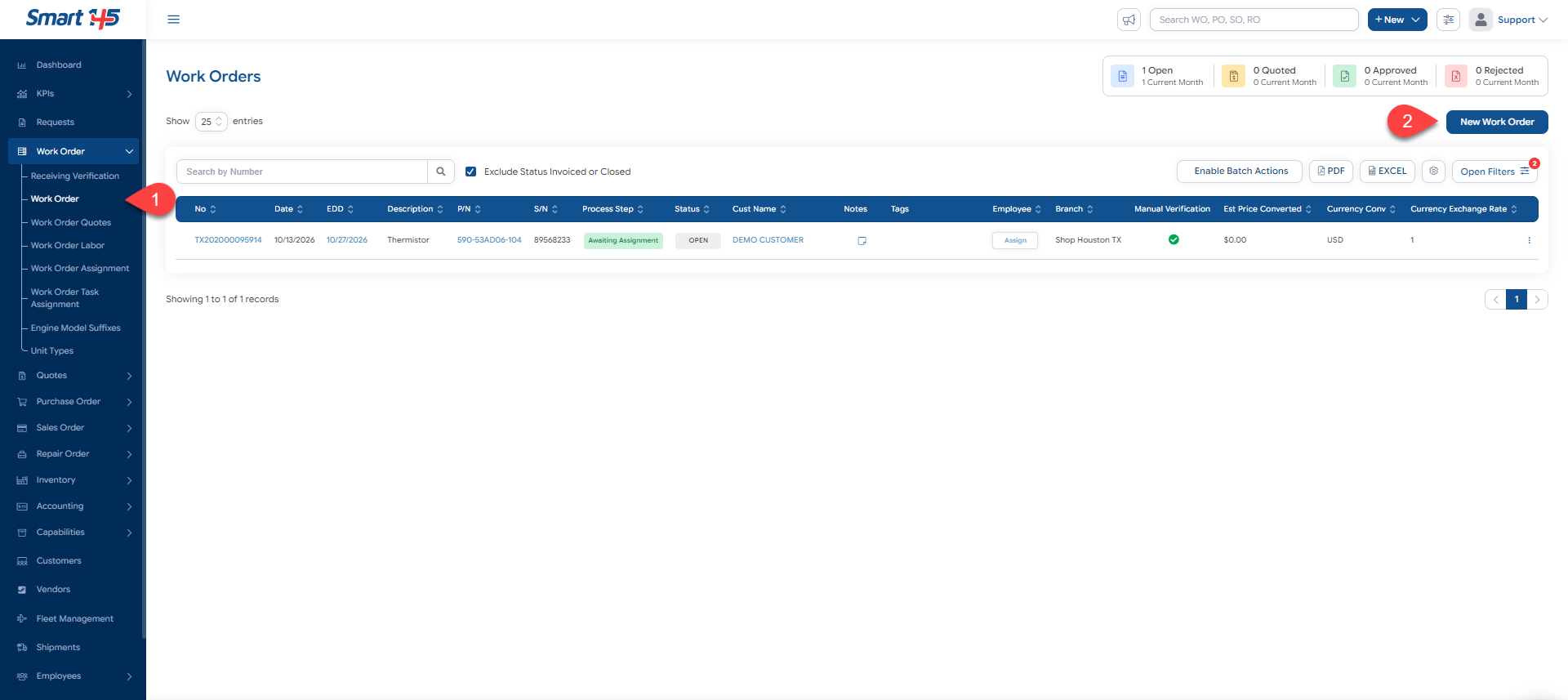
To create a Work Order using this functionality, navigate to Work Order → Work Order and click New Work Order to open the Work Order creation screen.
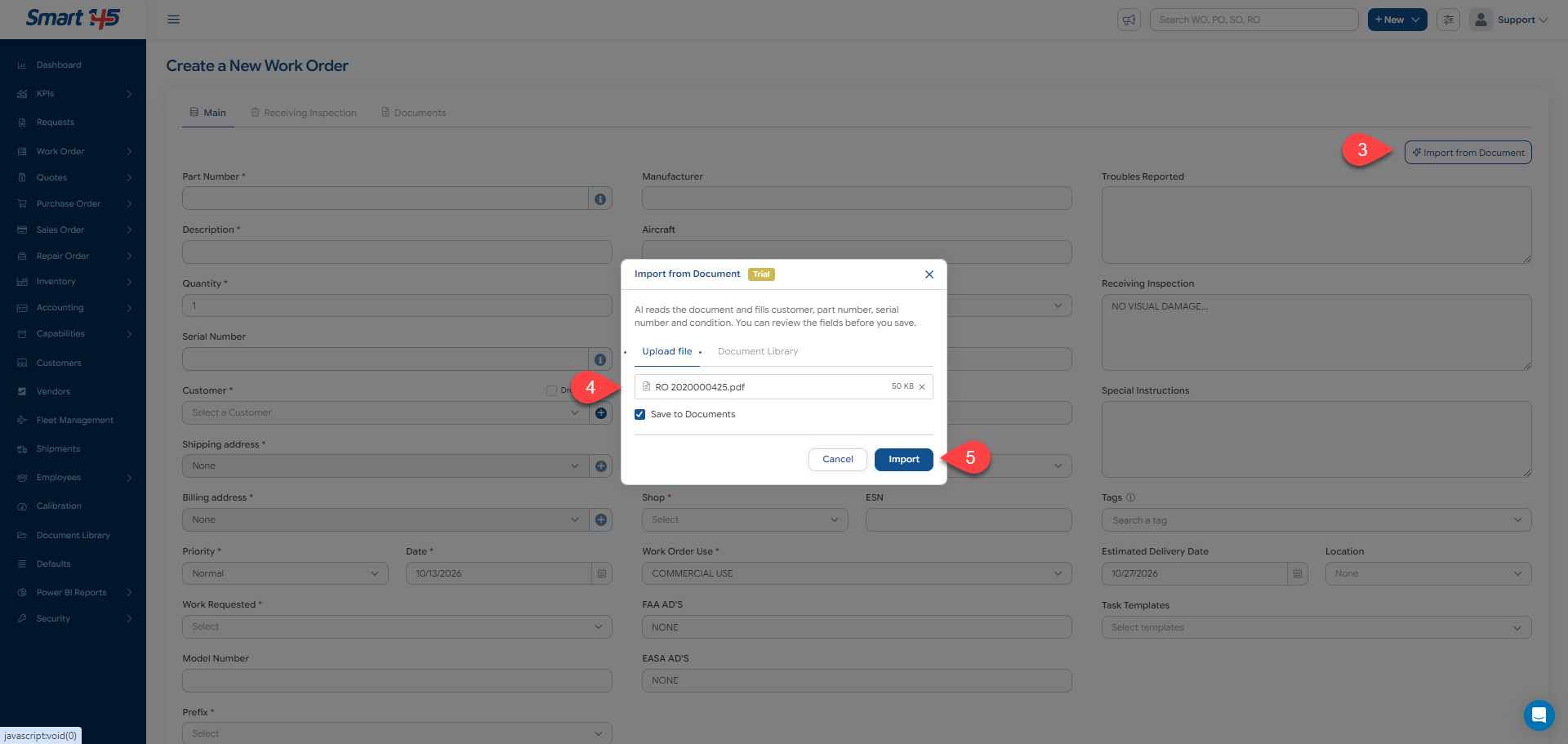
Then click Import from Document in the upper-right corner of the form and select the document you want to use. You can upload a file directly from your computer or select an existing document from the Document Library. If you want to keep a copy of the original document attached to the Work Order, leave the Save to Documents option selected. Click Import to let the AI analyze the document and populate the corresponding Work Order fields.
Review the Imported Information
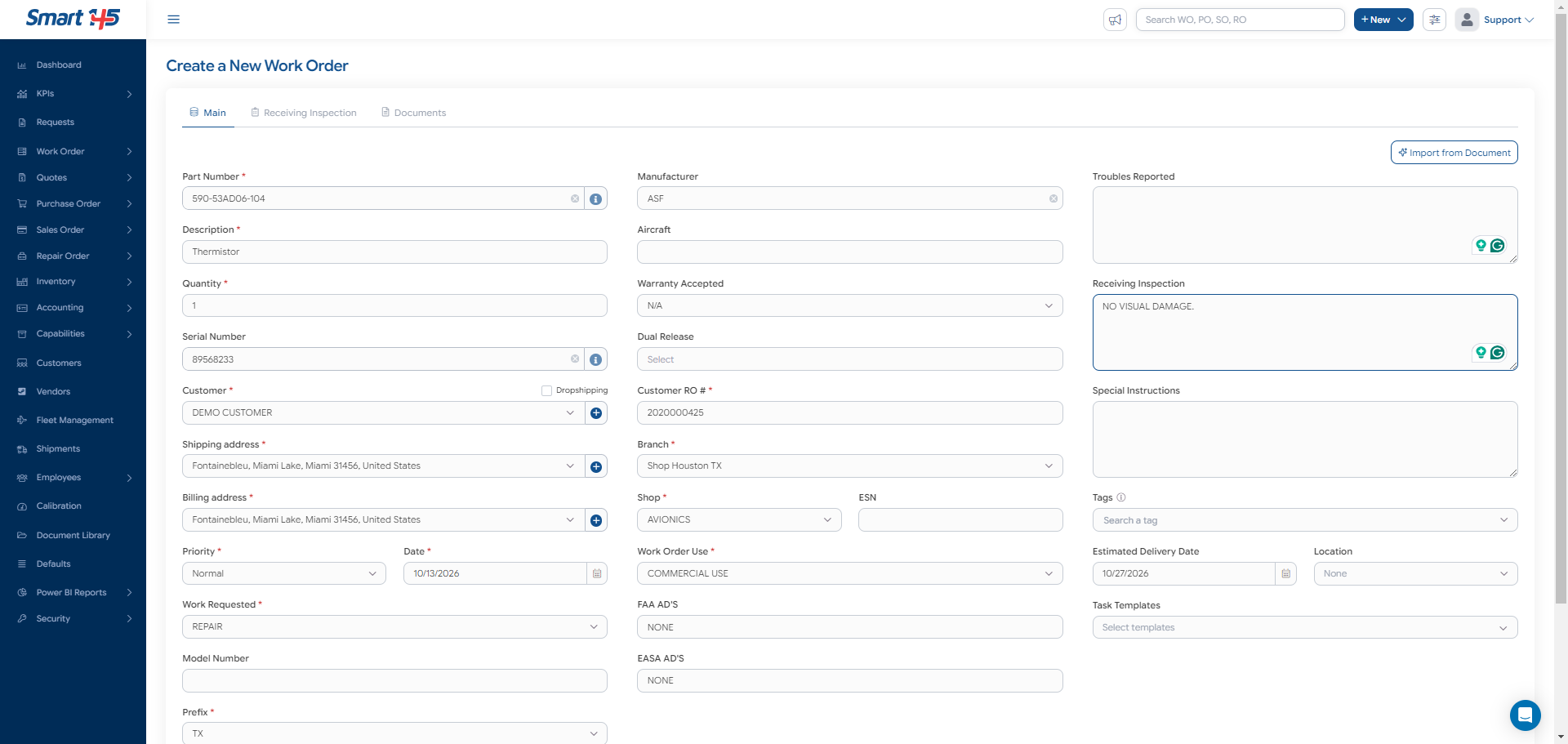
After the import is complete, Smart 145 populates the relevant fields based on the information extracted from the document. Depending on the content provided, this may include:
Customer information
Part Number and Description
Serial Number
Manufacturer
Customer RO Number
Condition-related information
Other applicable Work Order details identified in the document.
Review the populated fields carefully before saving the Work Order. Verify that the extracted information matches the source document, and complete or correct any missing or inaccurate values. This is especially important for Part Numbers, Serial Numbers, and customer references, which help maintain traceability throughout the repair lifecycle.
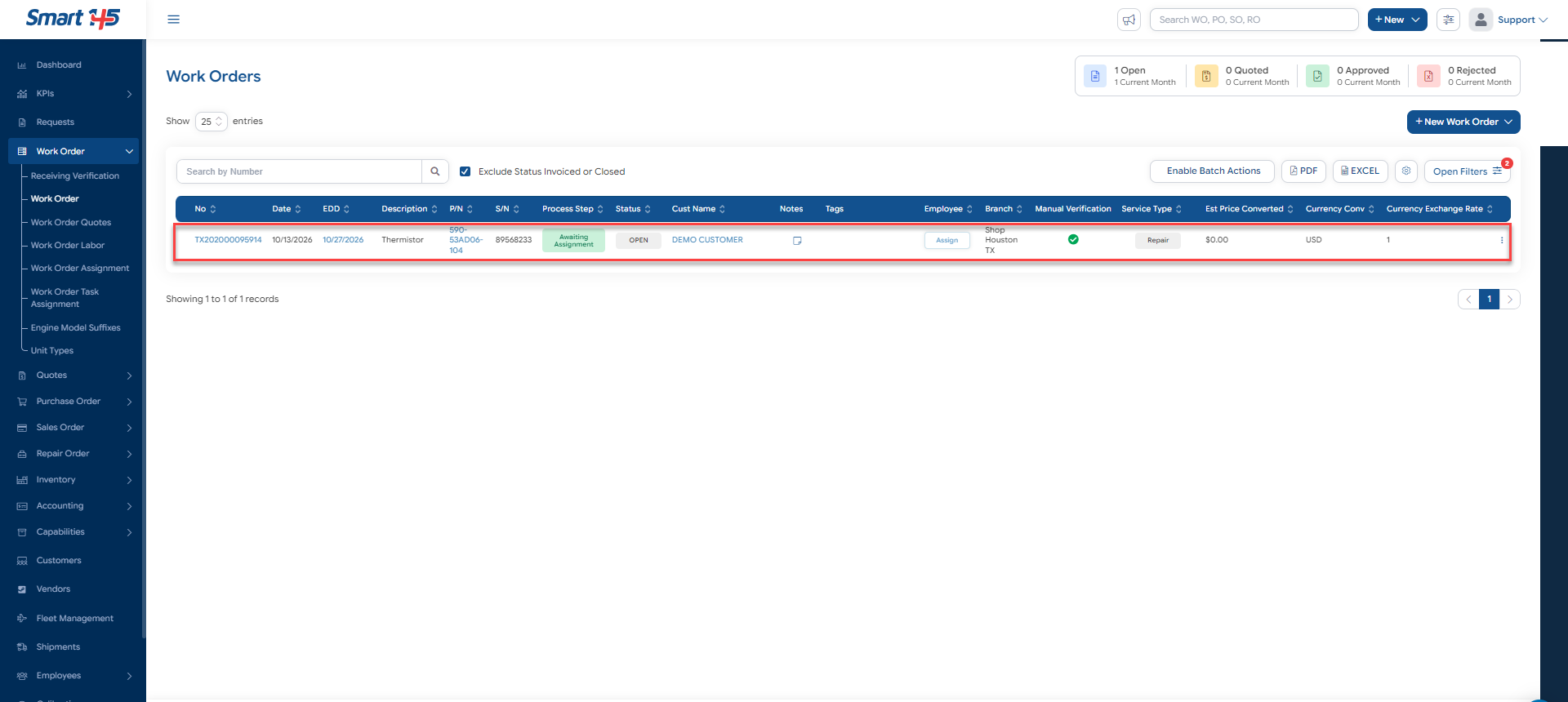
Once the information has been verified and all required fields have been completed, save the Work Order to register the unit in Smart 145.
Why This Matters for Aviation MRO Operations
Accurate Work Order creation is an important first step in managing the repair lifecycle. Incorrect component information or missing customer references can create additional work for Customer Service, receiving, purchasing, and technicians later in the process.
By using AI to extract information from existing documents, Smart 145 helps MRO teams reduce manual administrative work, accelerate the registration of incoming components, and maintain better consistency between customer-provided documentation and Work Order records. This allows teams to spend less time transcribing information and more time coordinating inspections, preparing quotations, and moving repairs forward.
How to Enable This Functionality
To enable the Import from Document feature in your Smart 145 account, contact our Support team at support@smart145.com. Our team will assist you with the required configuration.