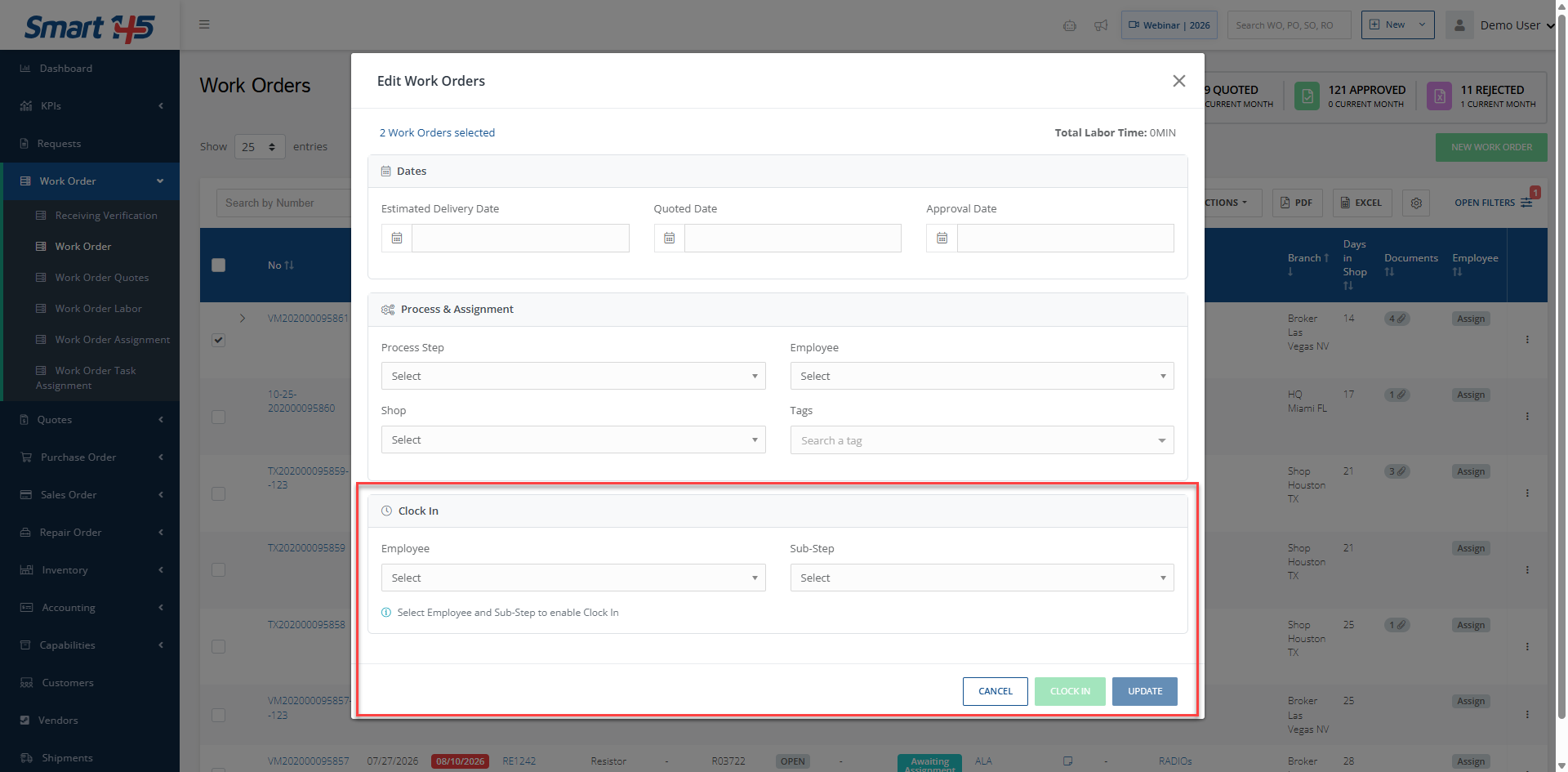
The batch functionality helps streamline Work Order management by allowing users to update, invoice, close, or clock into multiple Work Orders at once. It reduces repetitive manual actions, saves time, and makes it easier to manage a high volume of active Work Orders efficiently.
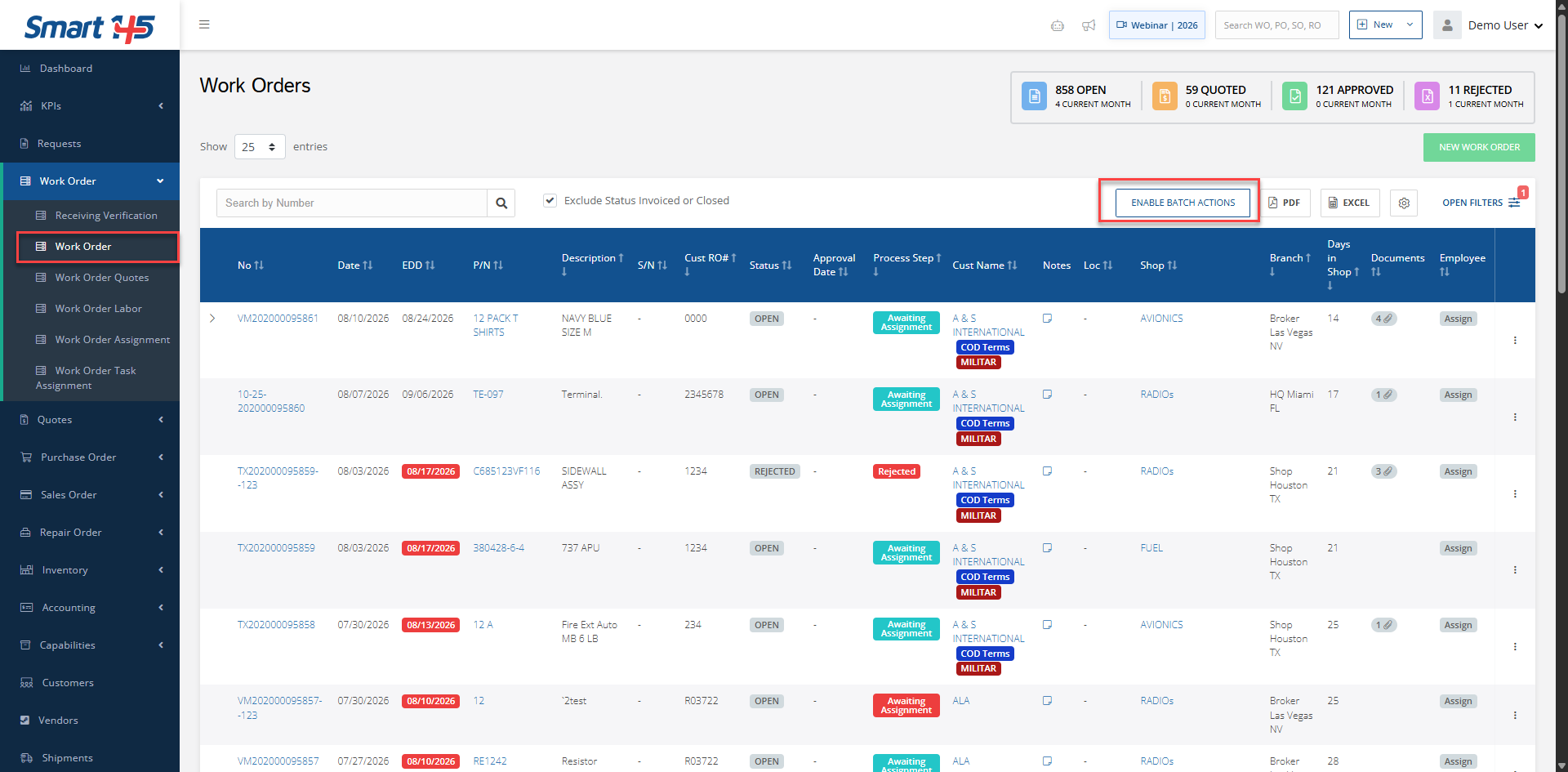
To Update/Invoice/Close several Work Orders at once, you must first access the WO browser and enable Batch Actions by clicking the "Enable Batch Actions" button.
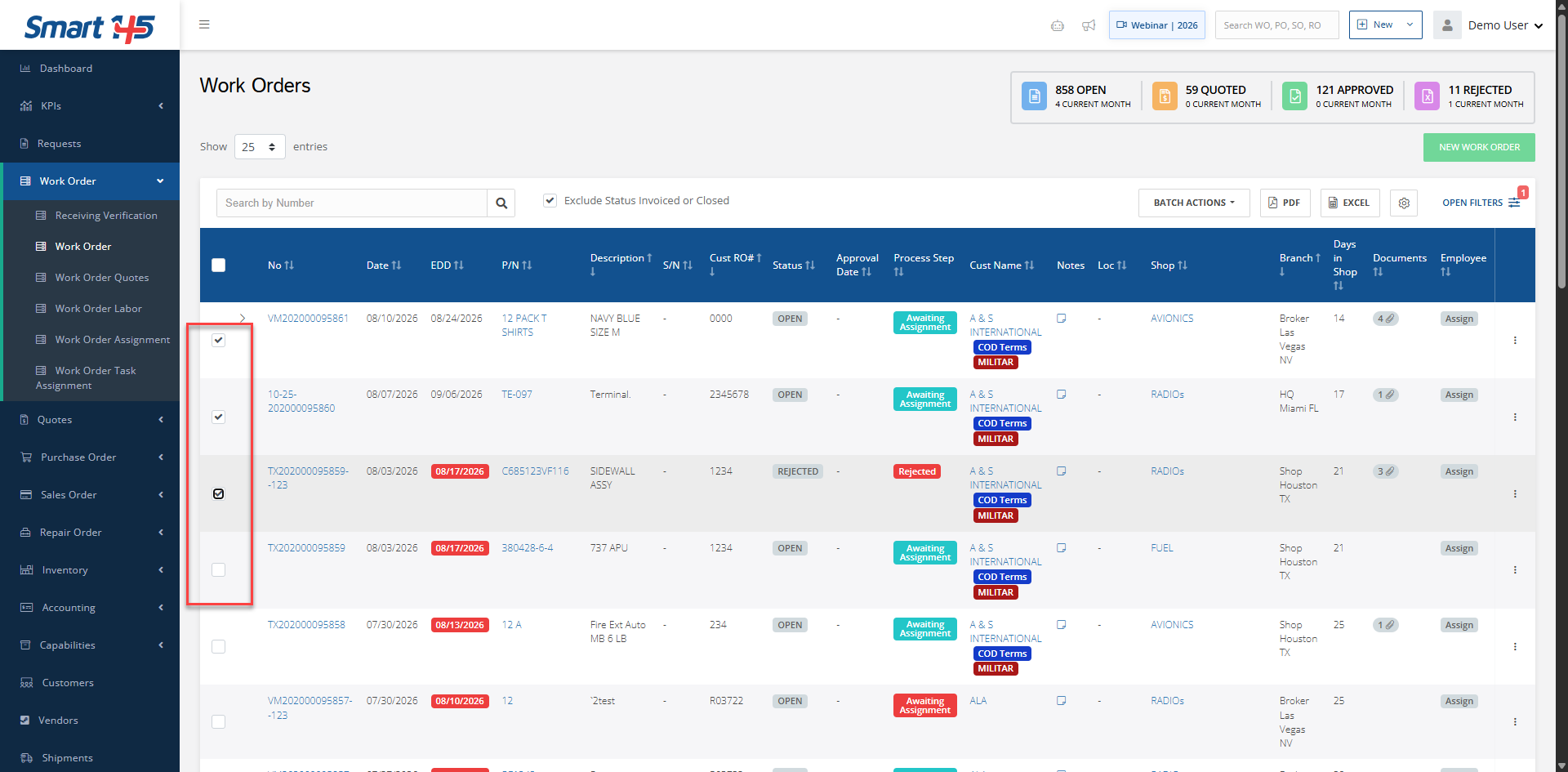
Then, select the WO that you wish to Update/Invoice/Close in batch by marking the checkboxes that appear on its left
Now click on the "Batch Actions" button and then, on the panel that shows, select the desired option.
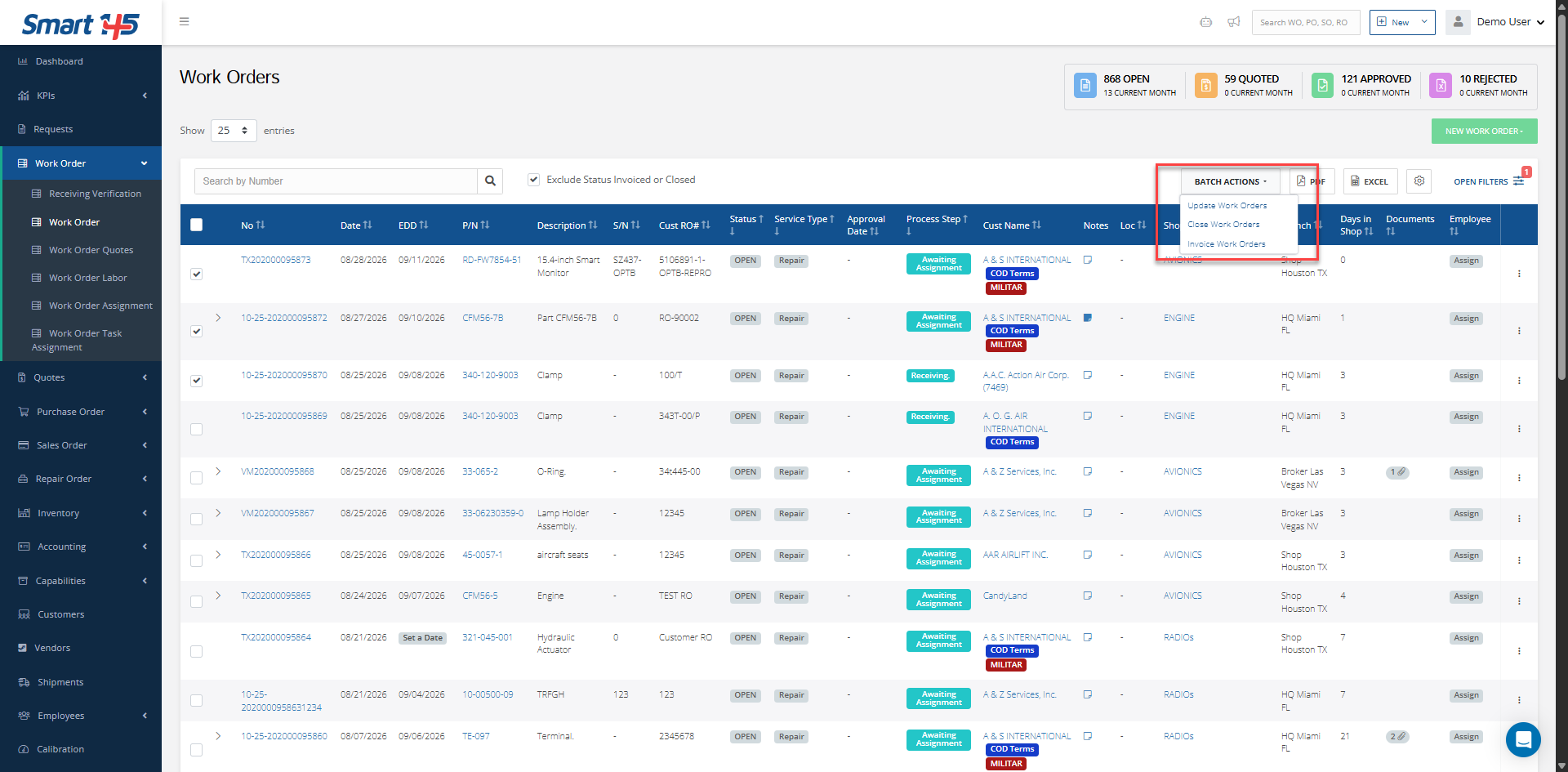
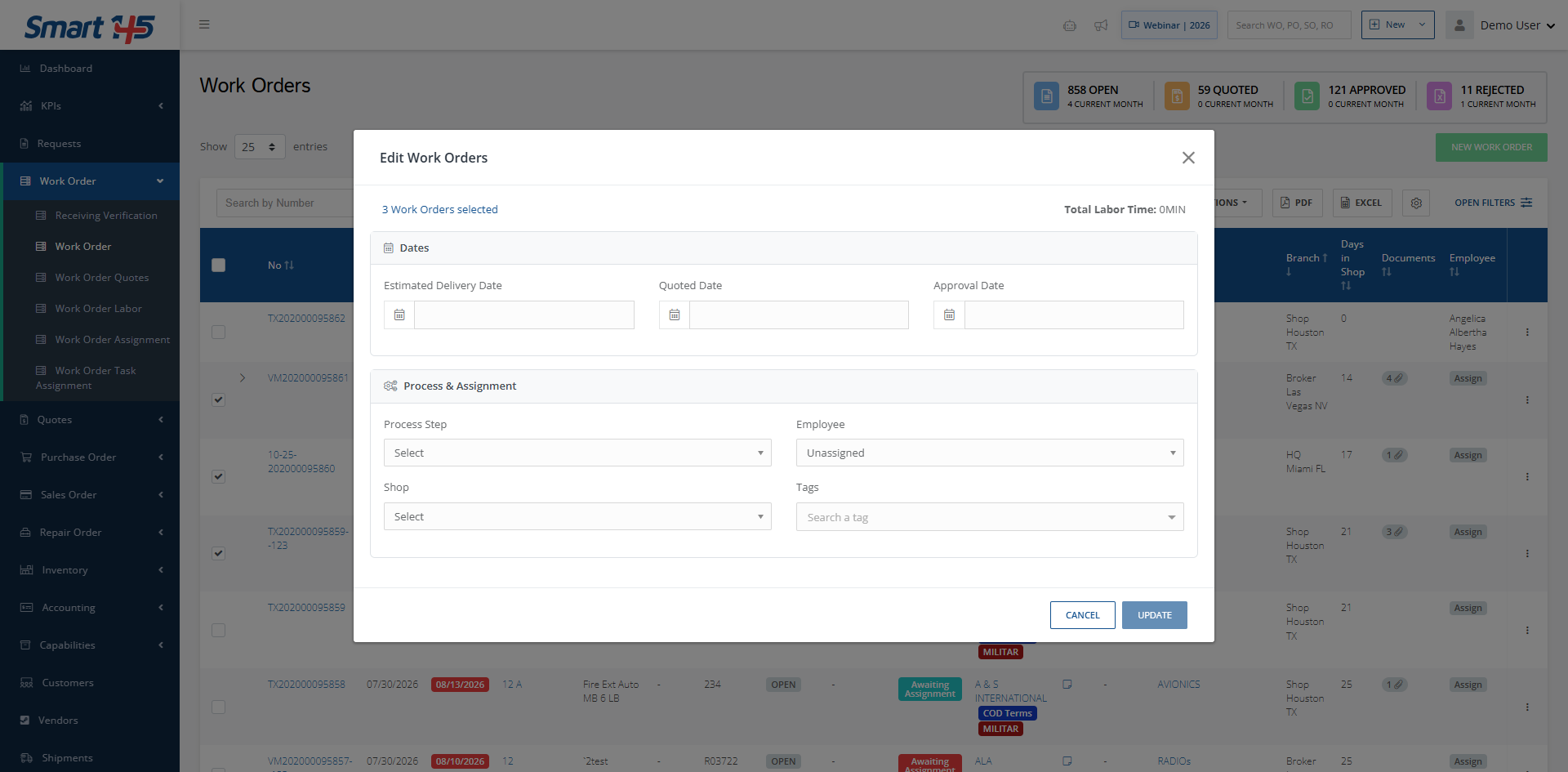
Update:
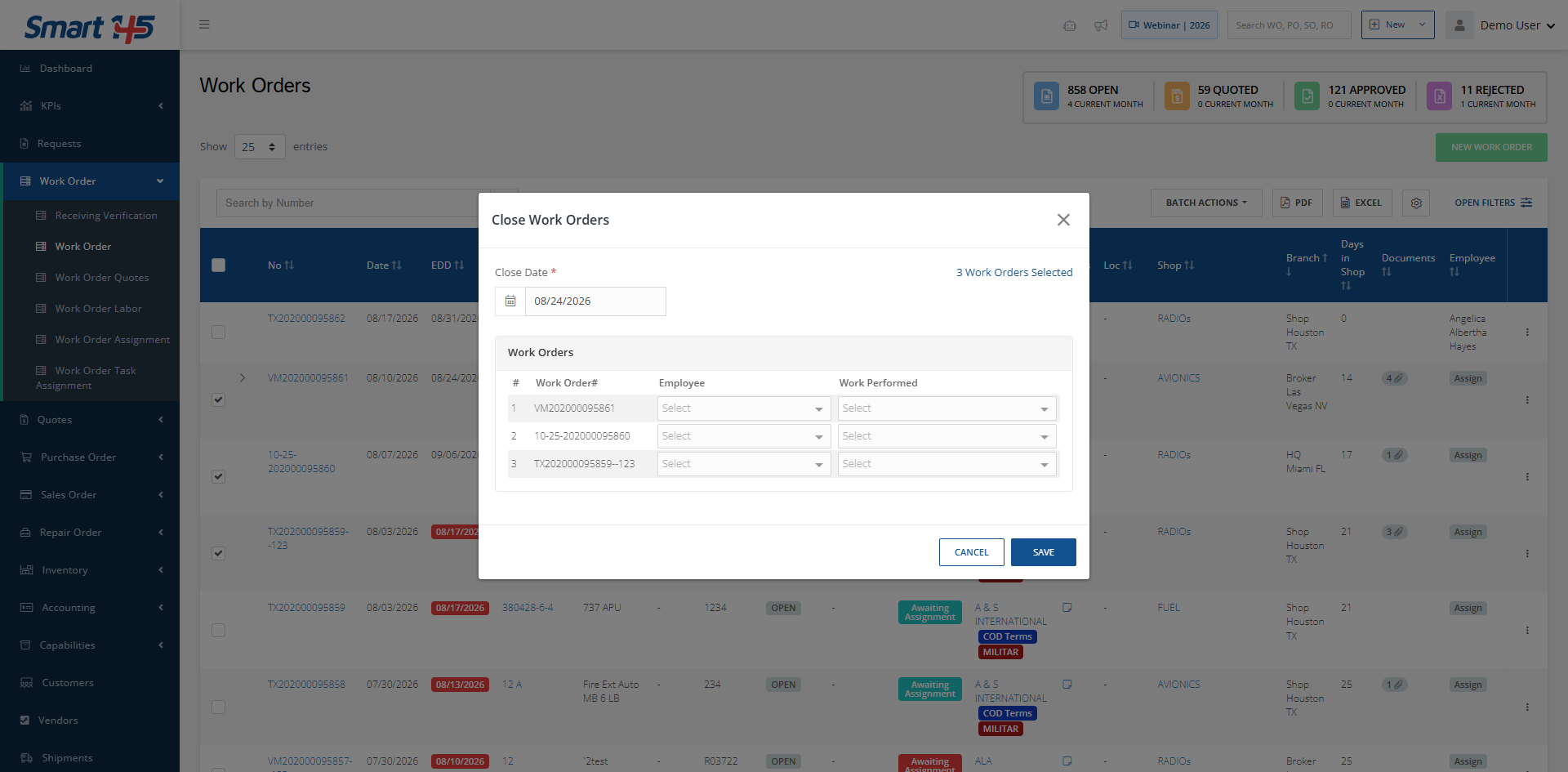
Close:
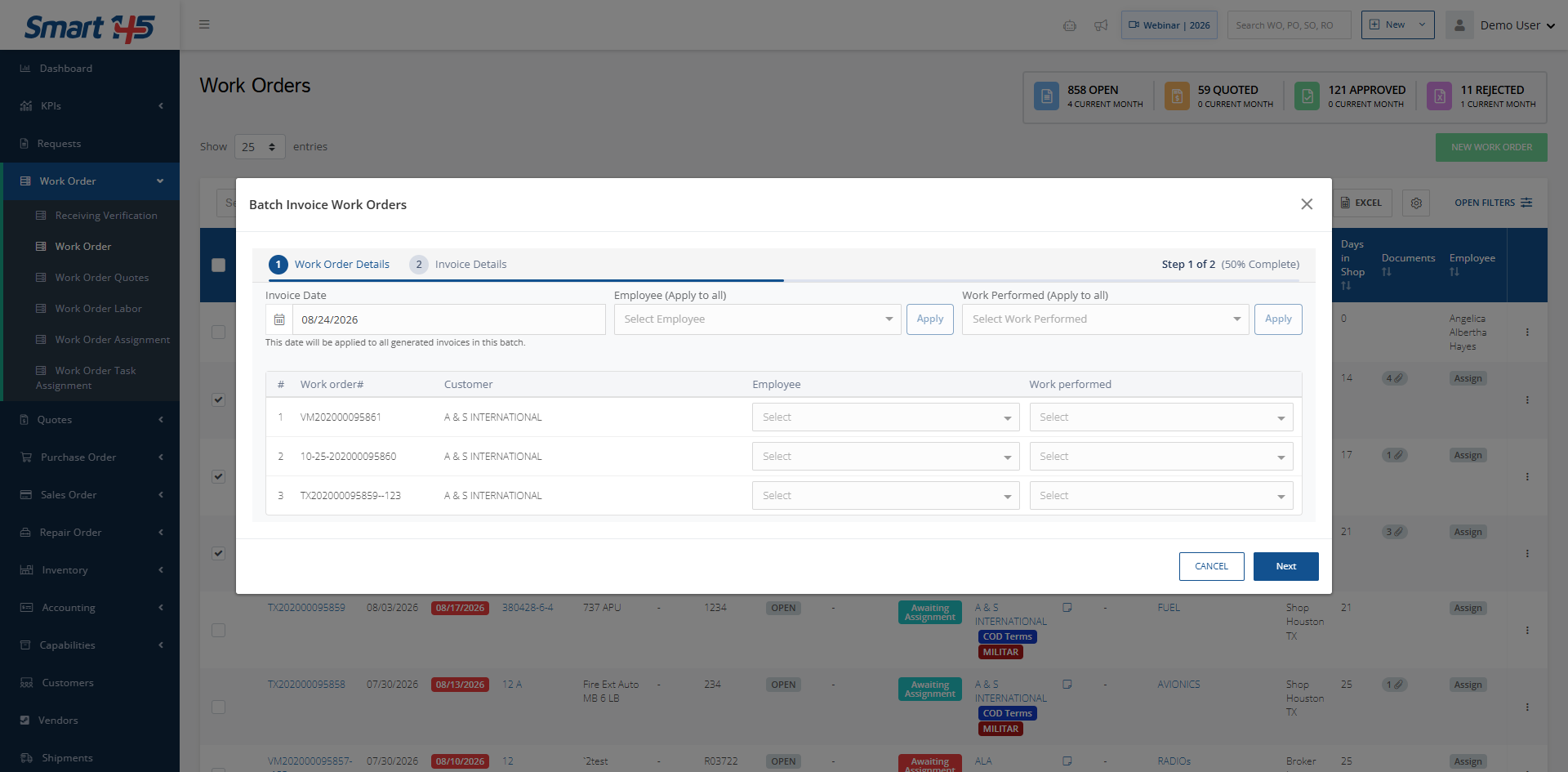
Invoice:
You can also clock in to several WOs in batch from the "Update Work Orders" option by filling in the employee and sub-steps fields and clicking "Clock In". Please keep in mind that this feature must first be activated by our support team; you can request it by emailing support@smart145.com.