How can I link an Internal WO to its main part from inventory?
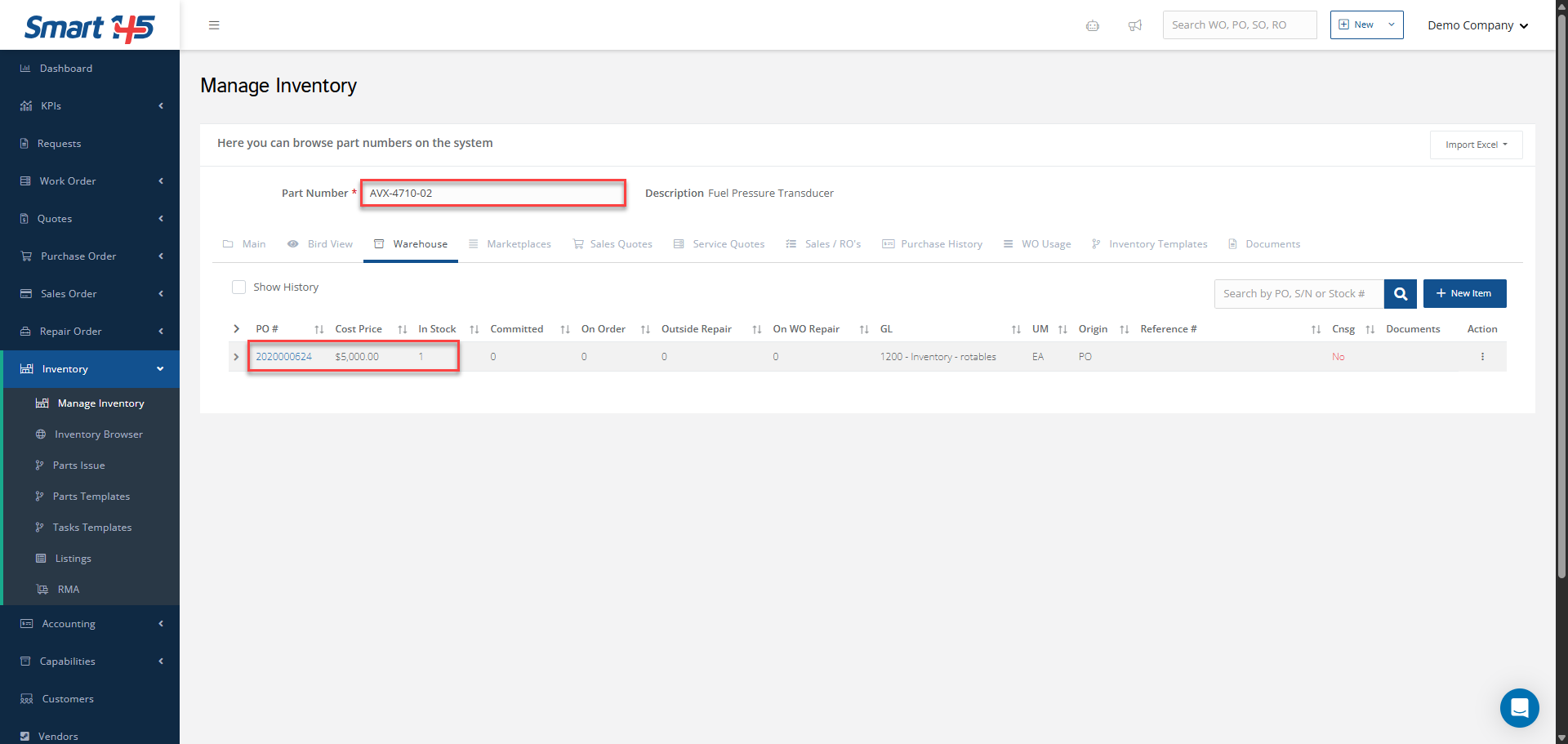
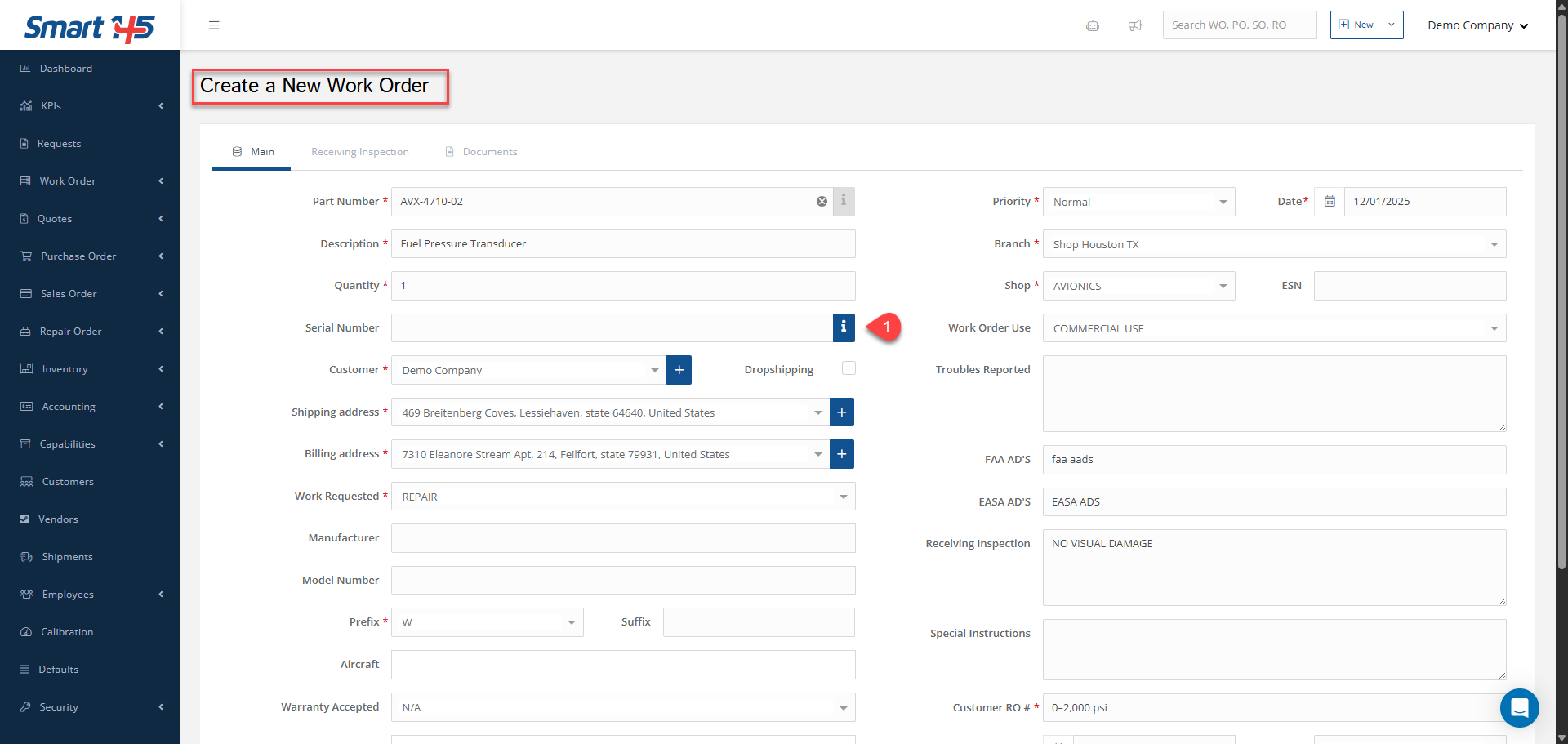
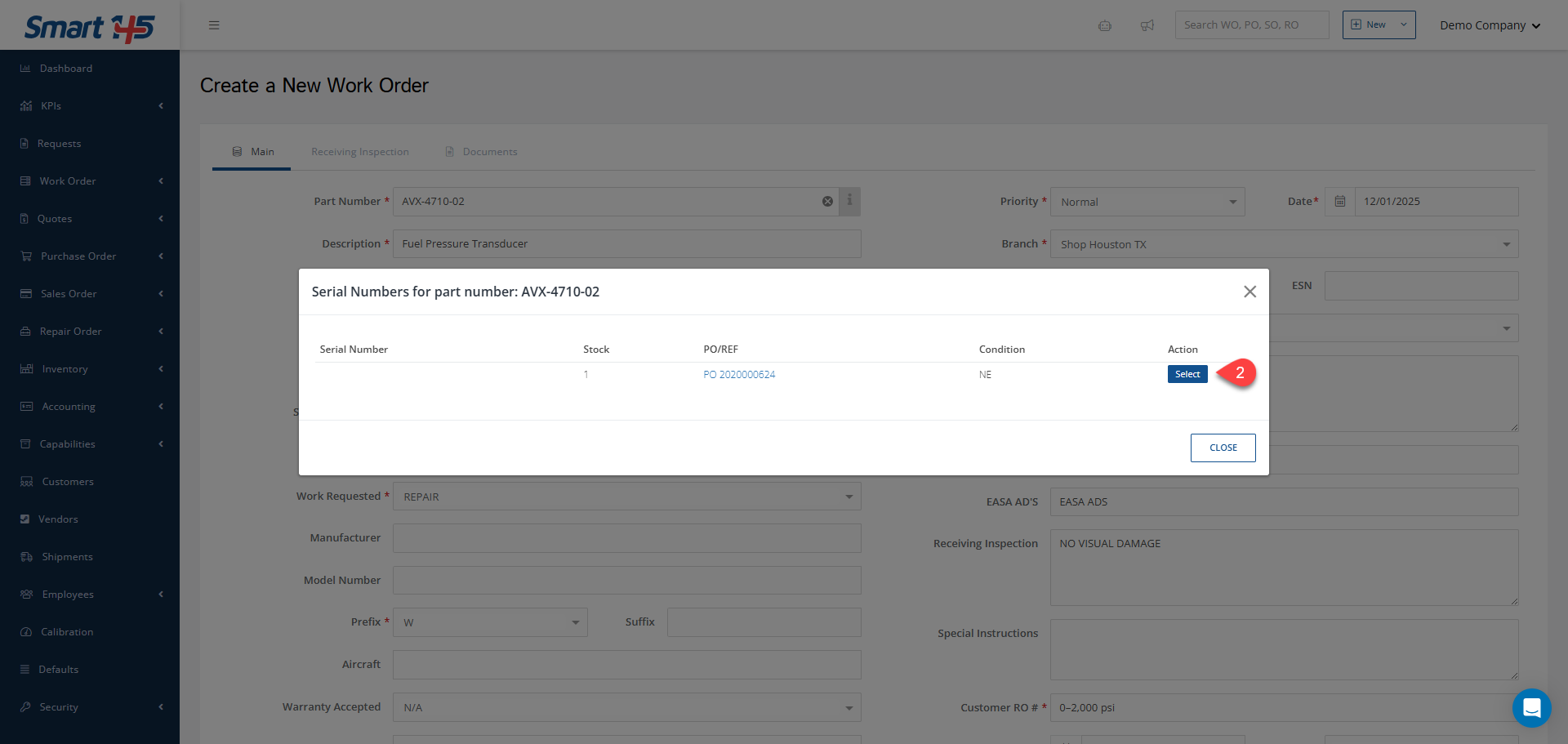
In order to link an internal Work Order to one of the parts currently in stock, it must be properly linked to the corresponding inventory line. If it is not linked correctly, a new inventory line will be created for the same part number, and the stock quantity will increase once the WO is closed To link the Work Order to the corresponding inventory line, you only need to click the 'I' button in the Serial Number field when creating the WO. After clicking it, all available inventory lines for that part number will appear, and you must select the item you want to link.
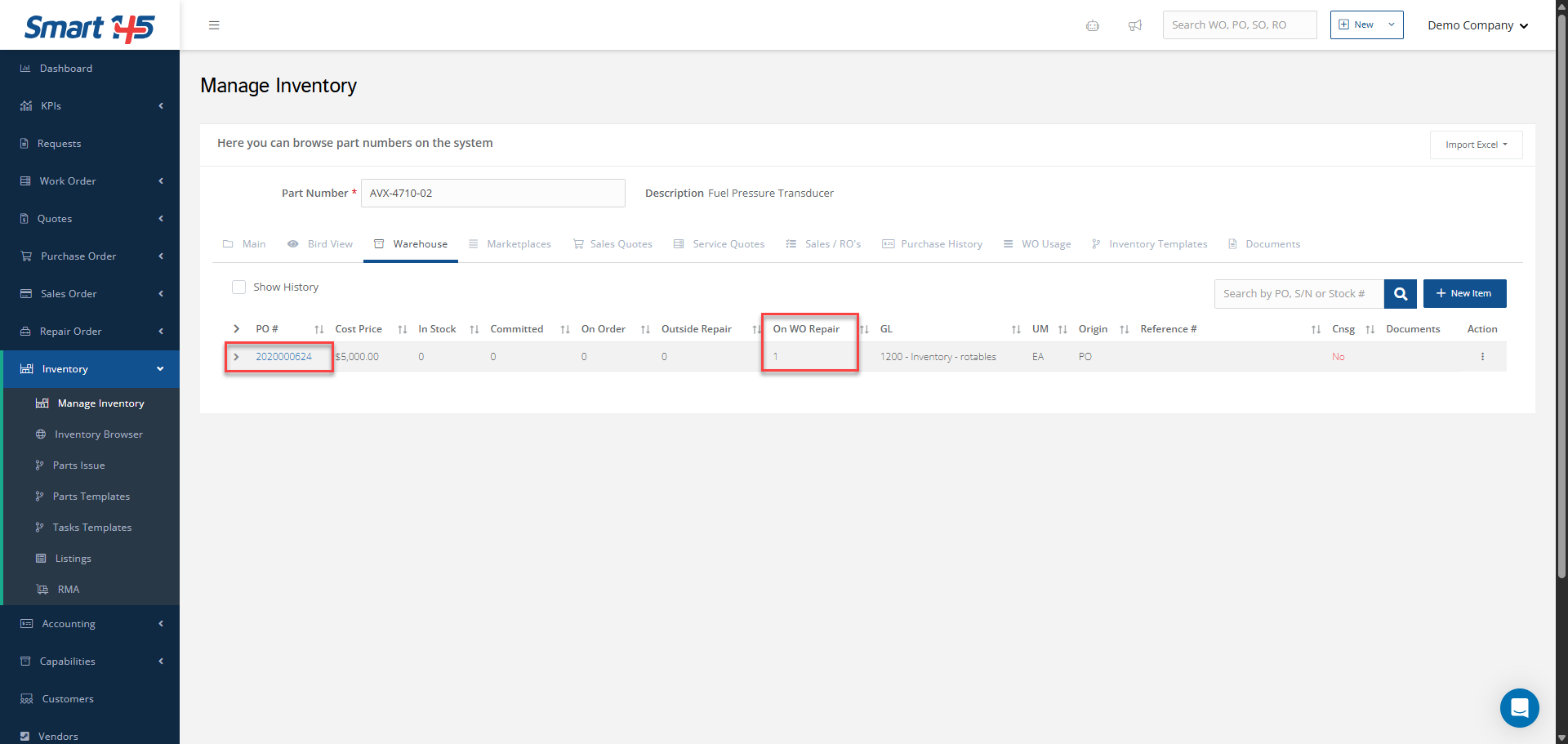
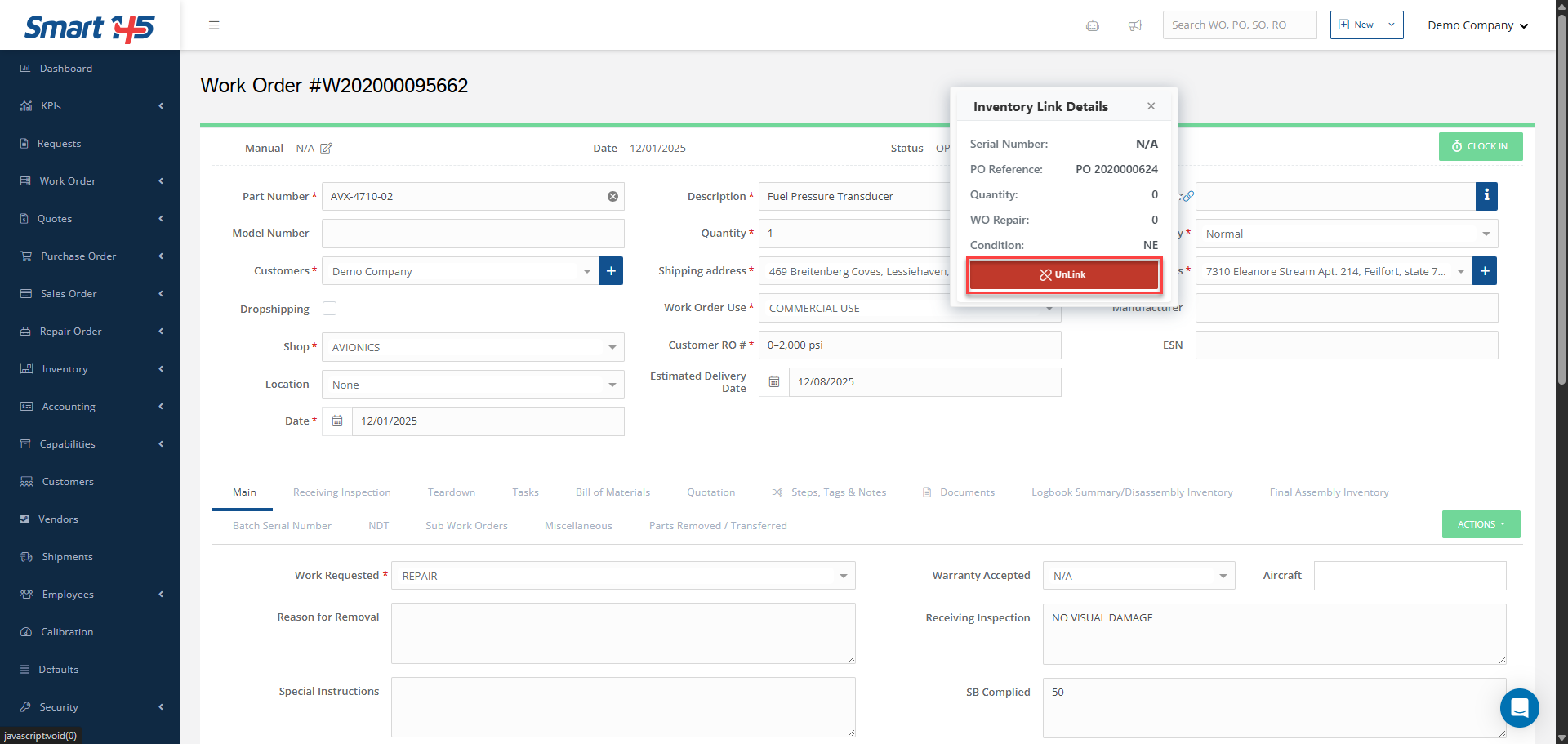
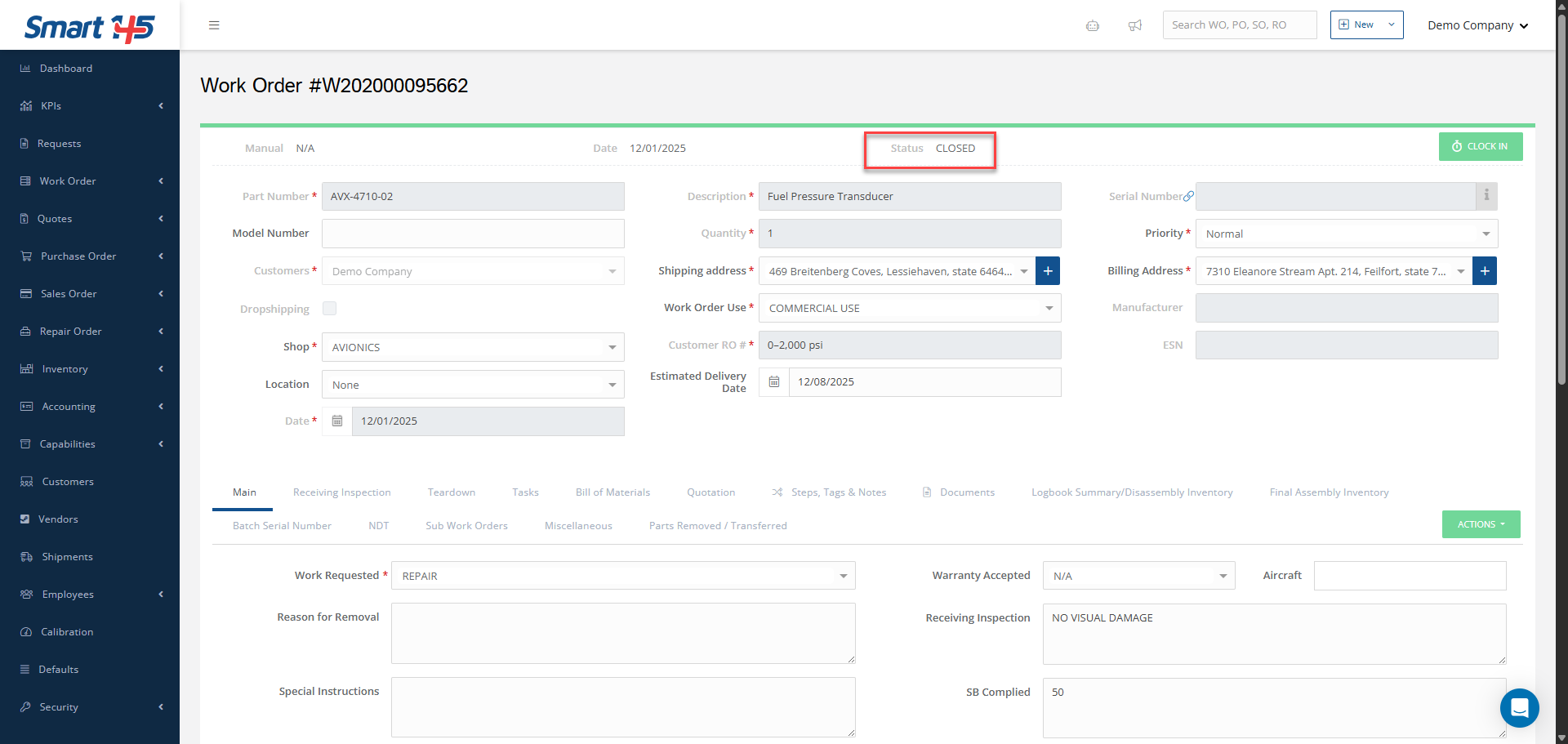
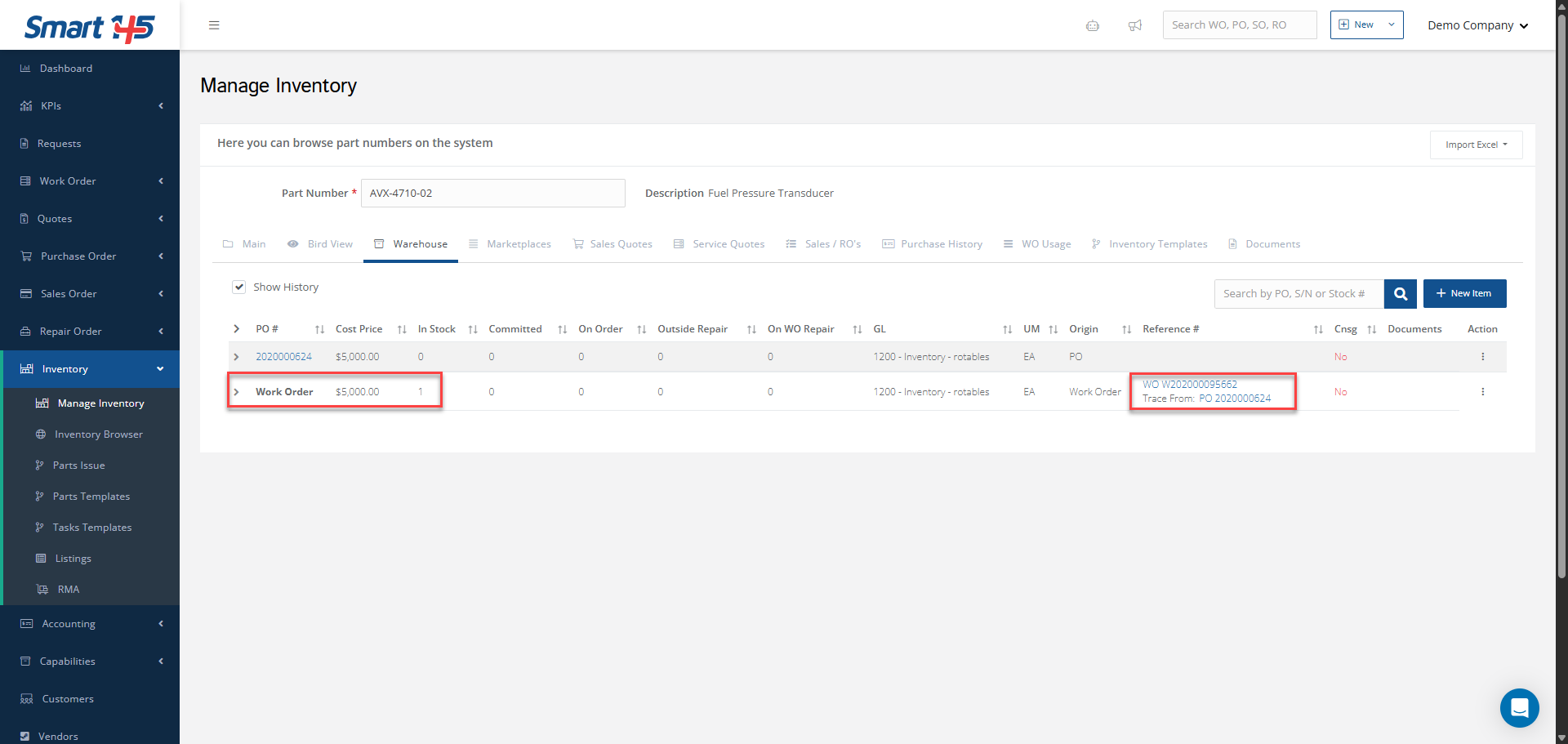
Once the part is properly linked and the internal WO is created, the quantity will be moved from ‘In Stock’ to ‘On WO Repair’ within the same inventory line where that part was entered into the inventory Bonus: Please note that if you need to unlink the WO from the selected item and link it to another line, you only need to edit the WO. The unlink option will appear when by hover over the linking icon next to the Serial Number field. Once it is unlinked, simply click the ‘I’ icon again in the Serial Number field and link the WO to the new desired inventory line. Note that once the internal WO is closed, the parts will return to inventory under a new line, as their price or condition may have changed as a result of the work performed. The original line will remain as a record of the process through which the part was initially entered into inventory