
In aviation MRO work, not every task needs the same sign-offs. A records review may only need the technician who performed it, a final inspection may need both a technician and an inspector, and some administrative steps need neither. When every task is set up as if it needed both signatures, it's hard for your team to know who has to sign what, and for auditors to tell whether a signature was missed or was never required.
With the N/A option for the Technician and the Inspector, Smart 145 lets you define, task by task, whether a technician or an inspector applies. You can set it once in your Task Templates, so every Work Order starts with the right sign-off requirements, and adjust it on each Work Order when needed.
How to Set Up the Technician and Inspector on a Task Template
The best place to define which tasks need a technician or an inspector is the Task Template, so every Work Order that uses it starts with the right sign-off requirements.
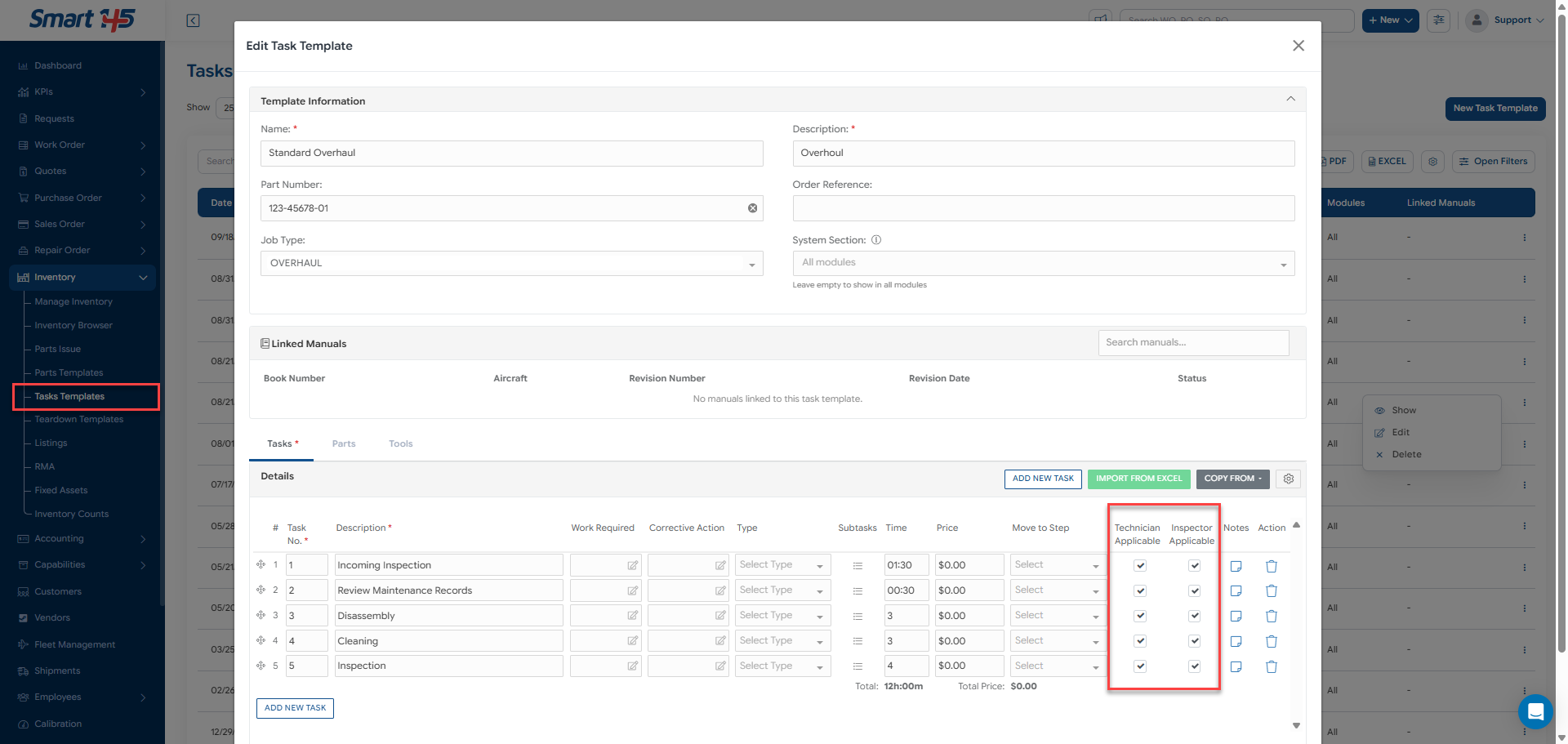
Go to Inventory → Tasks Templates, and create a new template or edit an existing one. In the Tasks tab, each task has two checkboxes:
Technician Applicable: uncheck it if the task does not need a technician.
Inspector Applicable: uncheck it if the task does not need an inspector.
Both are checked by default. For example, in an overhaul template you can leave Review Maintenance Records without an inspector, and Cleaning without an inspector, while Disassembly and Inspection keep both roles. Then save the template.
To add the template to a Work Order, open the Tasks tab and click Copy From → Tasks Templates. Select the template, then select the tasks you want to copy. The Technician Applicable and Inspector Applicable columns show Yes or No for each task. Click COPY.
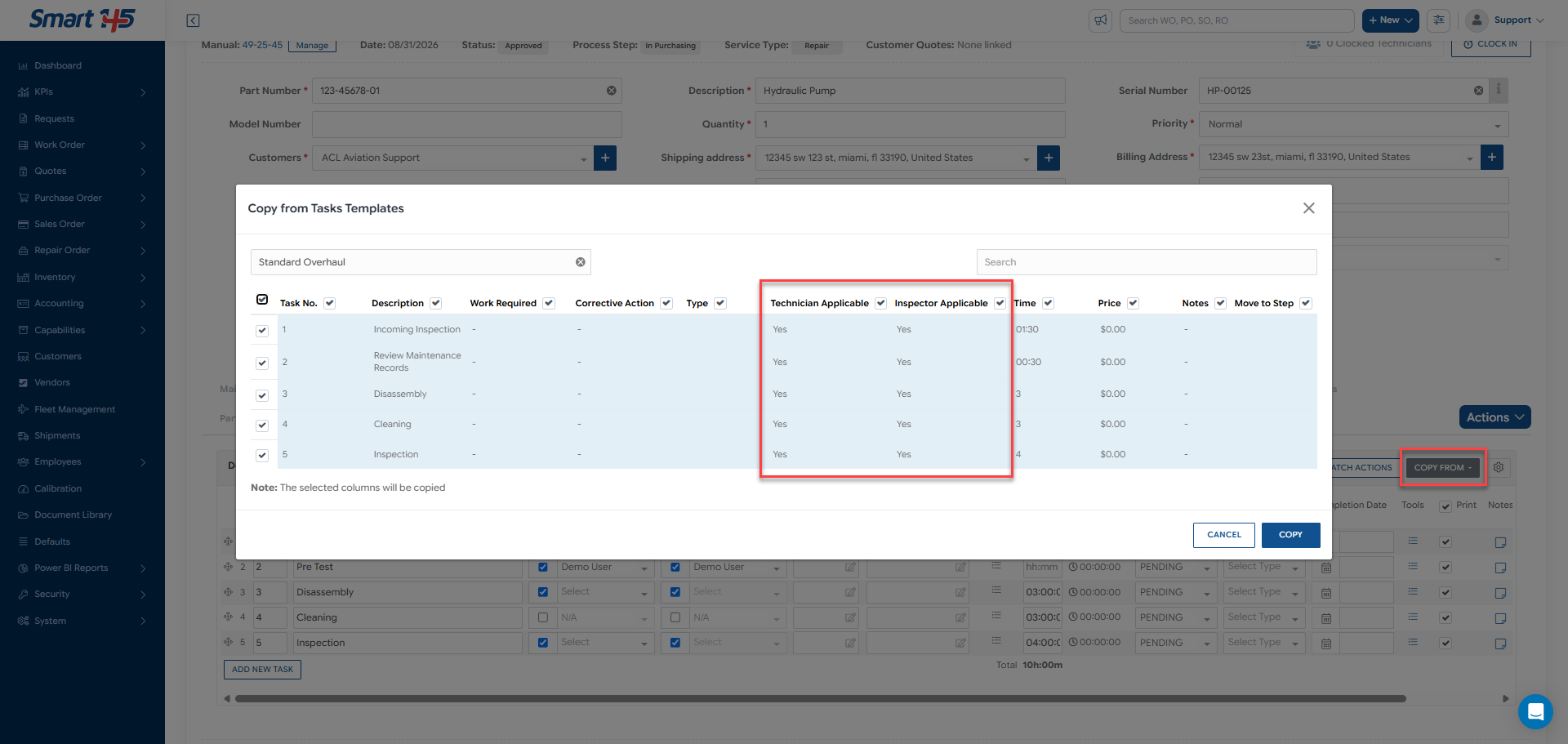
The copied tasks keep these settings: the roles marked No appear as N/A on the Work Order. Only the checked columns are copied, so if you uncheck Technician Applicable or Inspector Applicable in the header, both roles stay open on the copied tasks.
Tip: If you don't see the columns, add them from the column settings (gear icon) of the Tasks table. The same options are available for subtasks.
How to Mark the Technician or Inspector as N/A on a Work Order Task
Open the Work Order and go to the Tasks tab. In the Technician and Inspector columns, each task has a checkbox next to the employee selector:
Checked: the role applies. Select the technician or inspector, or leave it blank to assign it later.
Unchecked: the role does not apply. The selector shows N/A and is locked.
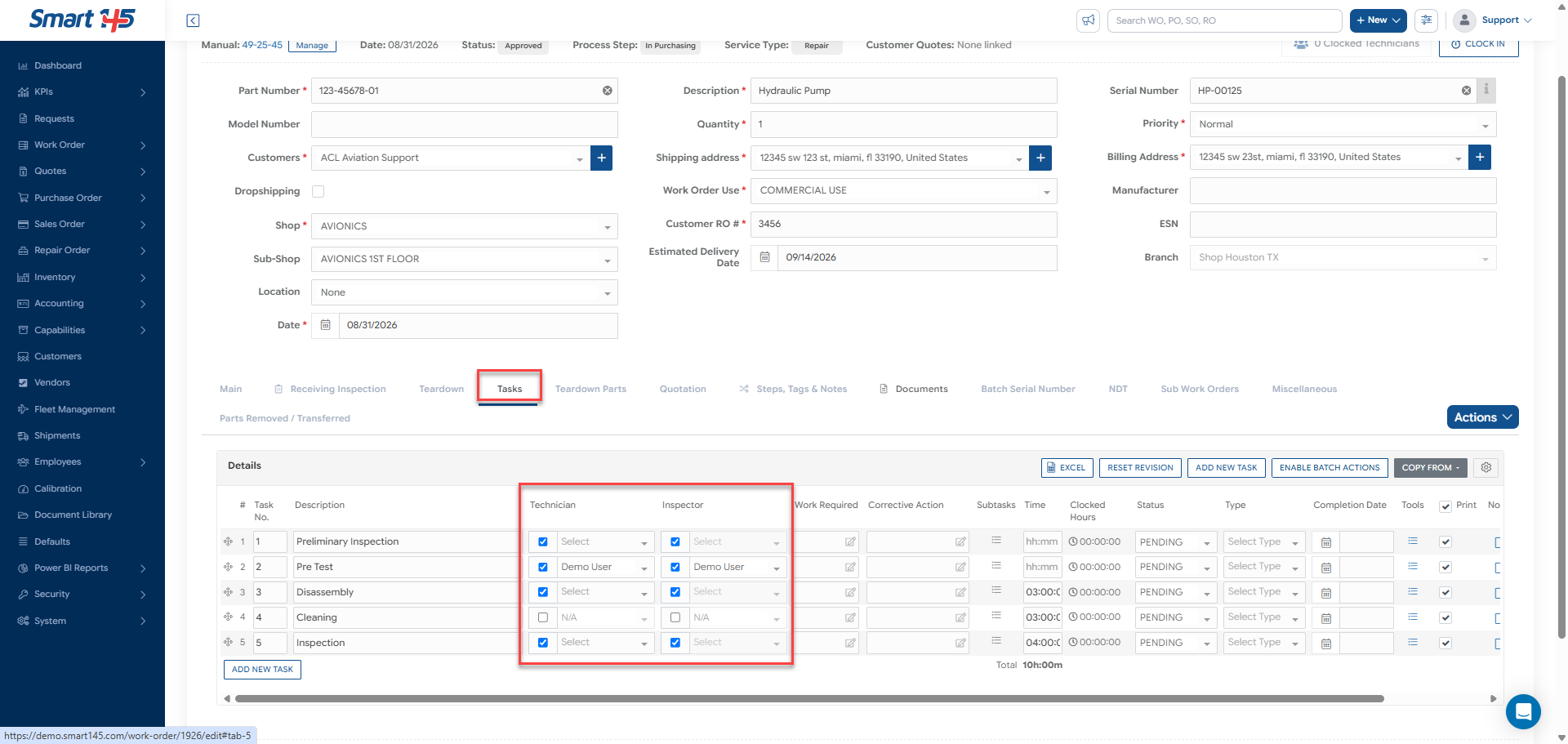
In the example above, the Preliminary Inspection task has both roles set to N/A, while the Pre Test task requires a technician and an inspector. You can also choose N/A directly from the Technician or Inspector list.
Tip: If you check the box again, the selector unlocks, and you can assign an employee.
How It Appears on the Traveler
On the standard Traveler, the Technician and Inspector boxes of each task are printed with the employee assigned, or blank so they can be filled in by hand on the shop floor. If your company's Traveler needs to be customized to cross out the Technician or Inspector boxes of the tasks marked as N/A, contact our Support team at support@smart145.com, as this is set up for your account's specific Traveler format.
Why This Matters for Aviation MRO Operations
In a repair station, the task record is part of the maintenance record. Auditors, customers and your own Quality team review it to confirm that every step was performed and inspected as required. Defining which tasks need a technician and which need an inspector removes the guesswork: everyone knows who has to sign each step, and a missing signature stands out right away.
By setting these options on your Task Templates, every new Work Order starts with the right sign-off requirements, technicians and inspectors focus on the tasks that need them, and your records stay clean and audit-ready.