How to import items from an Excel file into a Work Order?
In aviation MRO operations, Work Order quotations often require multiple parts, materials, and cost references to be entered accurately before a quote can be reviewed or sent to the customer. When this information is managed manually, especially for larger repair scopes, it can take additional time and increase the risk of data entry errors.
The Import From Excel functionality helps streamline this process by allowing users to upload part-related information directly into the Parts and Materials section of the Work Order’s Quotation tab. This supports faster quote preparation, improves data accuracy, and helps teams maintain better control over the material information used for customer pricing.
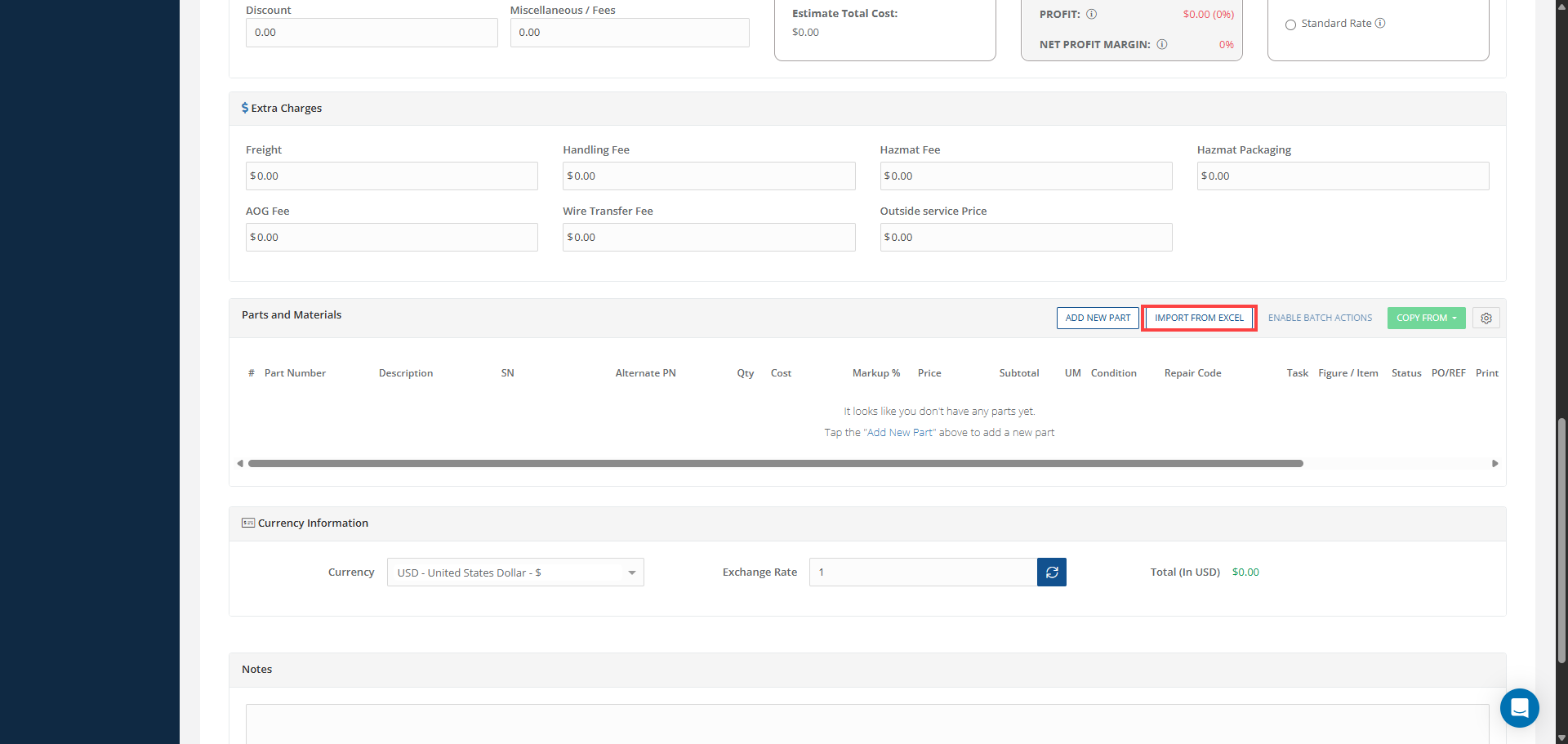
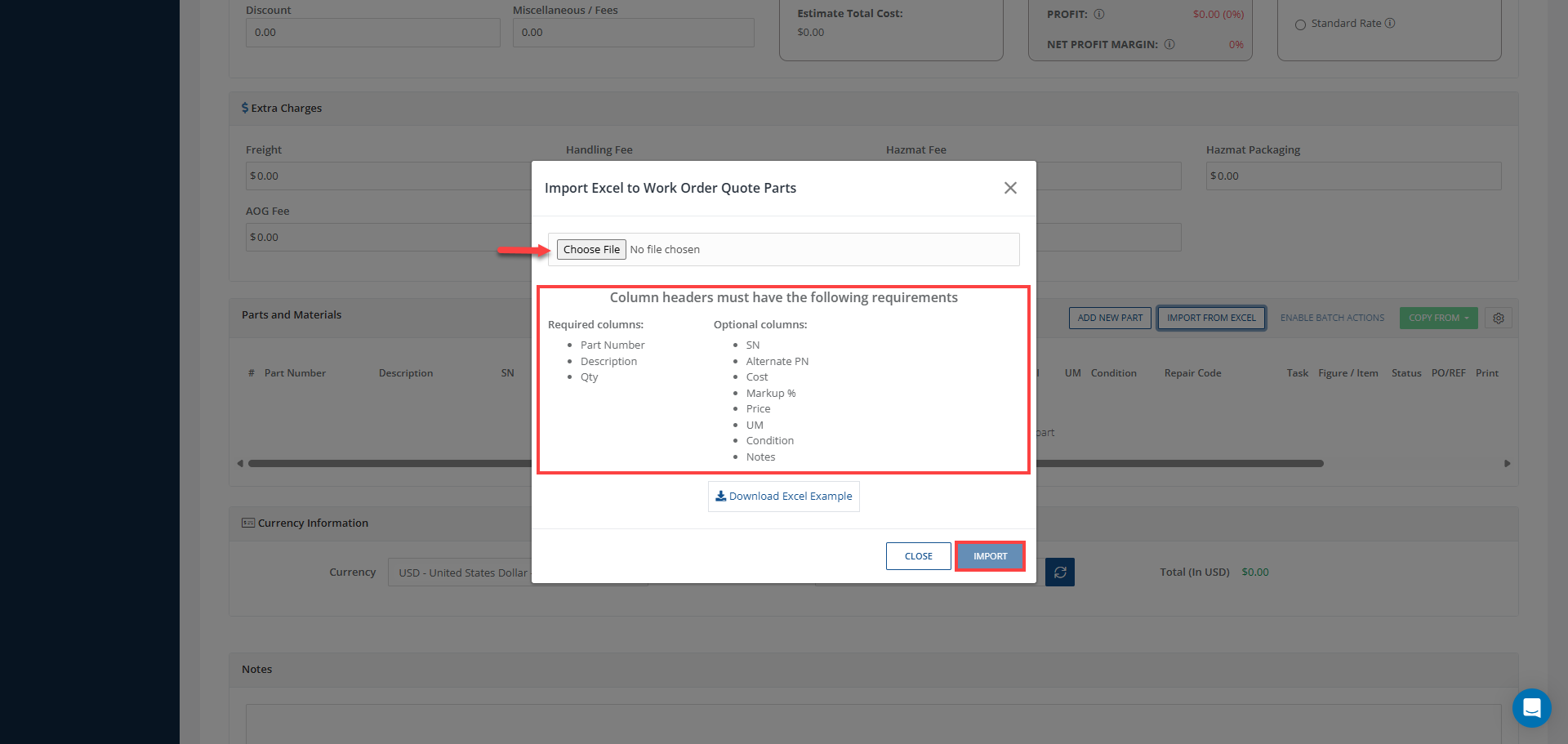
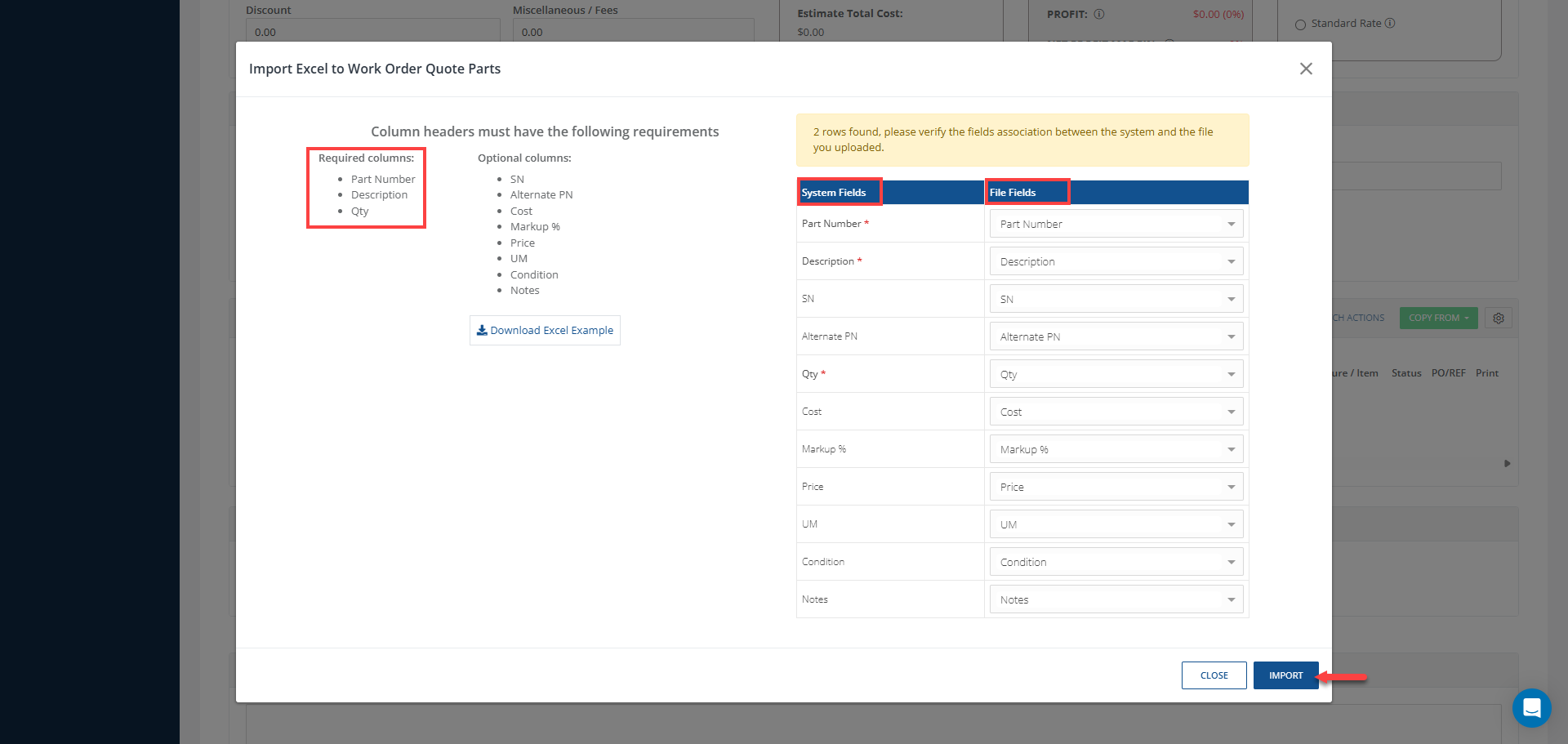
To perform this process in Smart 145, you have the option “Import From Excel” available in the “Parts and Materials” section of the order’s Quotation tab. By clicking on this option, you will be able to see a list of the information columns available in this table and identify which ones are required to complete this action:
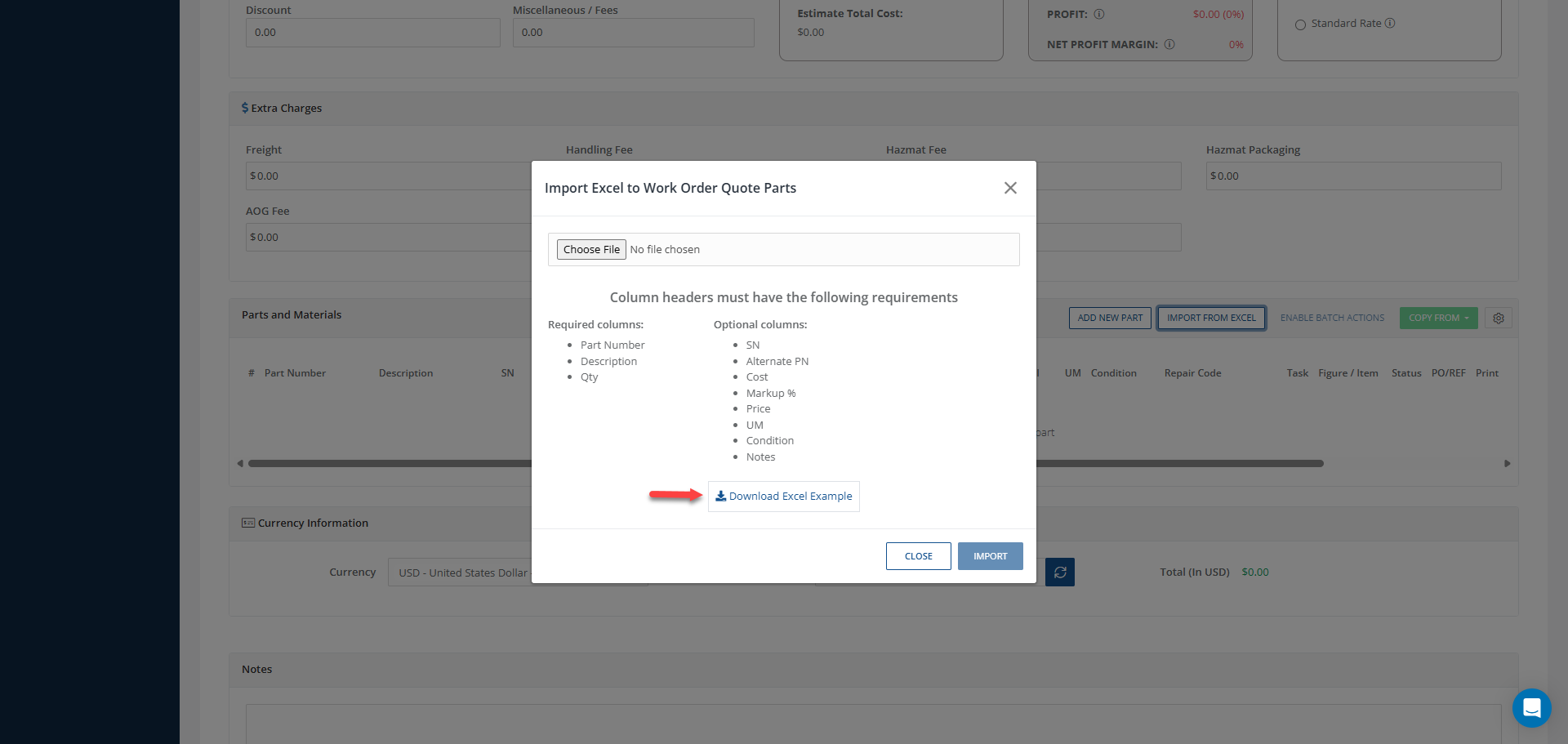
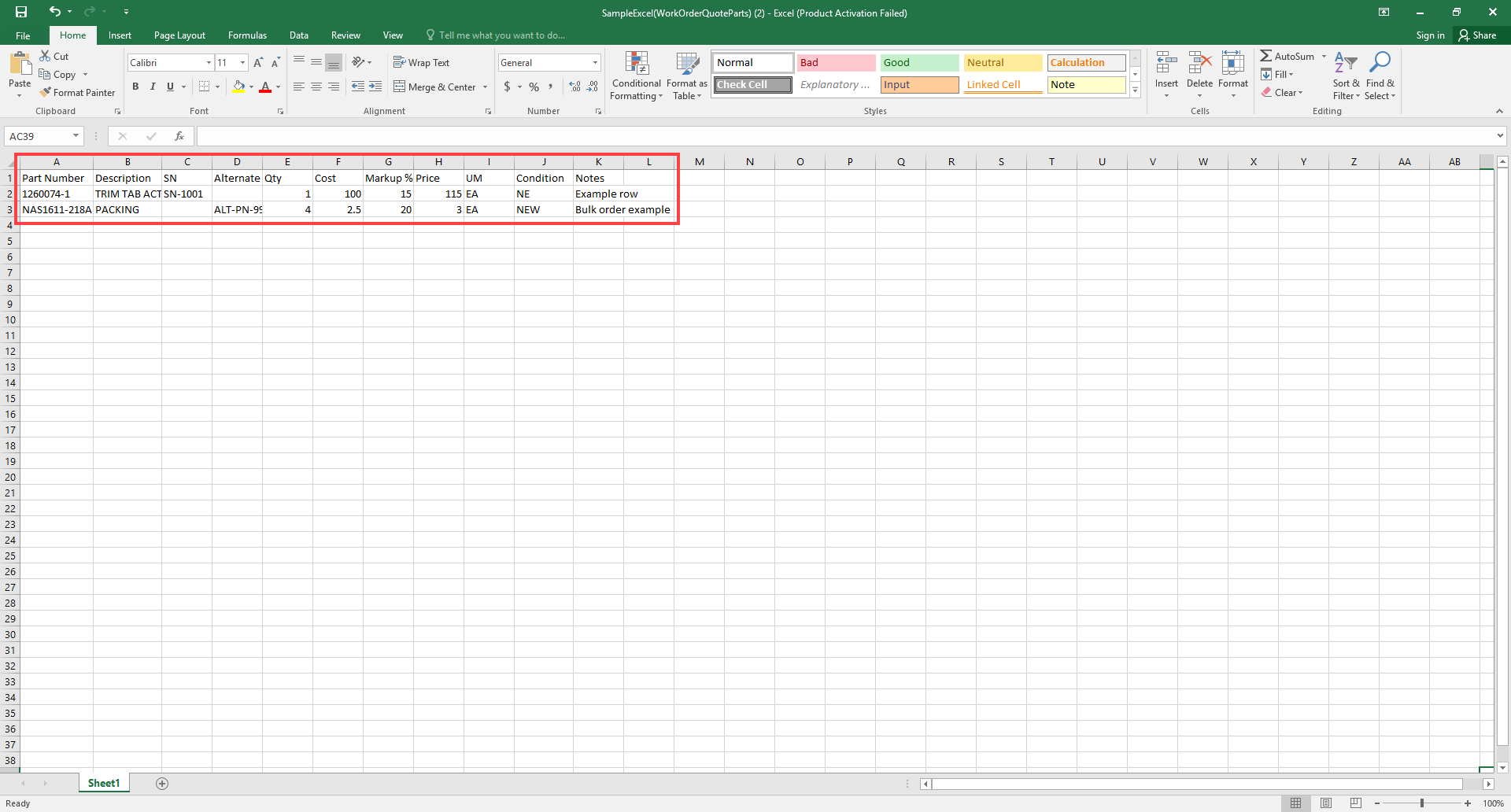
Also, you will be able to download a sample Excel file provided by the system, which already contains all the necessary columns for entering the information and using it in this process, helping ensure the file is structured correctly before upload:
Once the Excel file has been selected, a new window will be displayed where you can map the Work Order columns with their corresponding columns in the file:
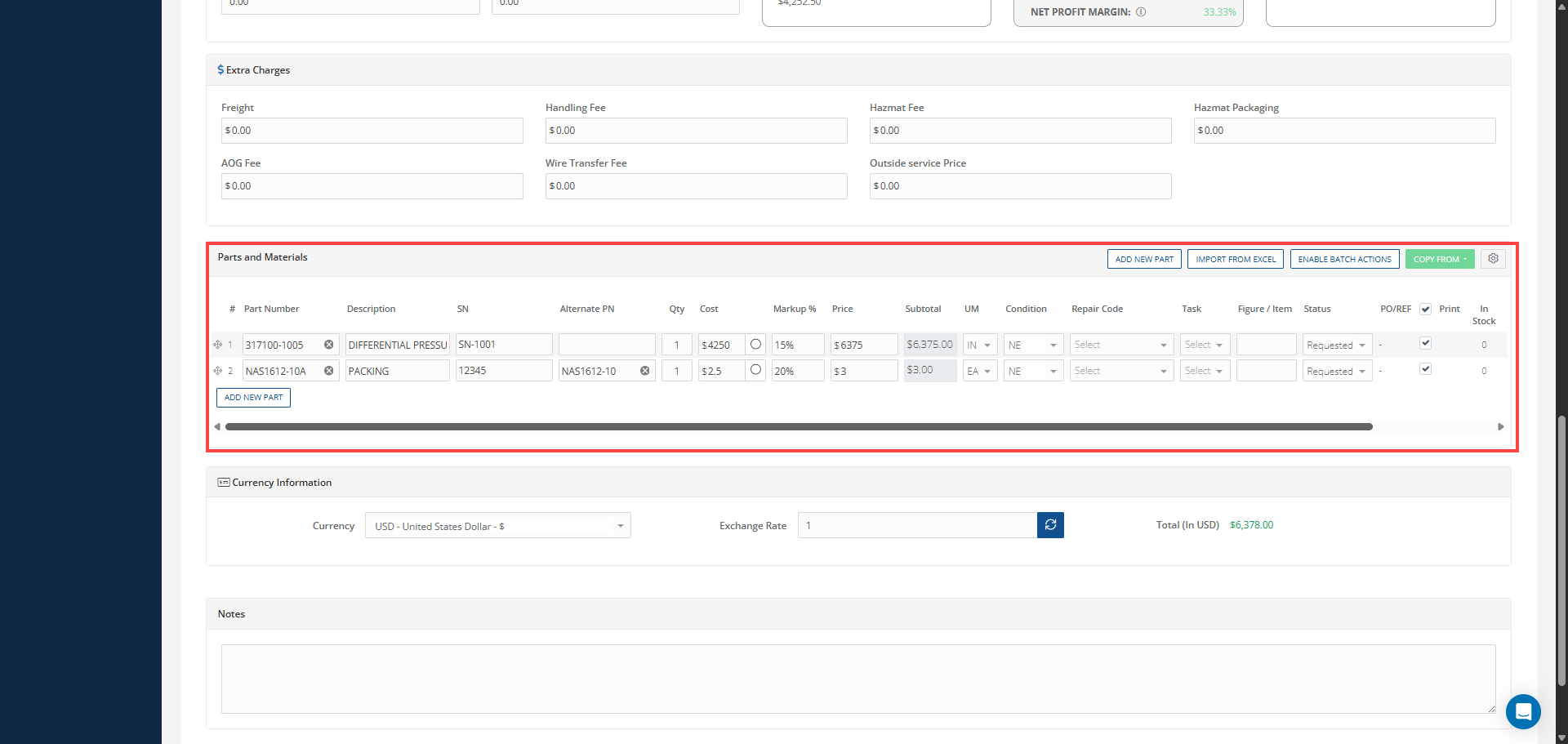
After completing the previous steps, you only need to click “Import,” and all the parts contained in the Excel file will be imported with the required information: