How to automatically save the 8130 and Teardown reports in the Work Order Documents section?
Saving reports such as the 8130 Report and the Teardown in the Work Order’s Documents section keeps all certification and inspection records organized and easy to access. This improves traceability, supports compliance during audits, and ensures each report remains linked to the job it belongs to.
In Smart 145, to ensure these reports are saved in the Work Order’s Documents section when printed, you must request that our Support team enable this capability first. Once this feature is active, the following requirements must be met:
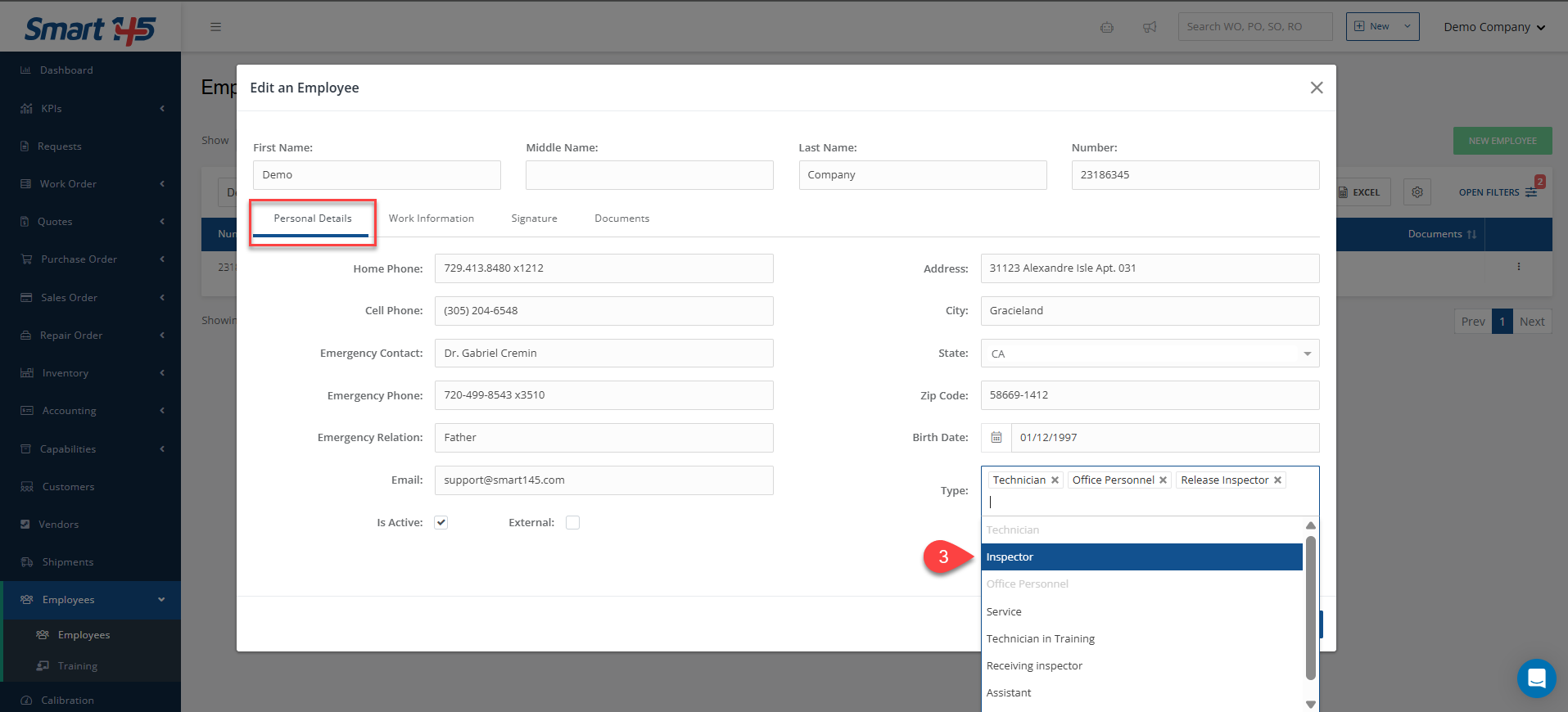
The employee signing or issuing the report must have the Inspector type assigned.
The employee must have a digital signature configured in the system.
The reports must be added to the list of report types to which the employee’s signature applies.
Below are the detailed steps to fulfill those conditions.
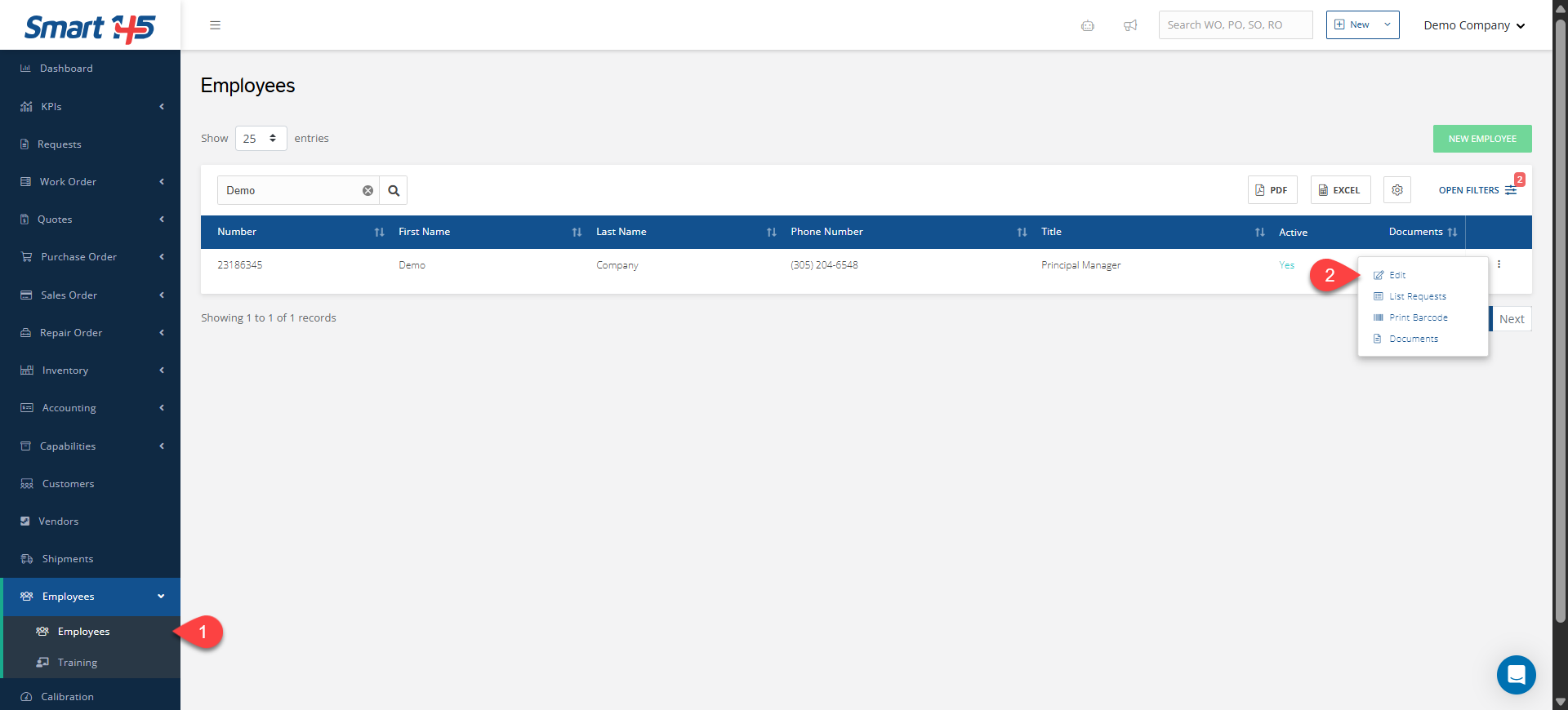
First, to ensure the employee is defined as an Inspector, navigate through the Employee module to 'Employees' to find the one you need for this matter. Using the three-dot menu on the right side, you need to select the 'Edit' option. Then, in 'Personal Details', you have to click the 'Type' field and select 'Inspector' in the menu. Save your changes by clicking the 'Save' button. After the Inspector type has been assigned to the employee, they must have a digital signature configured in the system, and the 8130 and Teardown reports added to the list of report types to which their signature applies. To set up these last steps, you must consult this article for reference: How to add an online signature to a report?
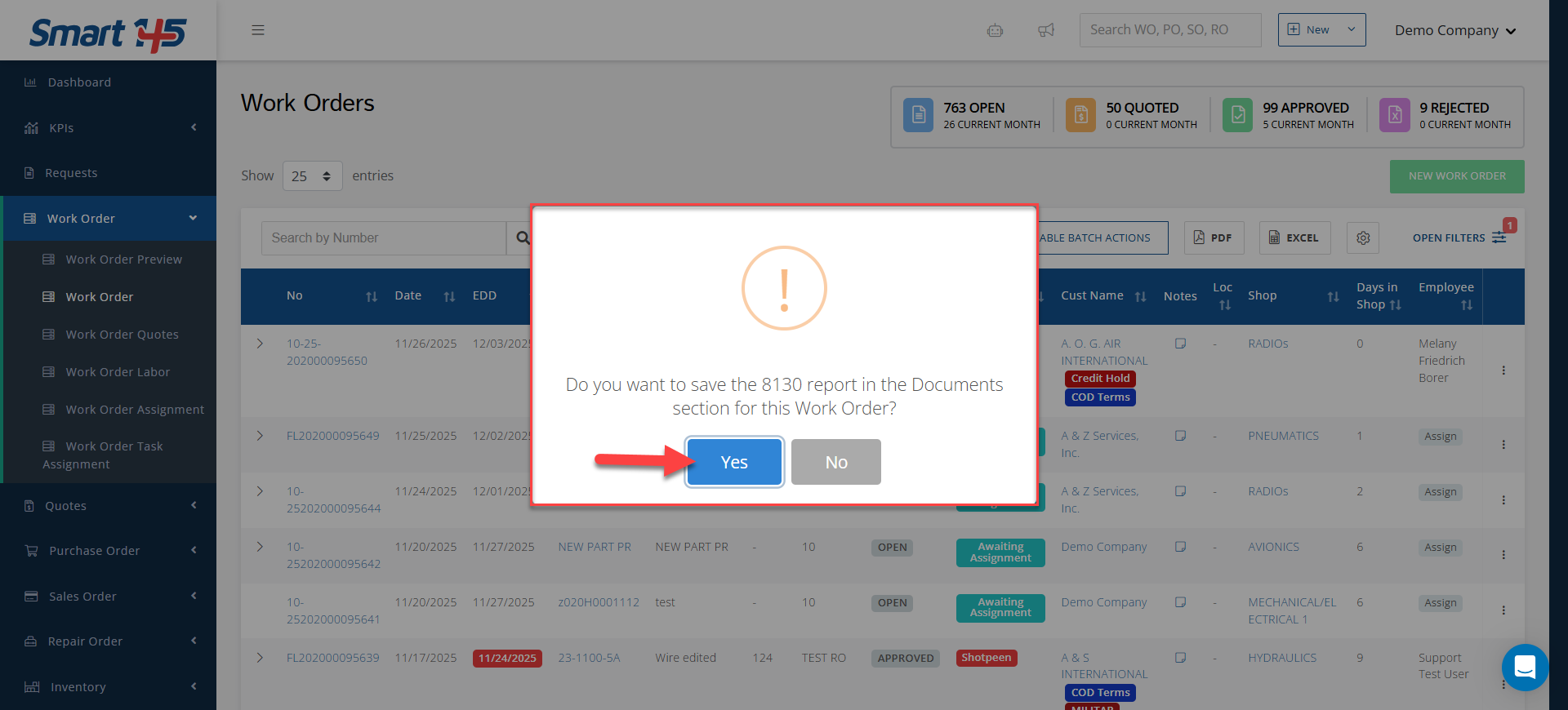
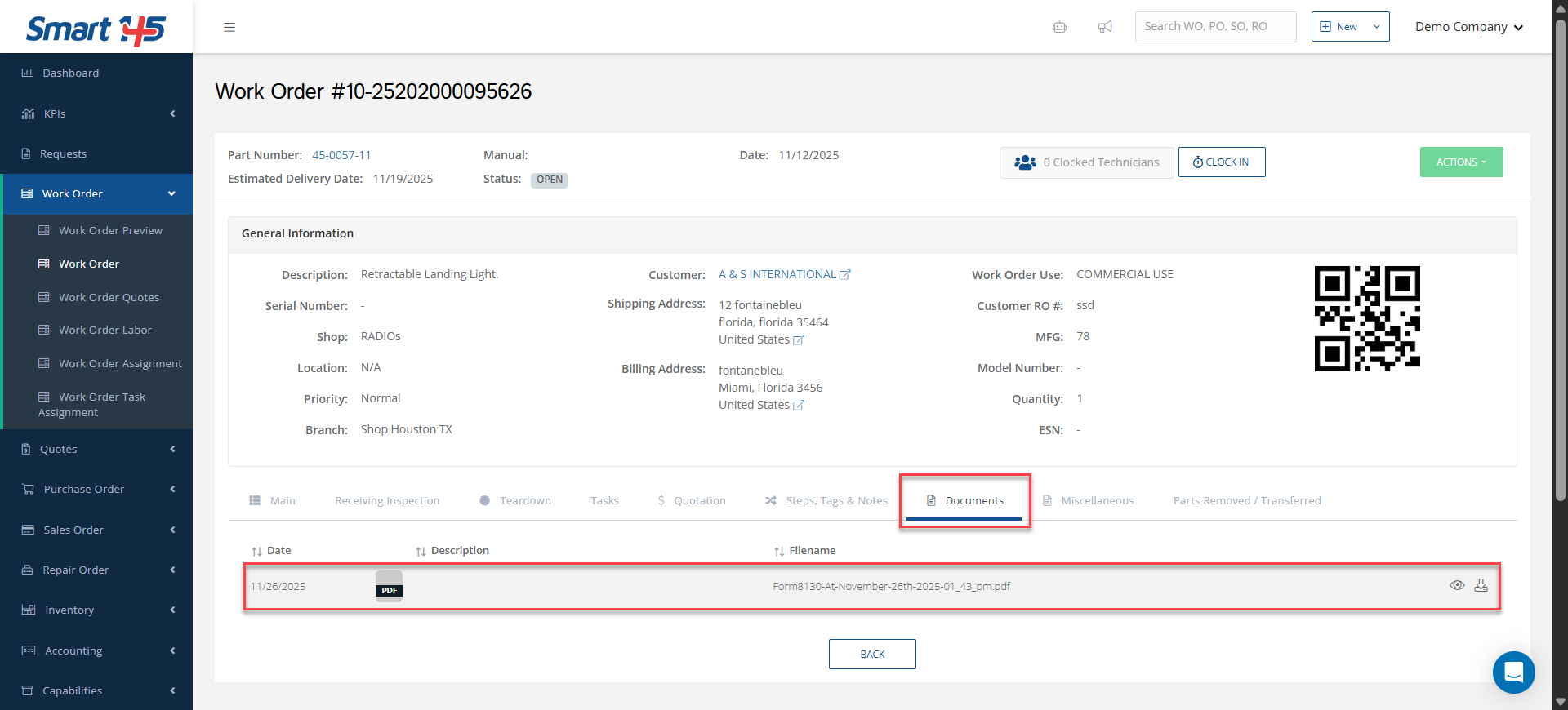
Once you have completed the three requirements, when you print the report from the Work Order, the system will give you the option to save it in the order's Documents section. You simply need to select 'Yes', and the report will be automatically saved in the Documents tab of the corresponding WO.