
In aviation MRO operations, labor hours are one of the most important pieces of a Work Order. They drive the cost of the repair, support the quote sent to the customer, and are part of the traceability record for every task performed on a component. When technicians have to walk away from the bench to clock in at a computer, entries are often delayed, forgotten, or recorded after the fact.
The Smart 145 mobile app now lets technicians Clock In and Clock Out of Work Order tasks directly from their phone. They can scan the barcodes printed on the Work Order Traveler or select the tasks manually, so labor is recorded at the moment the work starts and ends, right from the shop floor.
Before You Start
Log in to the Smart 145 mobile app with the same email and password you use in the web application. If you haven't set it up yet, see Getting Started with the Smart 145 Mobile App.
Have the Work Order Traveler at hand. Each task on the Traveler has two barcodes: Start, used to Clock In, and Complete, used to Clock Out.
Make sure the Work Order has tasks assigned. Only tasks listed on the Work Order can be clocked in.
How to Clock In
From the Home screen, tap the Work Order Labors card. The card also shows how many tasks you currently have Clocked In.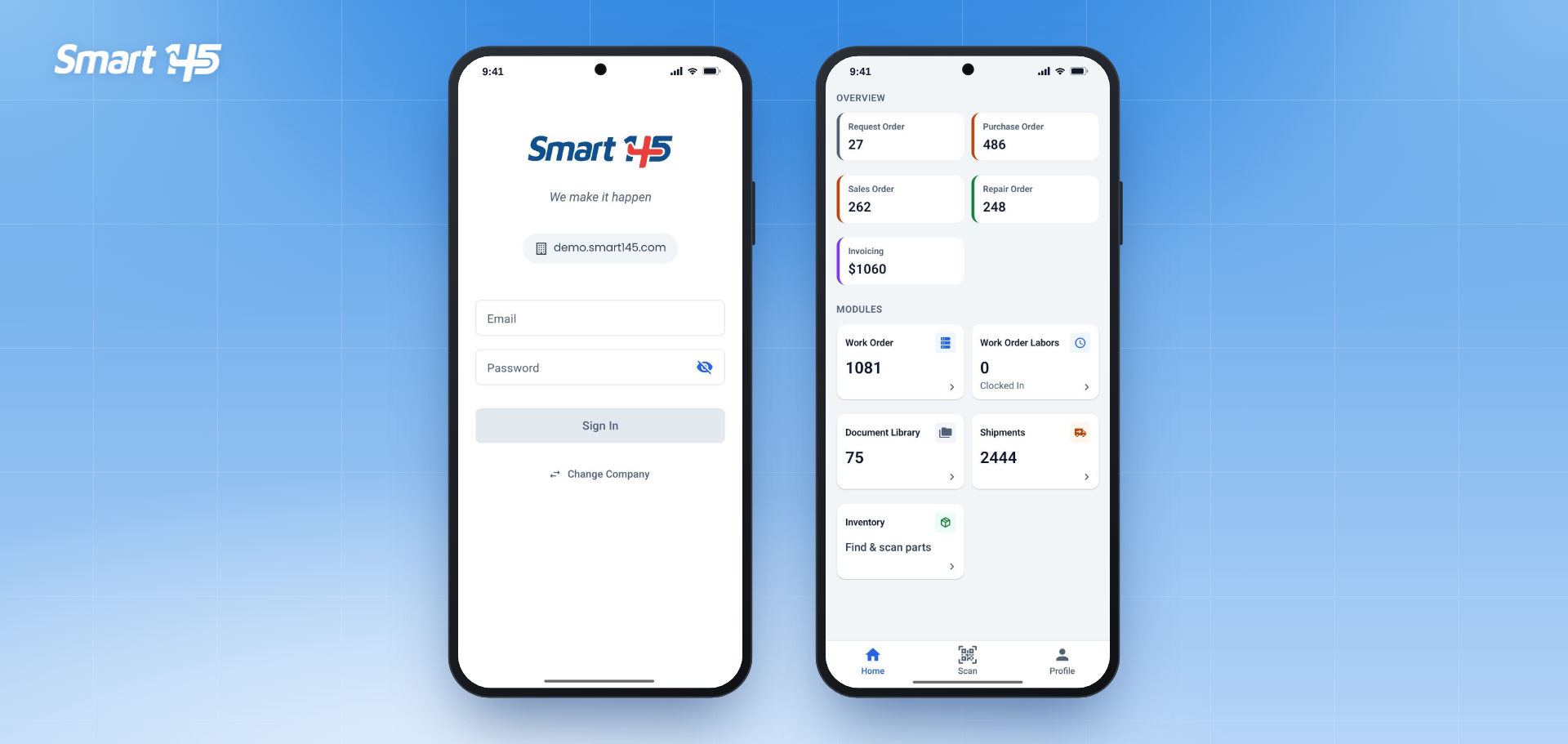
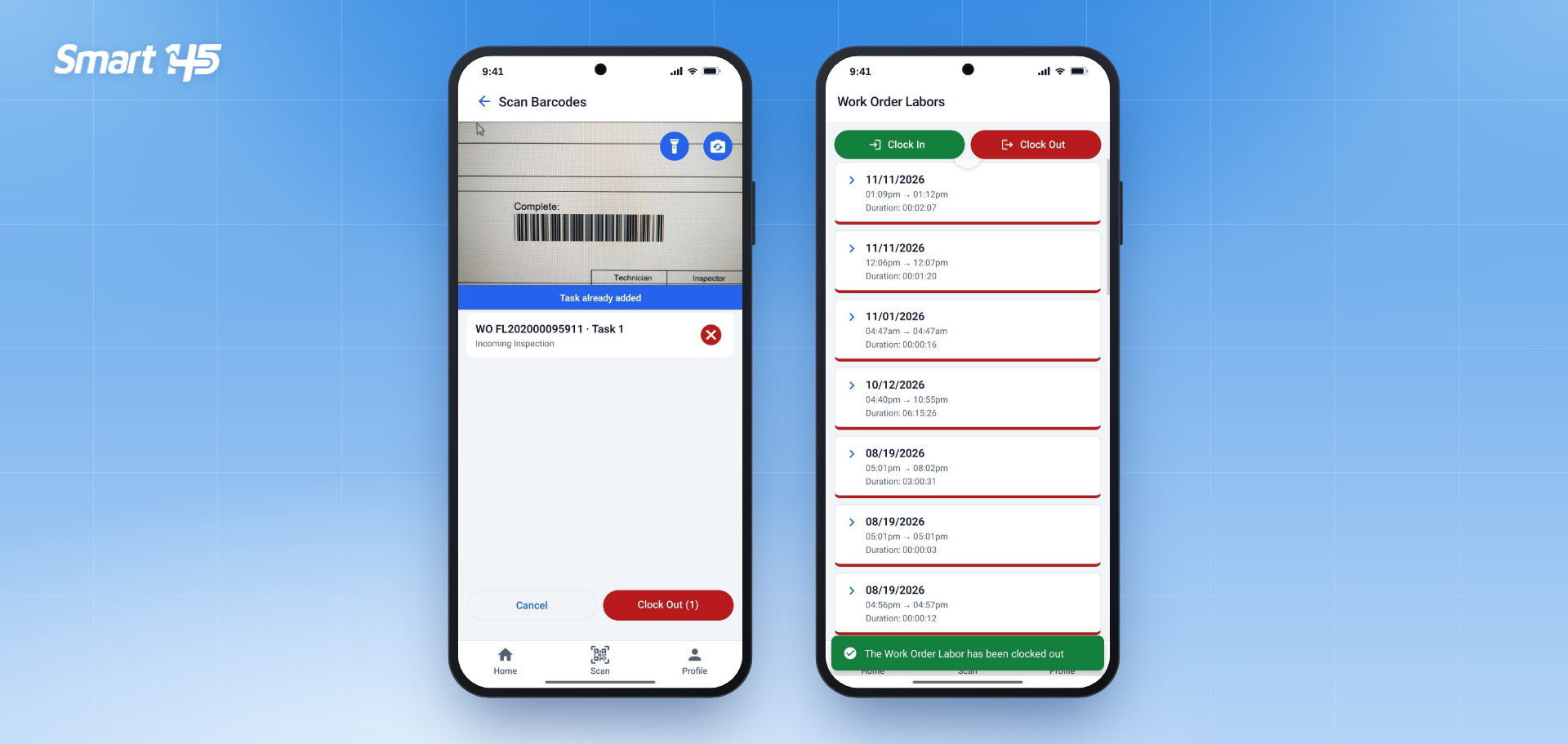
The Work Order Labors screen lists your labor records by date, with the start time, end time, and duration of each one. Tap the green Clock In button and choose how you want to add the tasks: Scan barcode or Enter manually.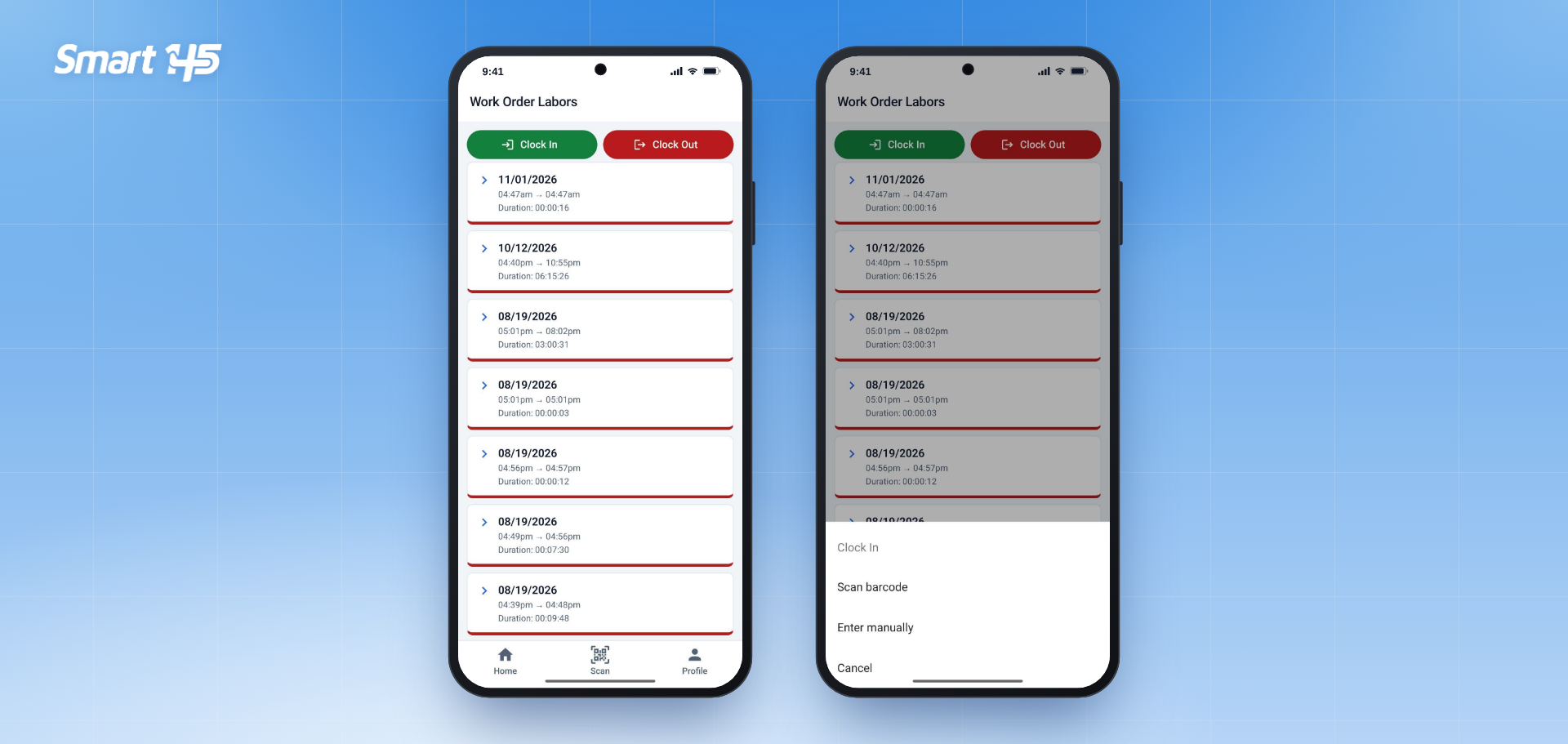
Option 1: Clock In by Scanning the Traveler
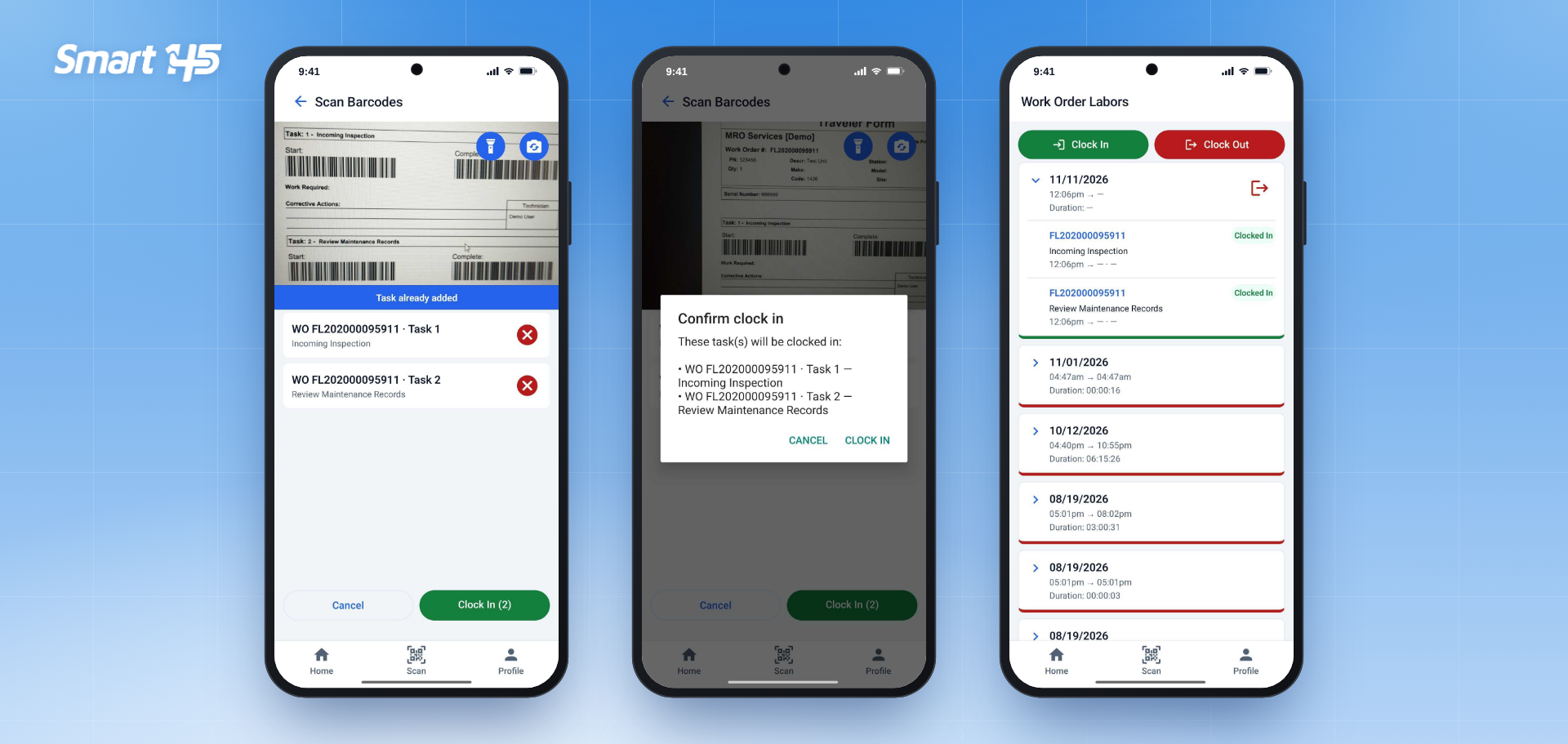
Select Scan barcode and point the camera at the Start barcode of the task on the Work Order Traveler. Each scanned task is added to the list at the bottom of the screen, showing the Work Order number, task number, and task name. You can scan several tasks in a row; if a barcode is scanned twice, the app shows Task already added.
Use the Flashlight and Flip camera buttons if you're working in low light. To remove a task before clocking in, tap the red X next to it.
When all the tasks are added, tap Clock In (#). The app asks you to confirm the list of tasks that will be clocked in. Tap CLOCK IN to confirm.
Back on the Work Order Labors screen, the new labor record appears at the top with a green line, and each task shows the Clocked In status with its start time.
Option 2: Clock In Manually
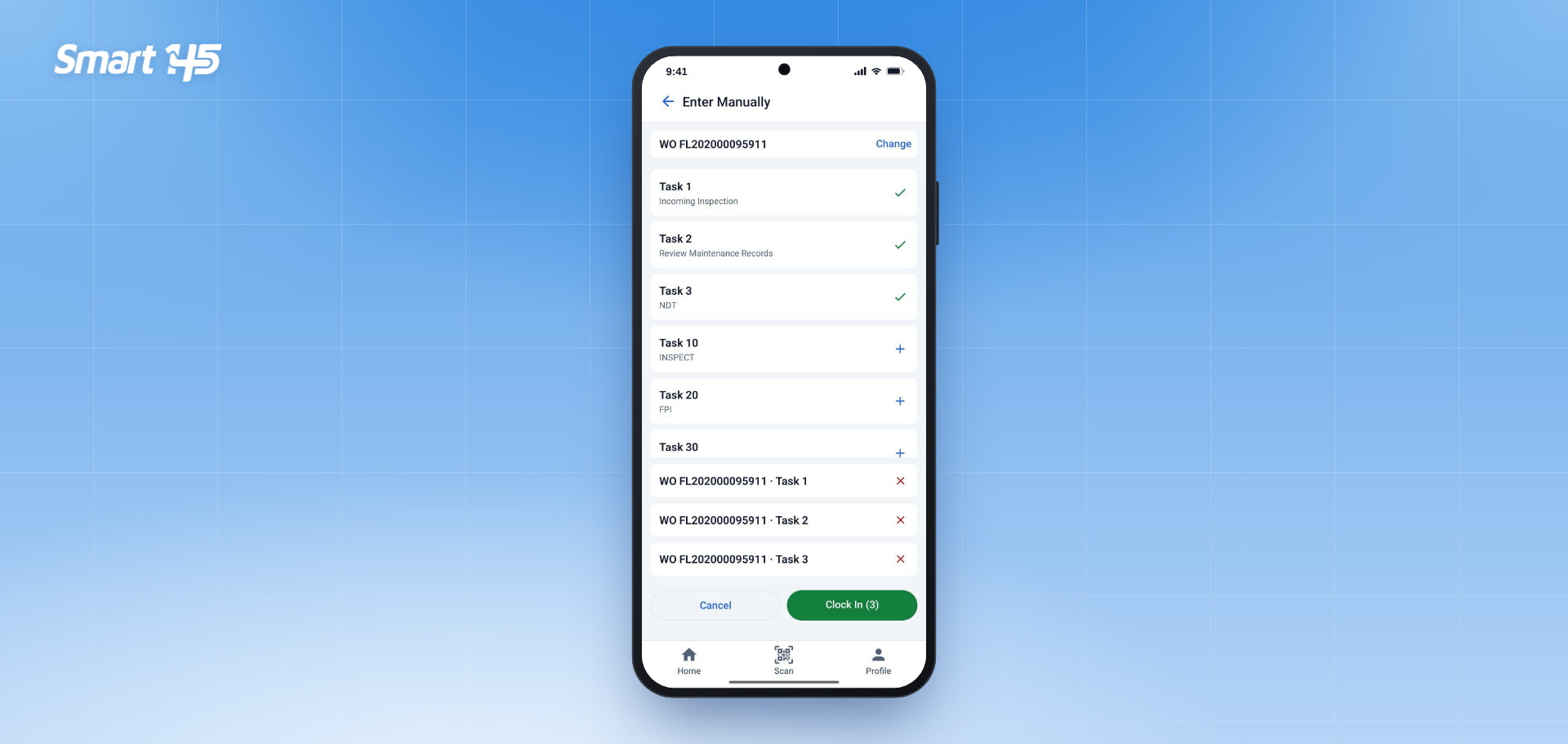
If the Traveler isn't at hand, select Enter manually and choose the Work Order. To switch to a different Work Order, tap Change.
The screen lists all the tasks on the Work Order. Tap + next to each task you're going to work on; selected tasks show a green check and are added to the list at the bottom. Then tap Clock In (#) and confirm.
How to Clock Out
When the work on a task is finished, open Work Order Labors and tap the red Clock Out button. Scan the Complete barcode of the task on the Traveler. The task is added to the list, the same way as when clocking in.
Tap Clock Out (#) to finish. The app confirms with the message The Work Order Labor has been clocked out, and the labor record shows its end time and total duration. The hours are recorded on the Work Order and can be reviewed in the Quotation tab of the web application.
Tip: Scan the Start barcode to begin a task and the Complete barcode to end it. Keeping the Traveler with the unit at the bench makes both steps take only a few seconds.
Why This Matters for Aviation MRO Operations
Accurate labor records are essential for quoting, invoicing, and measuring shop efficiency. When technicians clock in and out from the bench, hours are captured as the work happens, instead of being reconstructed at the end of the shift.
Scanning the Traveler links the hours to the exact Work Order and task, which reduces entry errors and strengthens traceability for each component. Supervisors also get a real-time view of which tasks are in progress, which helps them plan work, follow up on turnaround times, and keep repairs moving.