
Work order quotes can be digitally approved/reject and signed by your customers. The digital sign is available upon receiving the email notification.
To have a quote officially approved or rejected by a customer, you’ll need to initiate the process directly from the Work Order
Step 1: Edit the Work Order
Step 1: Edit the Work Order
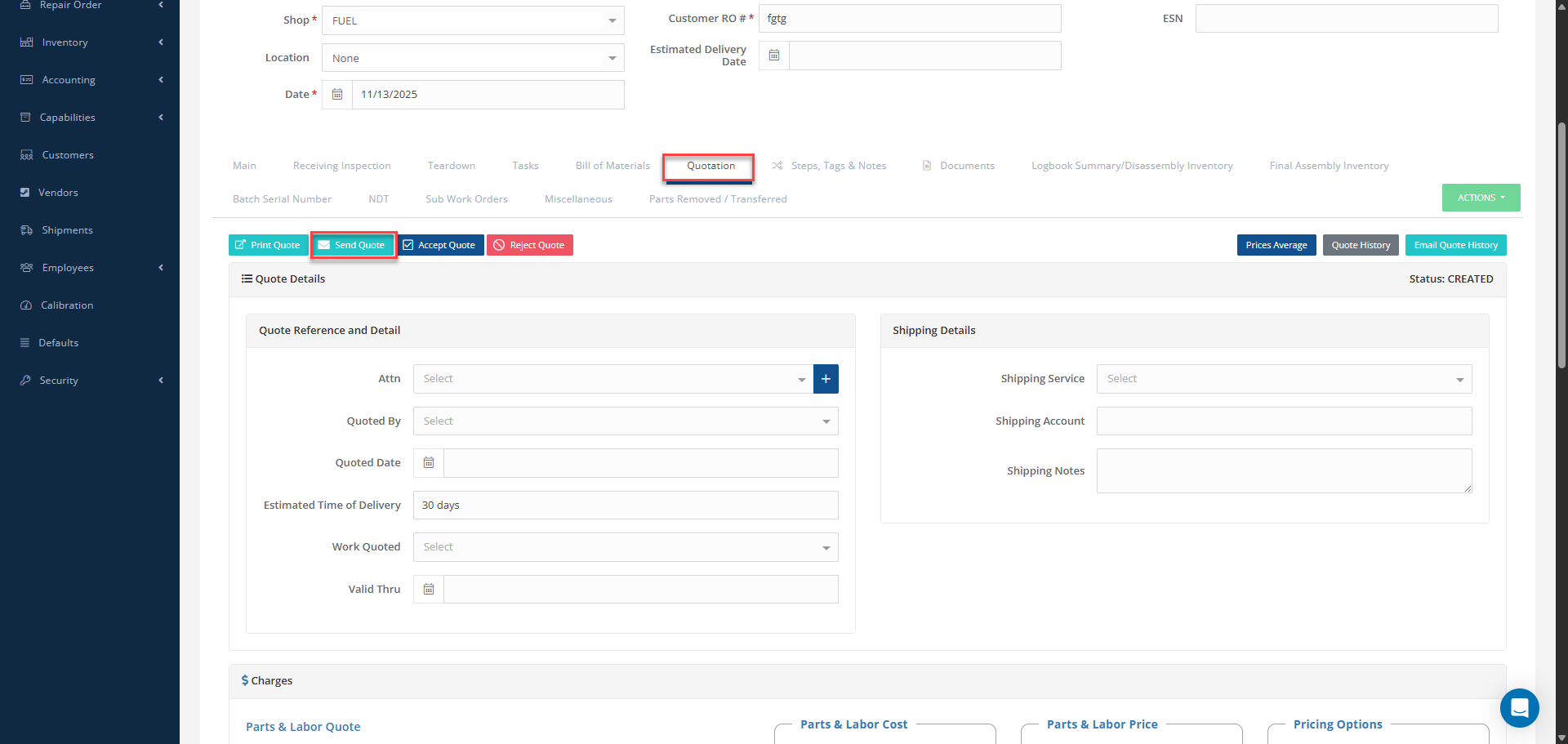
- Open the relevant Work Order (WO).
- Go to the "Quotation" tab.
- Click on "Send Quote".
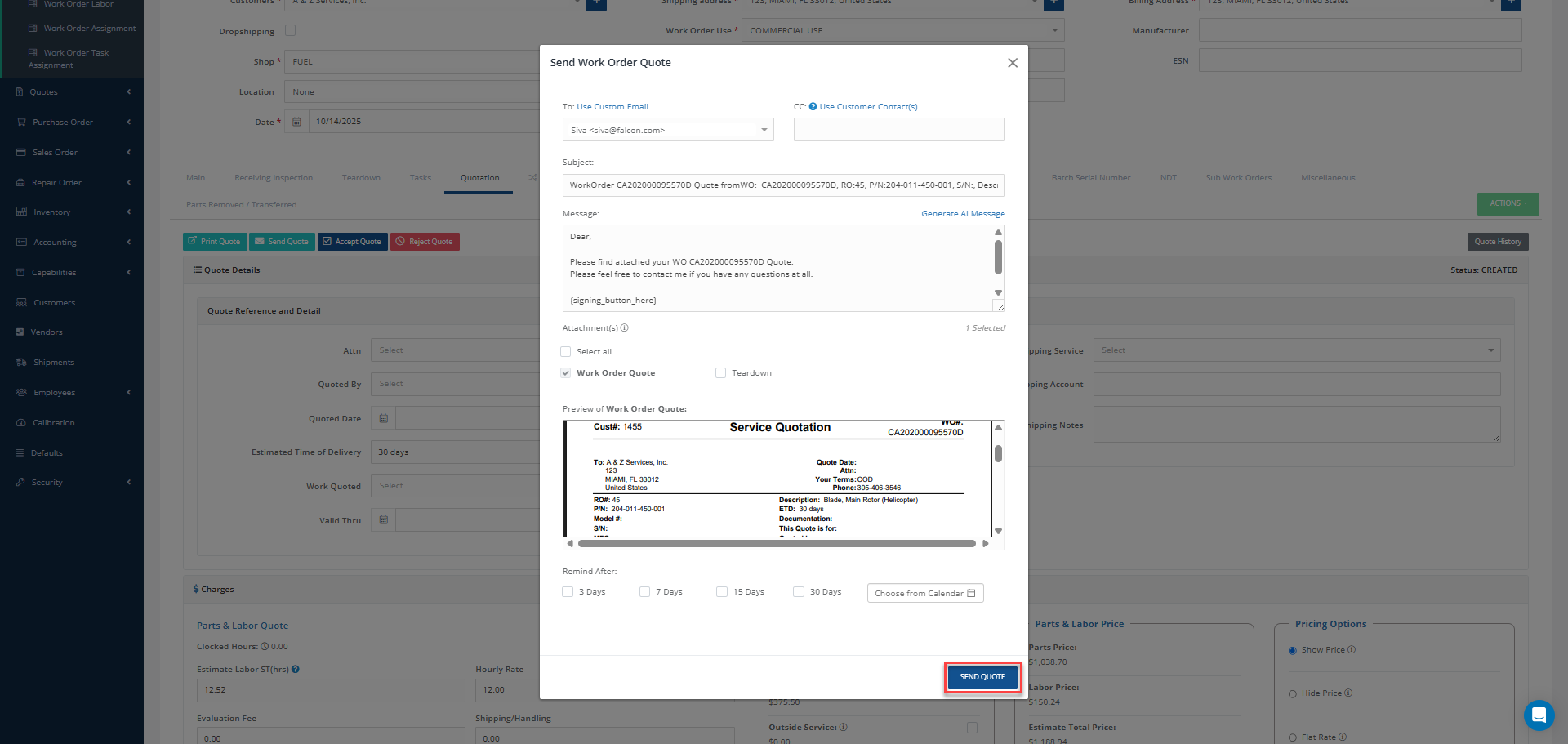
Step 2: Customer Receives Email Notification
- Once the quote is sent, the customer will receive an email notification.
- The email will include a link to sign the quote online.
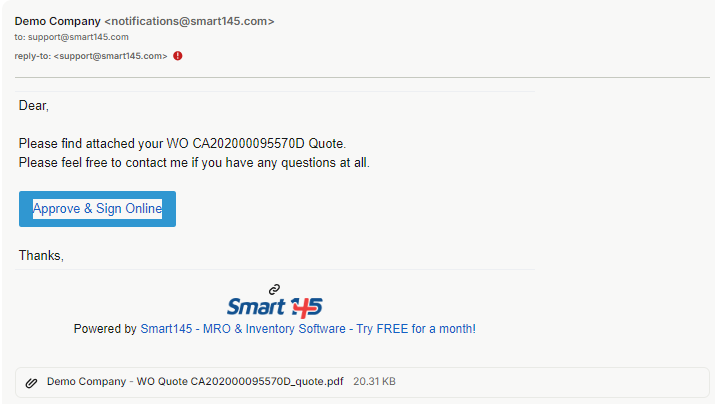
Step 3: Customer Signs the Quote
- The Customer will be prompted to approve or reject the quote.
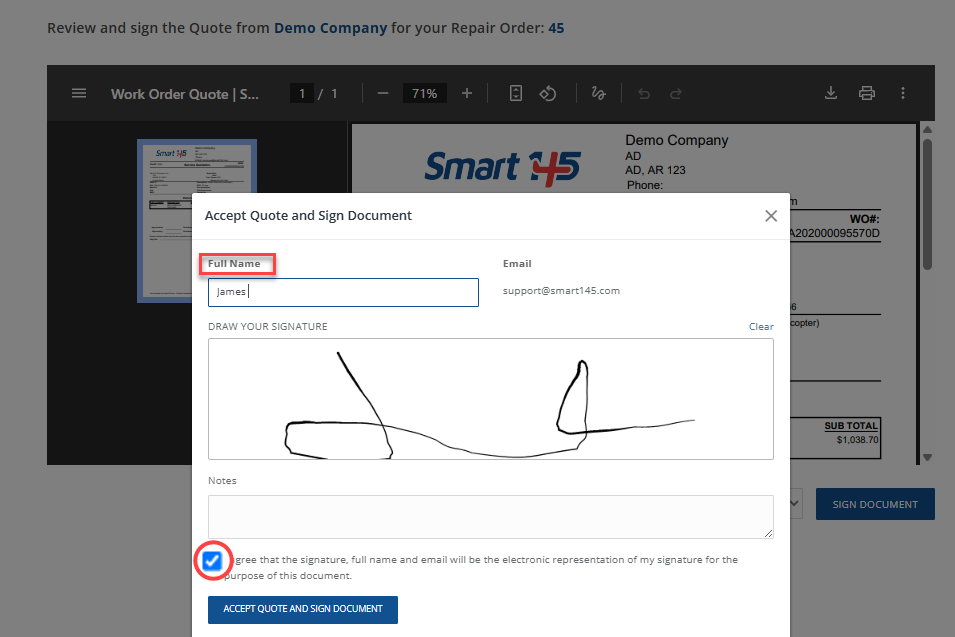
- Once the customer clicks on "Sign Document" and selects the desired option (Approve or Reject), the signature window will appear
Note:
To successfully save the signature, the customer must
To successfully save the signature, the customer must
Check the required agreement checkbox
Enter their full name in the designated field
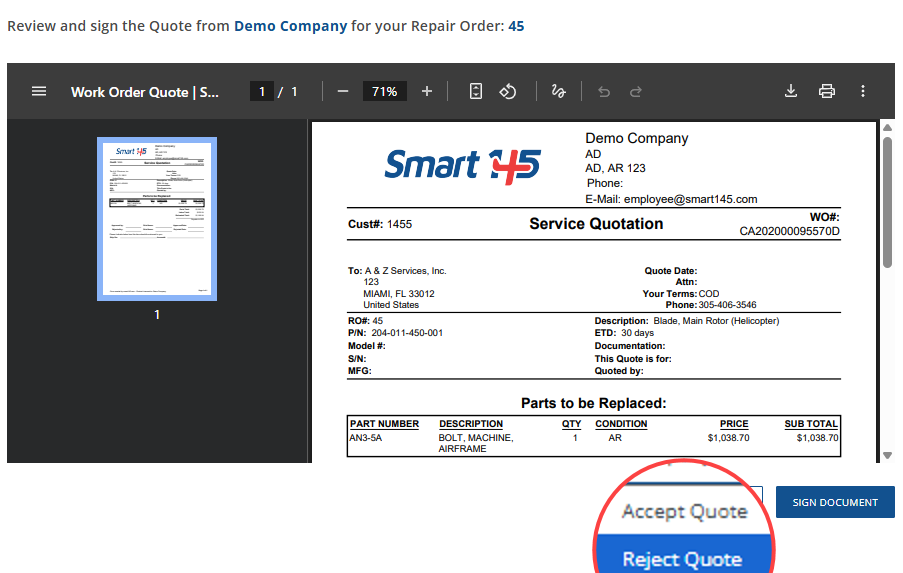
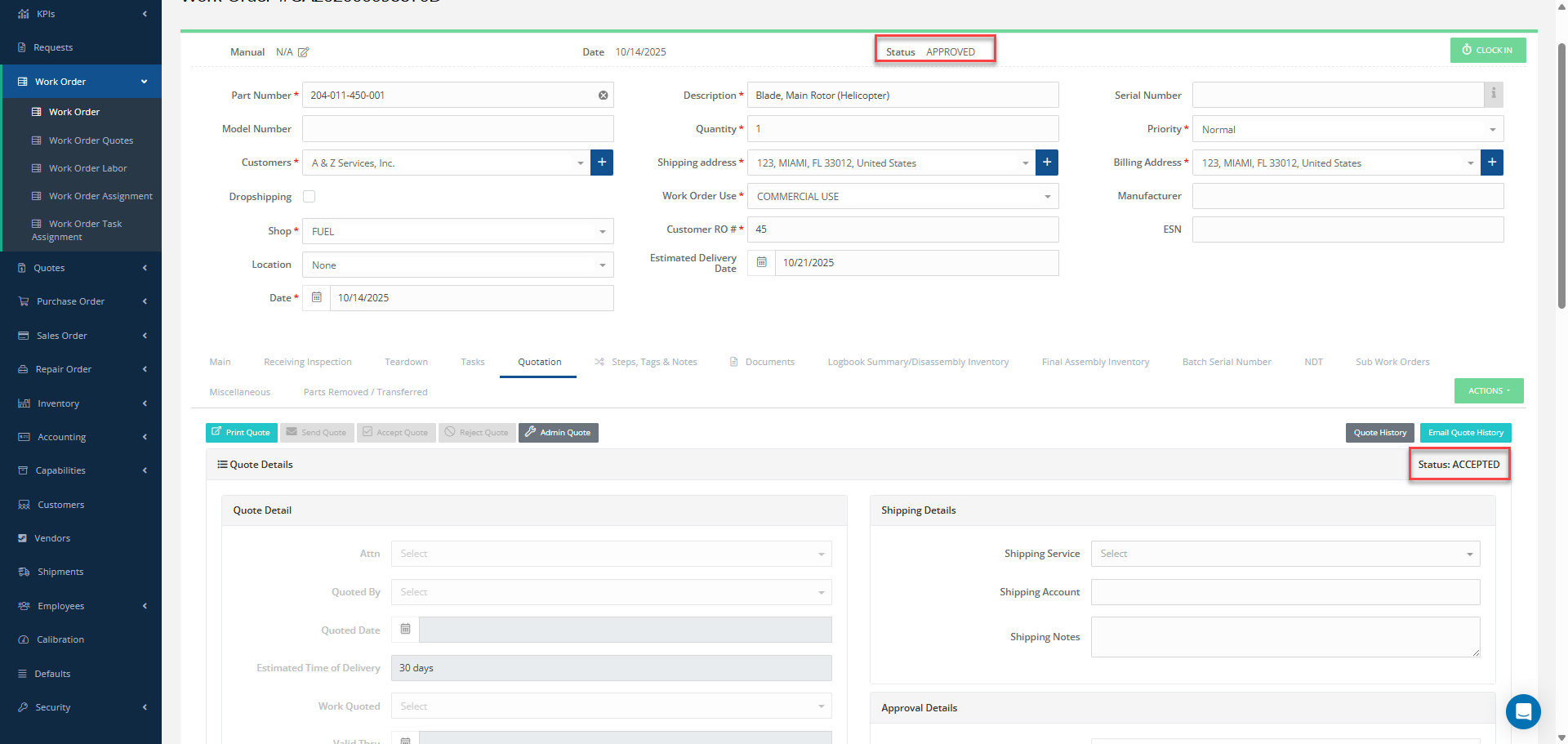
After the quote is signed, the system will automatically update the quote status to ✅Accepted or ❌ Rejected and the Work Order status to ✅ Approved or ❌ Rejected, depending on the customer's selection.
The signed document will be saved in the "Documents" section of the Work Order for future reference.