How Can Customer RFQs Be Automatically Created from Incoming Emails Using AI?
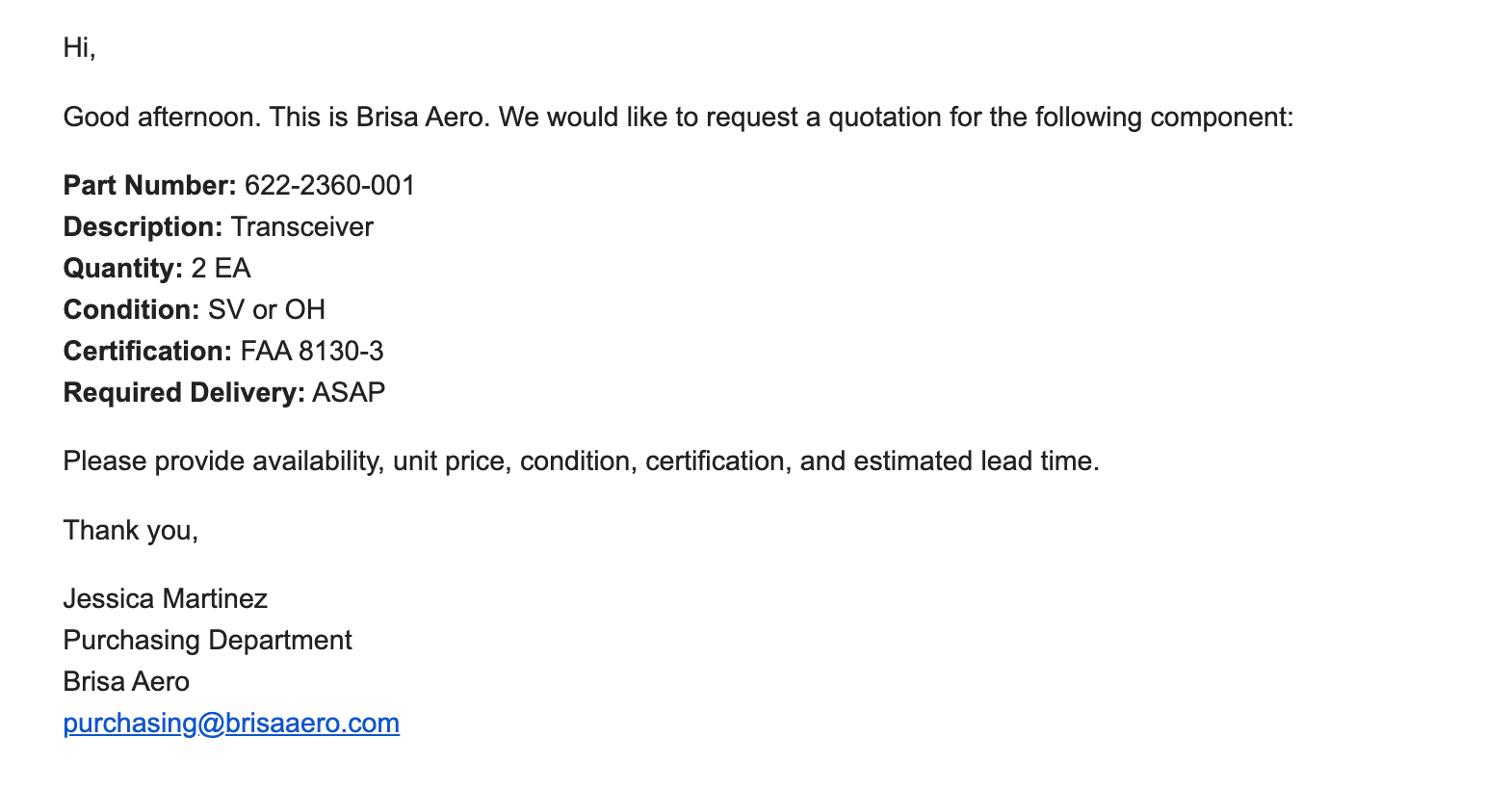
In aviation MRO and parts sales operations, customers frequently send Requests for Quote (RFQs) by email when they need pricing, availability, lead time, certification information, or repair services for a component.
When these requests remain only in individual email inboxes, sales teams must manually transfer the information into their ERP before preparing a quotation. This creates additional data entry and makes it more difficult to maintain a complete history of customer requests, quotations, and subsequent transactions.
Smart 145 can automatically convert incoming customer RFQ emails into structured RFQ records using AI. This allows your team to receive the request, review the original email, prepare the corresponding Sales or Repair Customer Quote, send it to the customer, receive or record their approval, and continue directly into the Sales Order or Work Order workflow within Smart 145.
How Does It Work?
Smart 145 provides your company with a dedicated email address for receiving customer RFQs.
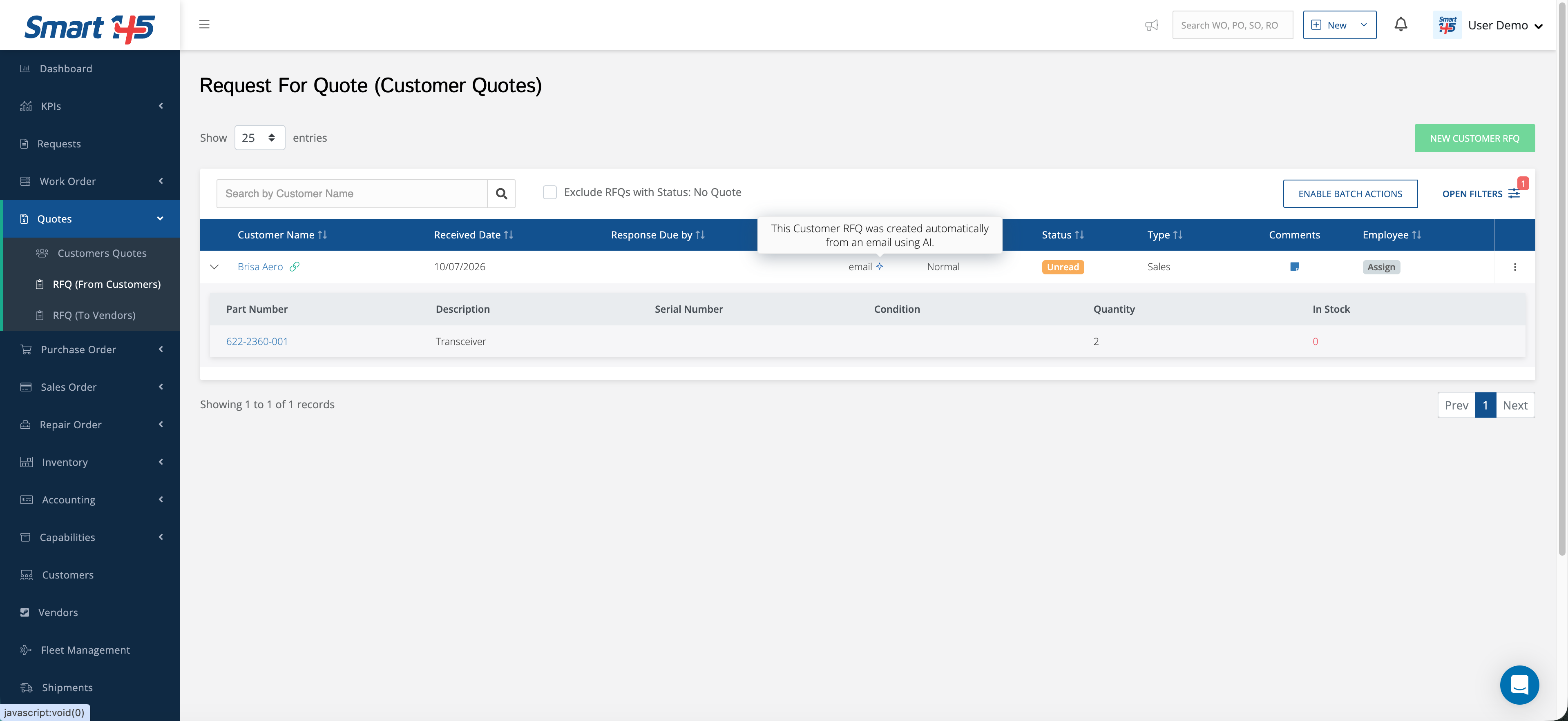
This email address can be included as a BCC recipient when customers send their RFQs. Once the email reaches the designated address, Smart 145 uses AI to identify the relevant information contained in the message and automatically creates a record under:
Quotes → RFQ (From Customers)
The system can capture information from the customer request such as the customer, Part Number, description, quantity, and additional details included in the email.
This reduces manual data entry and allows incoming RFQs to become part of your Smart 145 workflow from the moment they are received.
Reviewing the Original Email
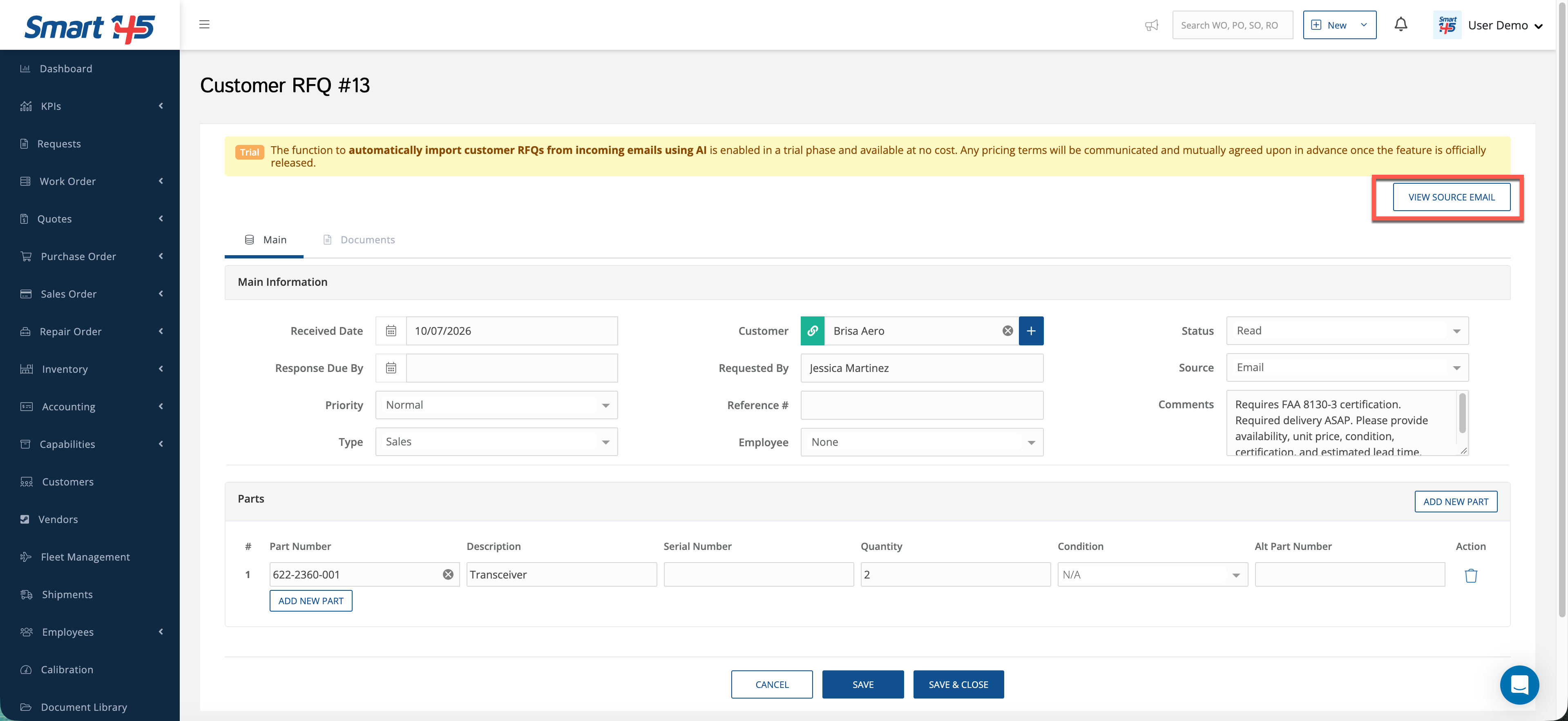
Once the RFQ has been created, your team can review the information populated by the system.
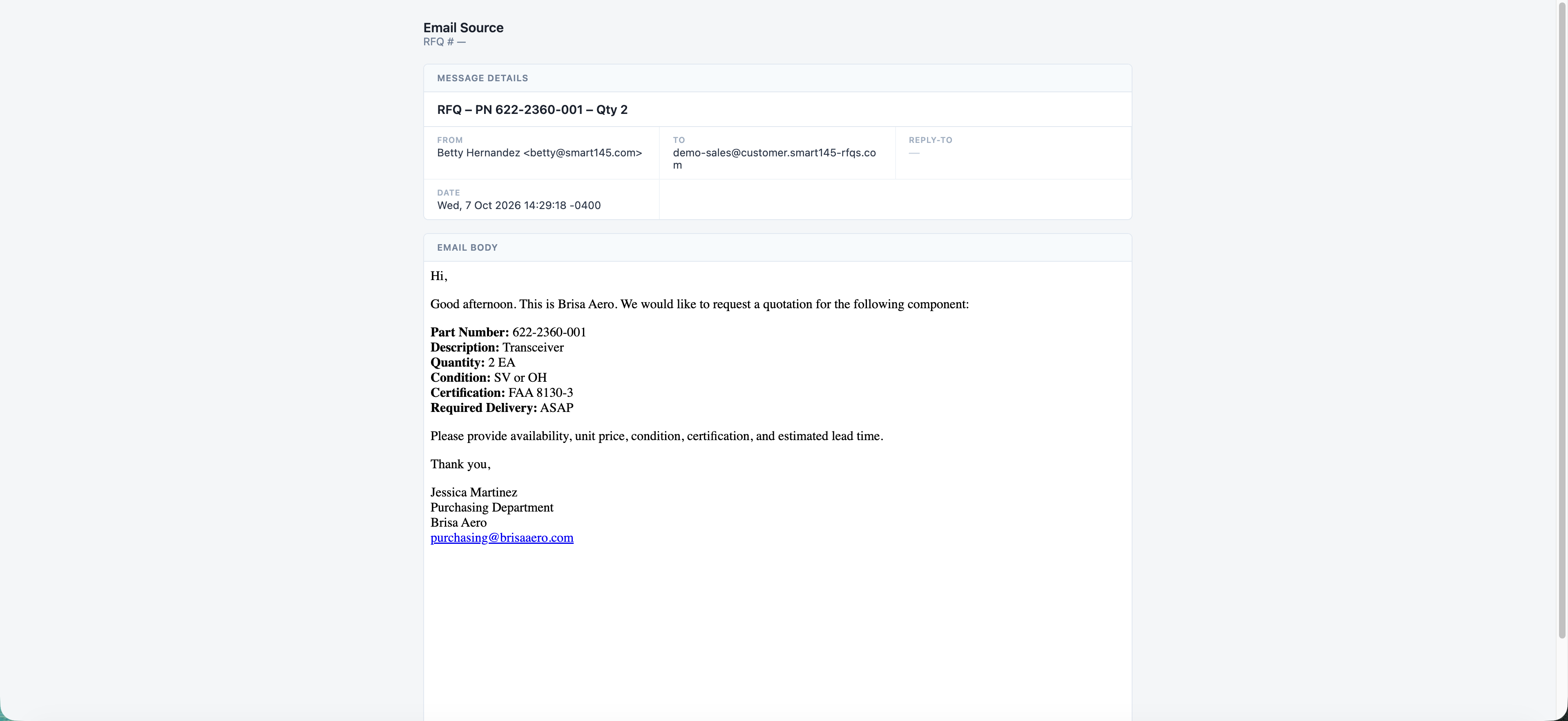
If you want to verify the original request, open the RFQ and select View Source Email.
The original incoming email will be displayed, allowing you to compare it with the information that Smart 145 automatically populated into the RFQ.
Creating the Customer Quote
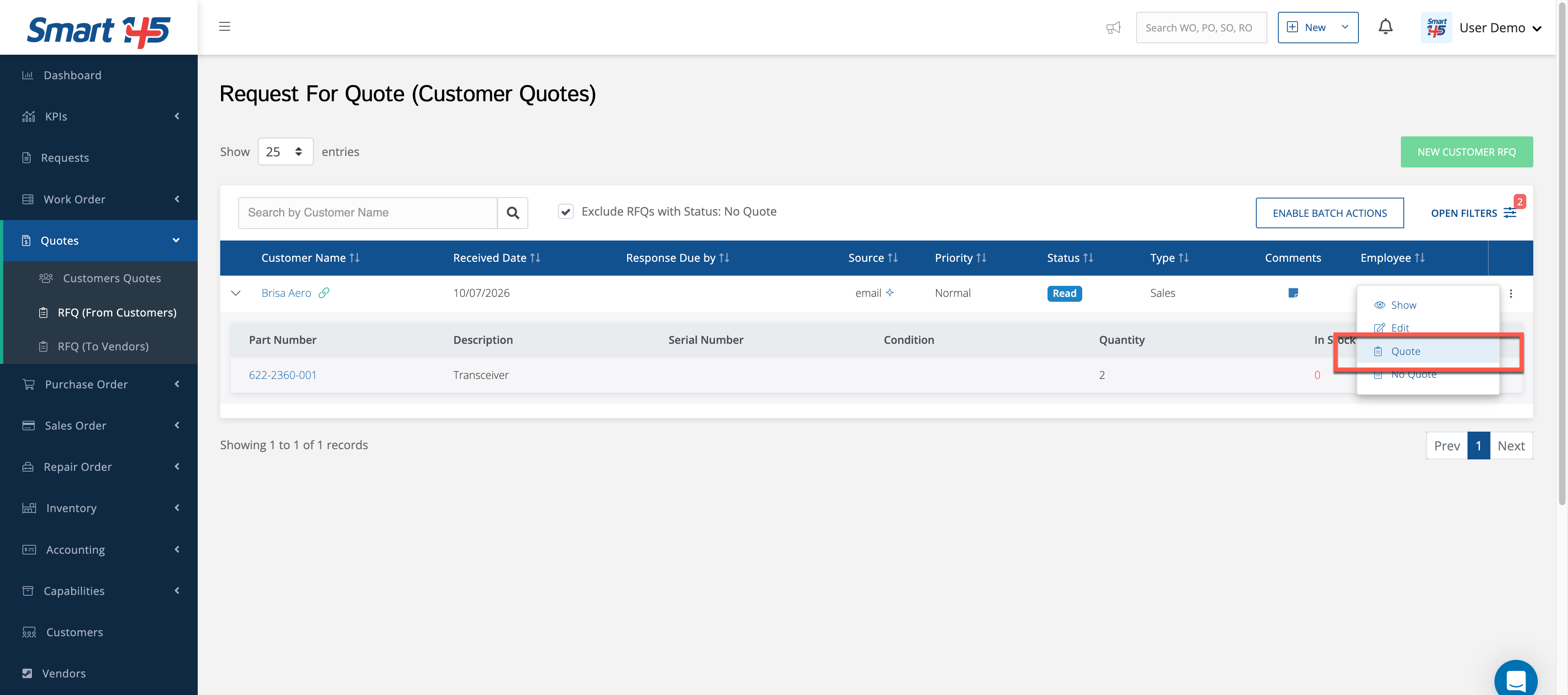
Once the RFQ has been reviewed, return to the RFQ (From Customers) browser, open the three-dot menu for the record, and select Quote.
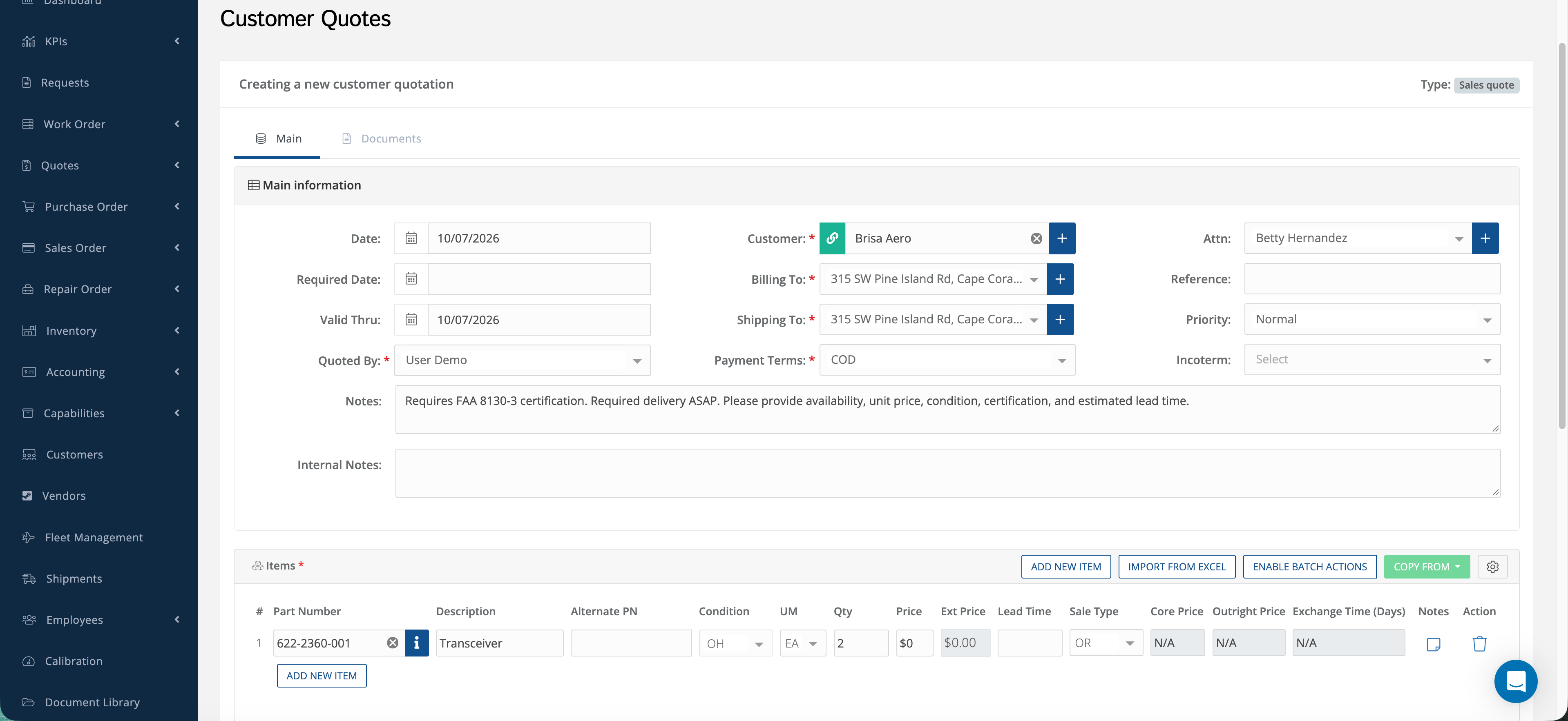
Smart 145 will automatically open a new Customer Quote with the information from the incoming RFQ already populated.
At this point, your team only needs to complete the commercial information required for the quotation, such as the Price and Lead Time, and make any adjustments needed before sending it to the customer.
The Customer Quote can represent either a Sales transaction or a Service transaction, depending on what is being quoted.
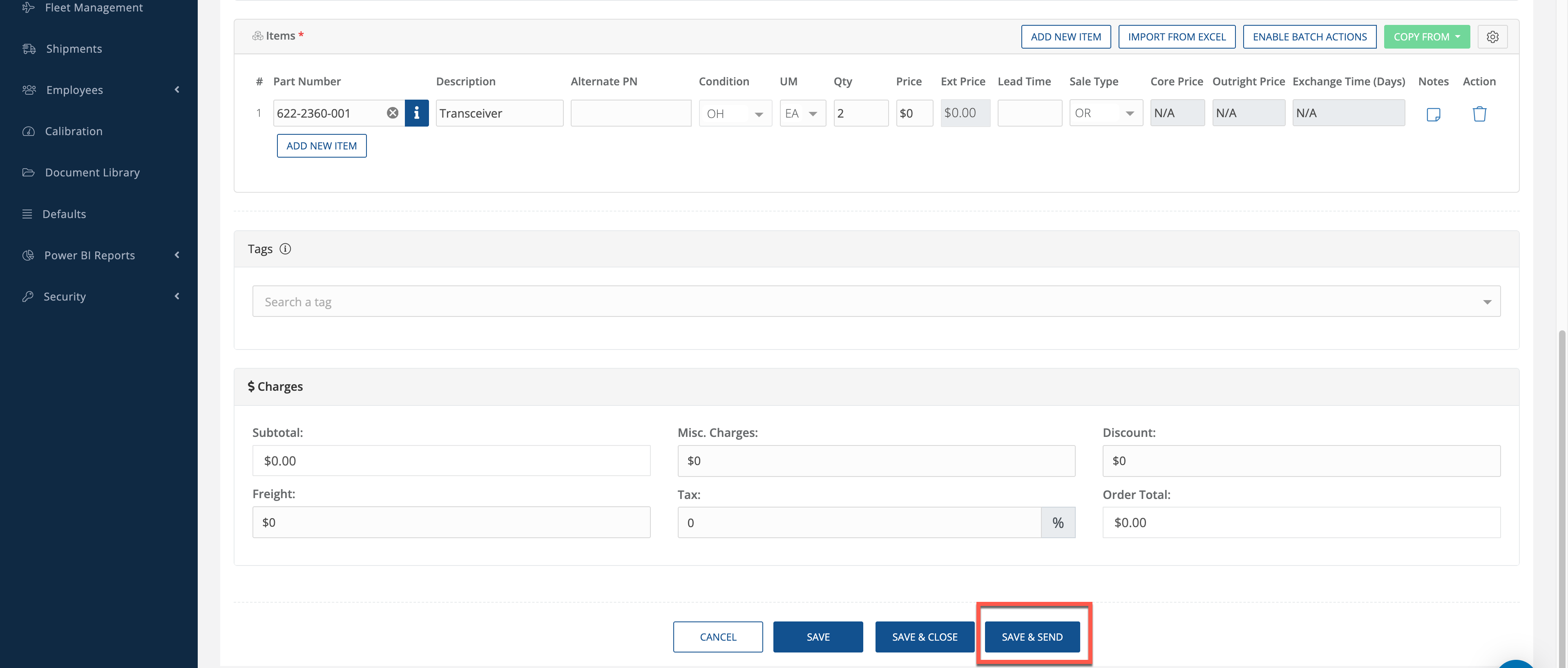
Once the quotation is ready, select Save & Send.
Sending the Quote to the Customer
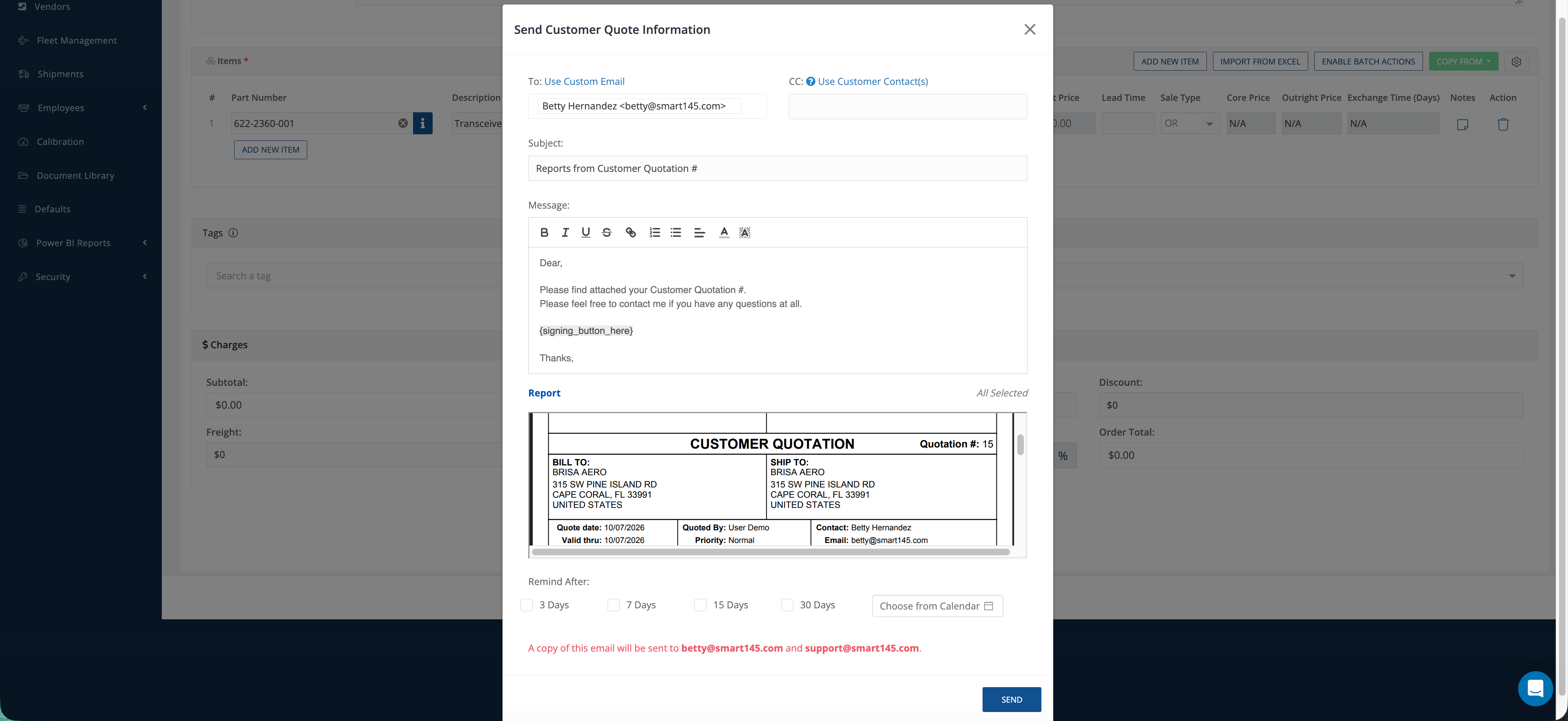
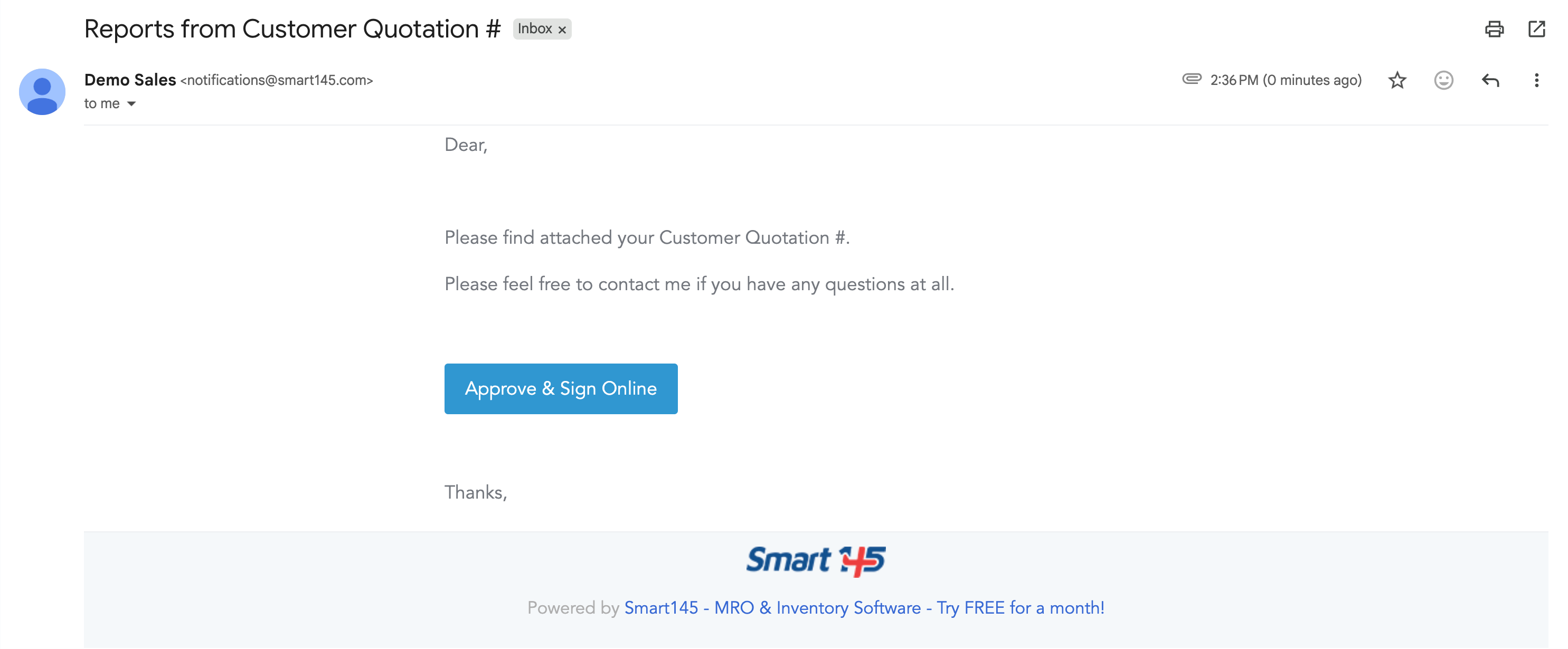
After selecting Save & Send, Smart 145 displays a preview of the email that will be sent to the customer.
From this window, you can review the recipients, email message, and the Customer Quotation report before sending it.
Once sent, the customer receives the quotation by email along with an Approve & Sign Online option.
Customer Approval and Electronic Signature
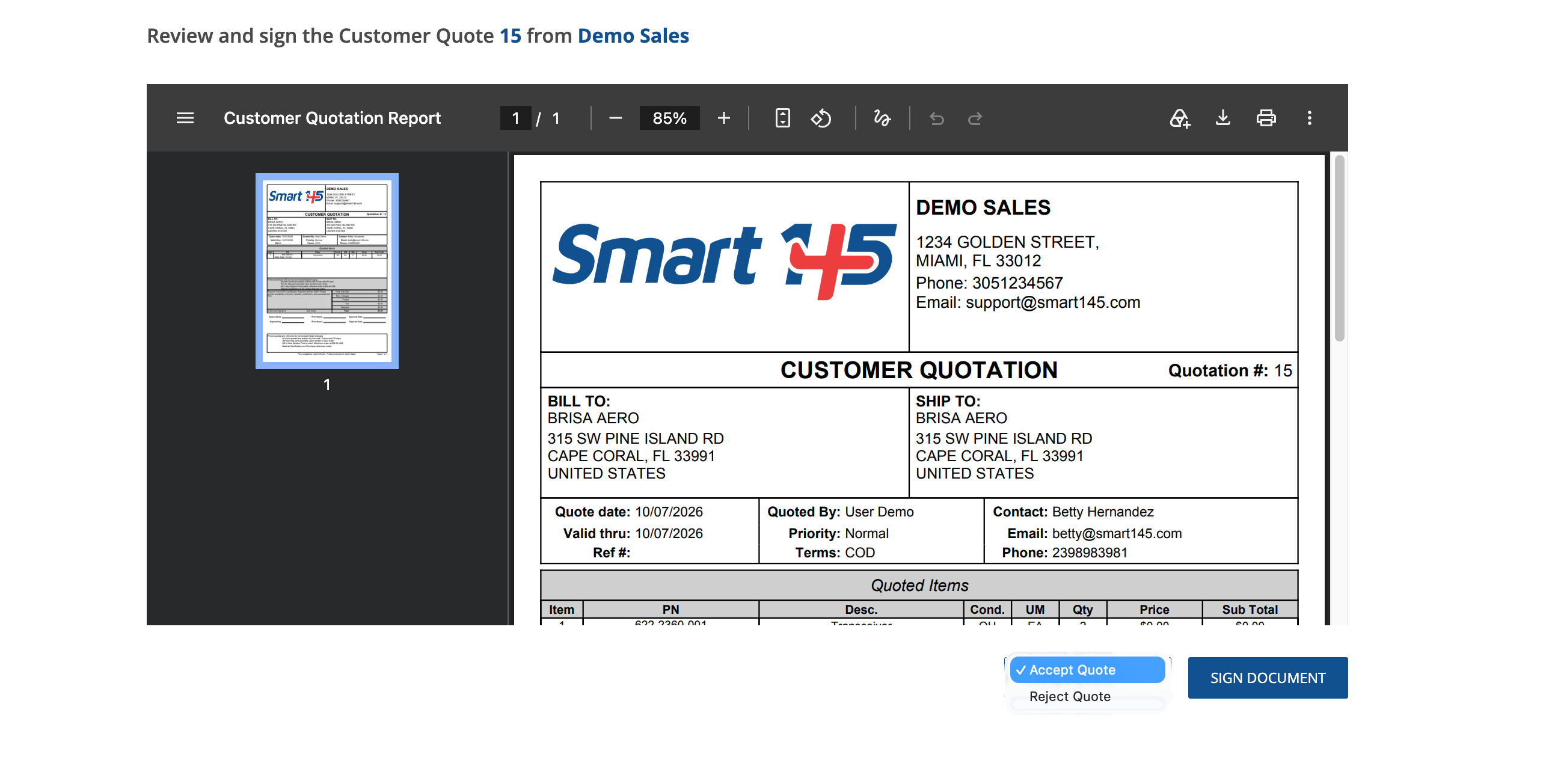
When the customer selects Approve & Sign Online, they can review the quotation directly from the link provided in the email.
The customer can see the quote being presented, including the pricing and other quotation information, and choose whether to Accept Quote or Reject Quote.
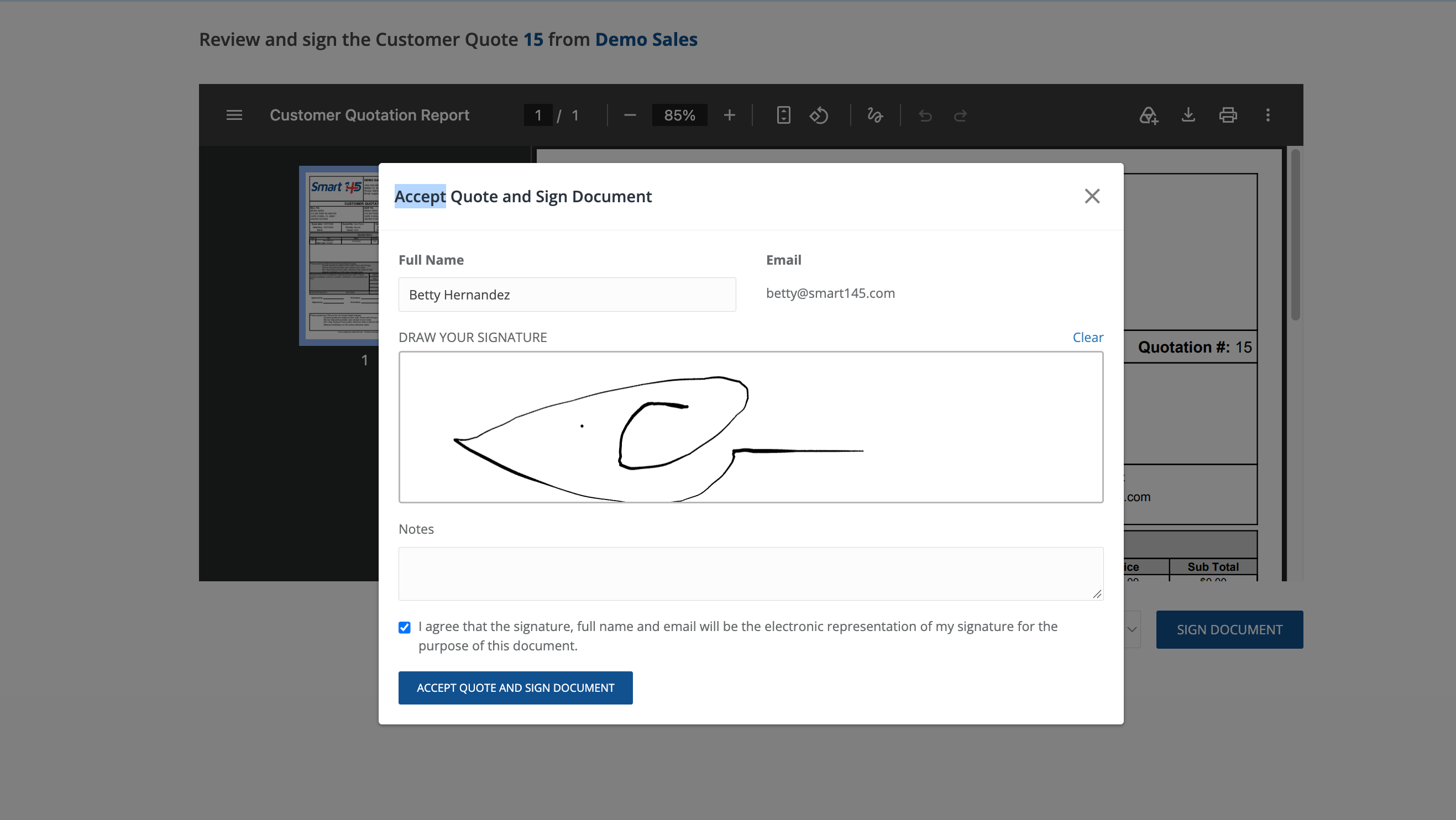
If the customer accepts the quotation, they can then enter their information and electronically sign the document.
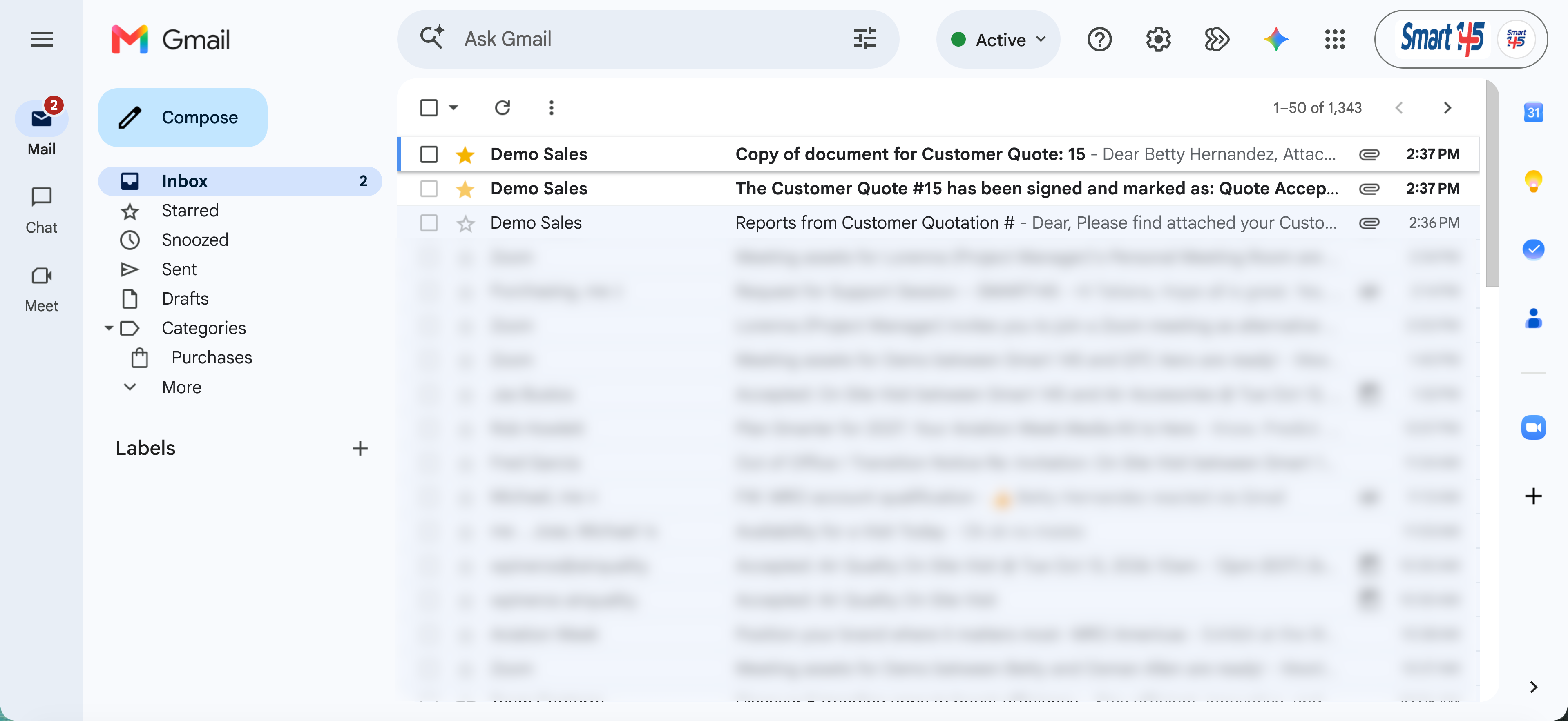
Once the document is signed, Smart 145 records the customer's approval and updates the corresponding Customer Quote in the system. Notifications or copies of the signed document can also be directed to the appropriate internal recipients as configured.
The quotation can also be approved manually. For example, if the customer confirms acceptance by phone, email, or another method, an authorized user can update the Customer Quote Status to Approved directly in Smart 145.
Continuing the Workflow from the Approved Quote
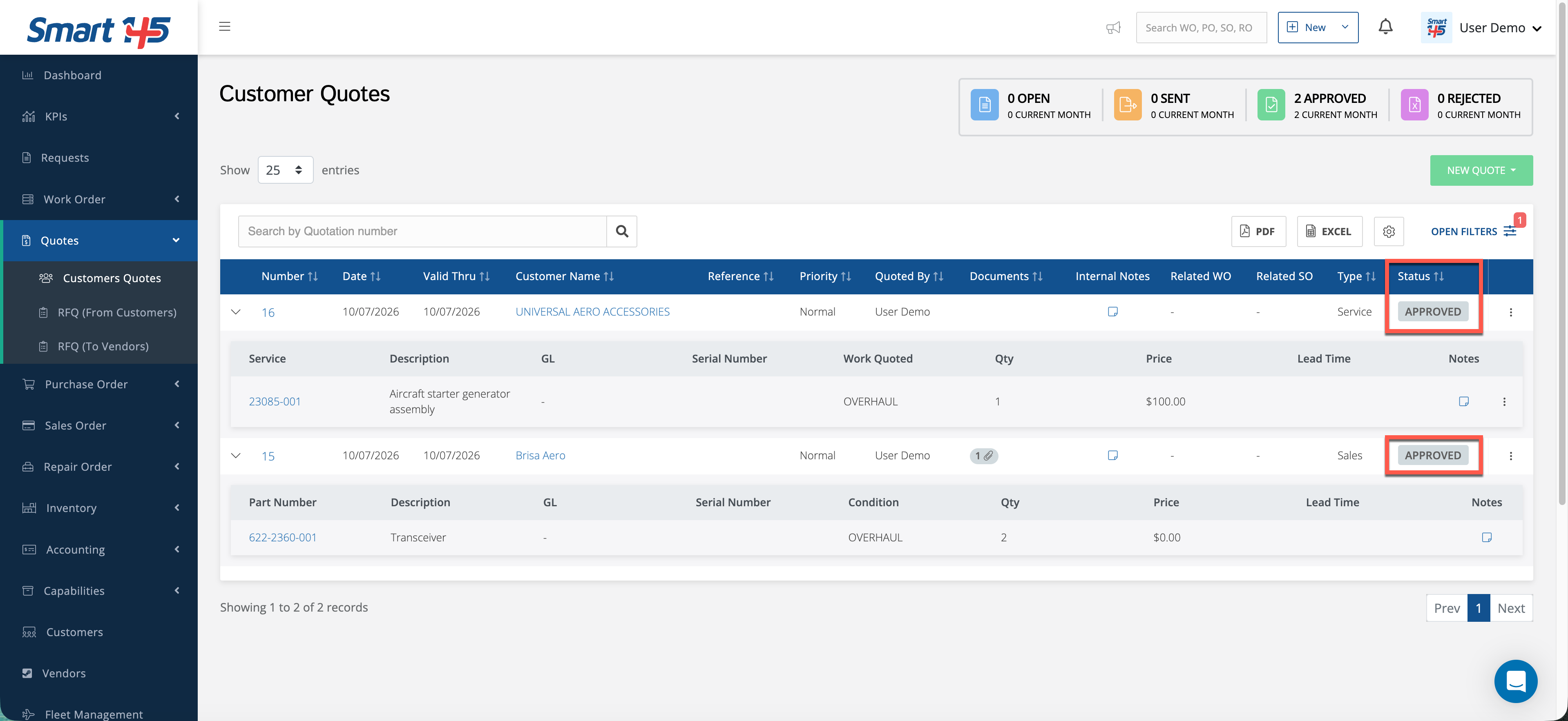
Approved quotations can be reviewed from the Customer Quotes browser.
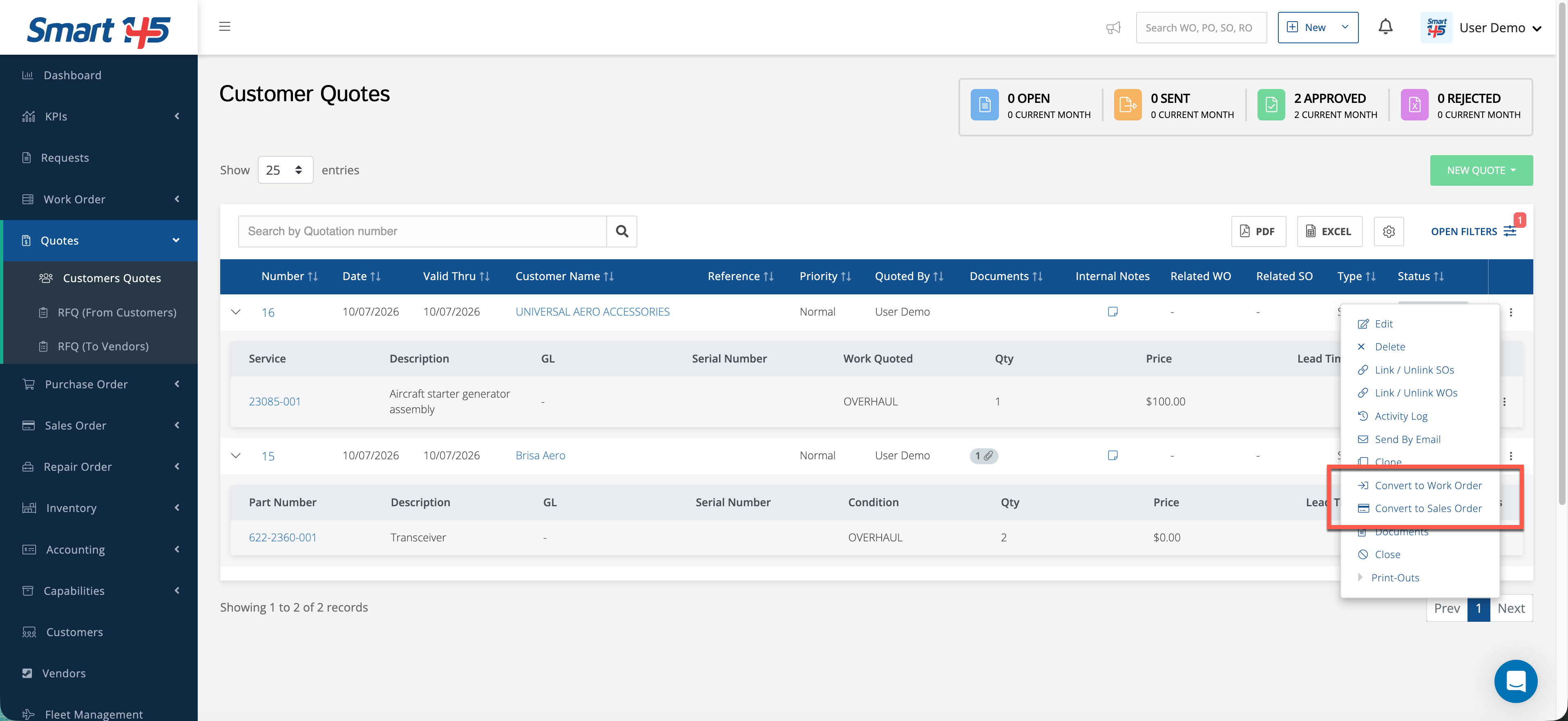
The Type column identifies whether the quotation is for Sales or Service, which determines how the workflow continues.
For an approved Sales quote, the Customer Quote can be converted directly into a Sales Order.
For an approved Service quote, the Customer Quote can be converted directly into a Work Order.
This allows the complete process to remain connected inside Smart 145:
The information originally received from the customer remains connected throughout the process, reducing duplicate data entry and providing traceability from the initial RFQ through the final sales or repair transaction.
Keeping Customer RFQs and Quotes Traceable
Managing customer RFQs directly in Smart 145 also creates a centralized history of the quotations associated with each component.
Instead of having previous requests and pricing distributed across different email inboxes, your team can maintain that commercial history within the system and reference previous quotation activity when working with the same Part Number in the future.
This provides better visibility into what has previously been quoted to customers and keeps the RFQ and quotation process connected to the rest of your operation.
How to Enable This Functionality
The automatic import of customer RFQs from incoming emails using AI is enabled by request.
If you would like to use this functionality, please contact the Smart 145 Support Team at support@smart145.com. Our team will provide the dedicated customer RFQ email address and complete the required configuration for your account.