How to Access Your Account Using a Passkey in Smart 145
Smart 145 allows users to access their account using a passkey, providing a faster, more secure way to sign in without typing a password.
What is a passkey?
A passkey is a modern sign-in method that allows you to access apps and websites without using a traditional password. Instead of entering a password manually, you can confirm your identity using a method already available on your device, such as:
Fingerprint recognition
Face recognition
Your phone, tablet, or computer PIN
Passkeys are securely stored on your device or password manager and are used only to verify that you are the authorized user signing in.
Why use a passkey? Using a passkey provides several advantages when signing in to Smart 145:
Better security: Passkeys are much harder to hack or steal than traditional passwords.
No passwords to remember: You don’t need to create, store, or reset passwords.
Faster login: You can access your account with a quick fingerprint scan, face recognition, or device PIN.
Protection against phishing: Passkeys are designed to work only with the legitimate Smart 145 sign-in page, helping protect your account from fake websites that try to steal login credentials.
How to add a passkey in Smart 145 To set up a passkey for your Smart 145 account, follow these steps:
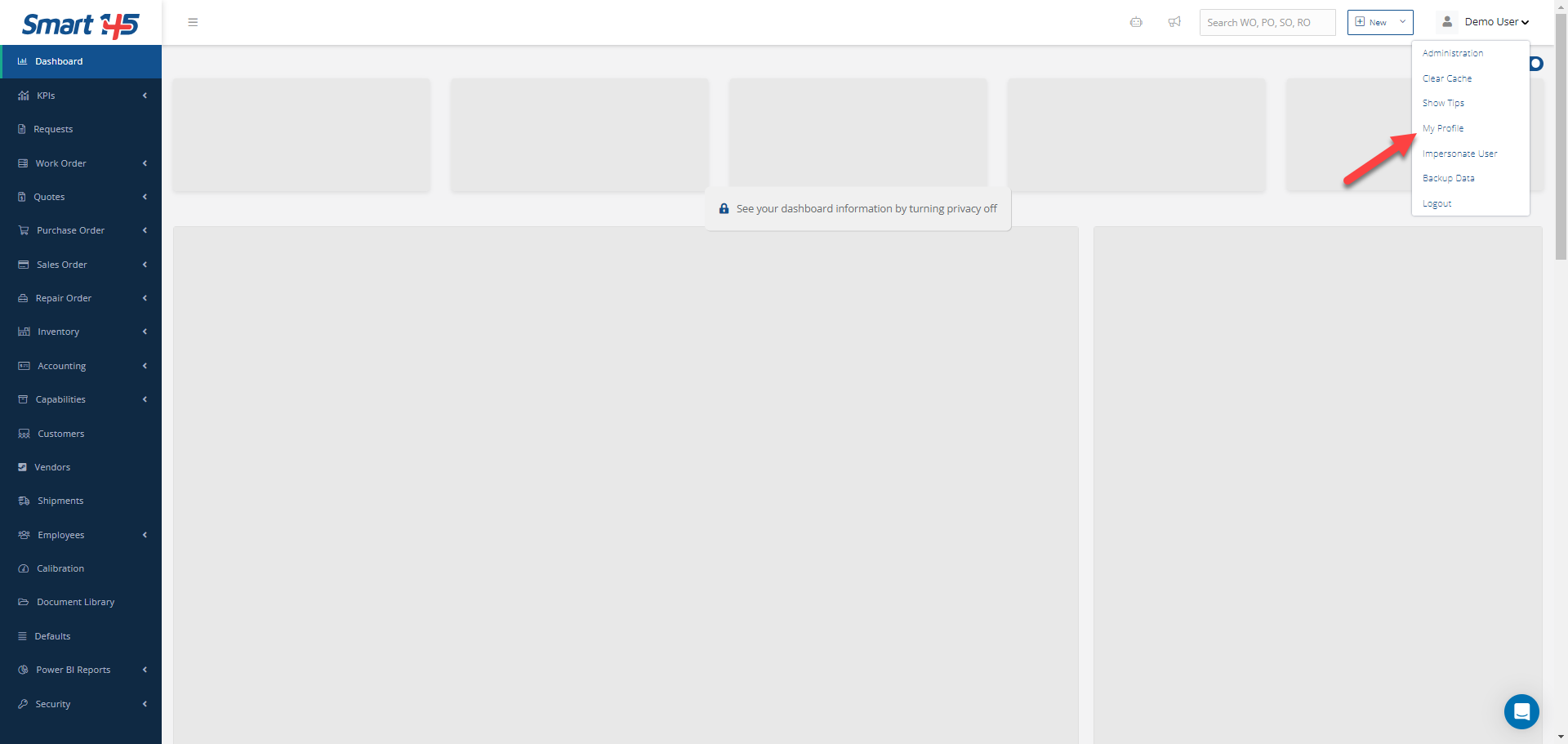
1. Go to “My Profile” under your name in the upper-right corner of the screen.
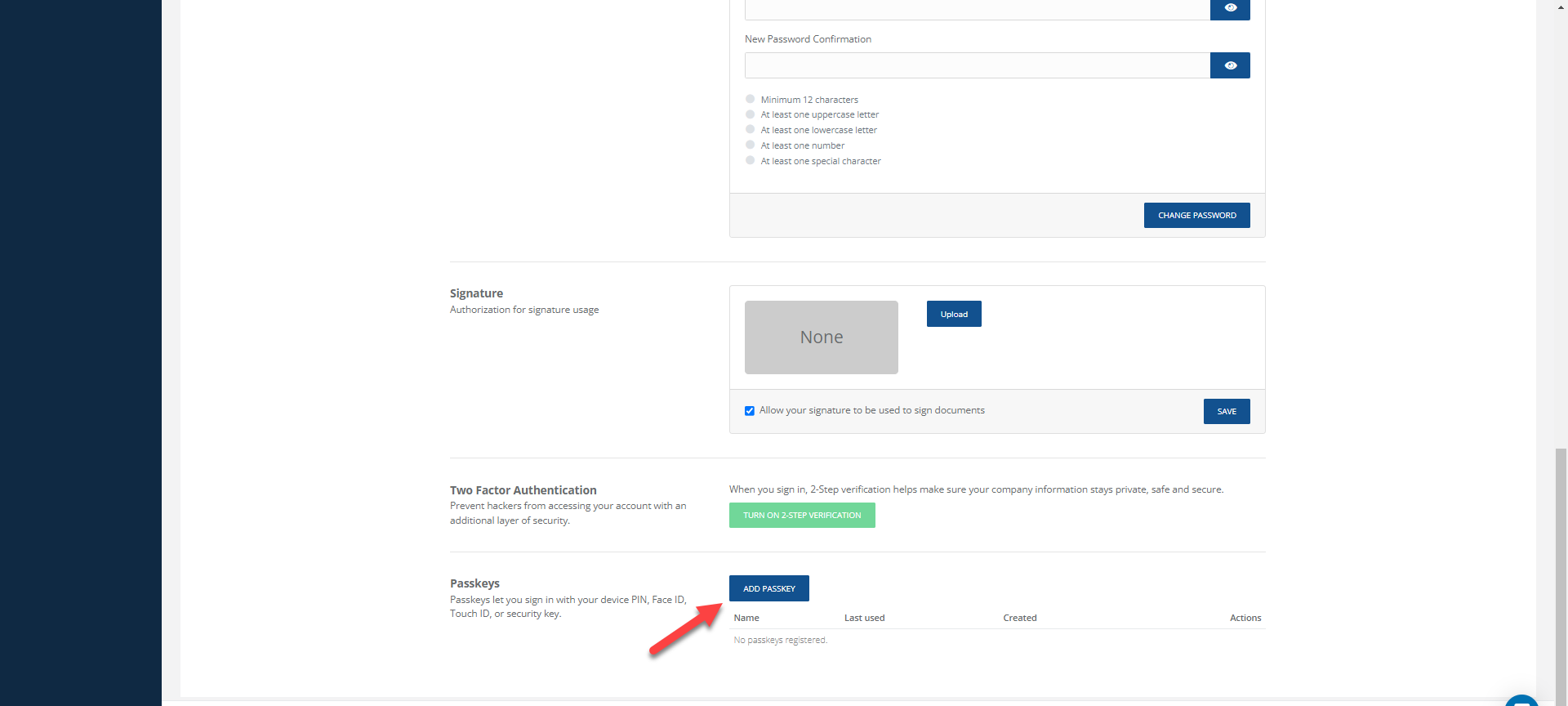
2. Scroll down and click on “Add Passkey.”
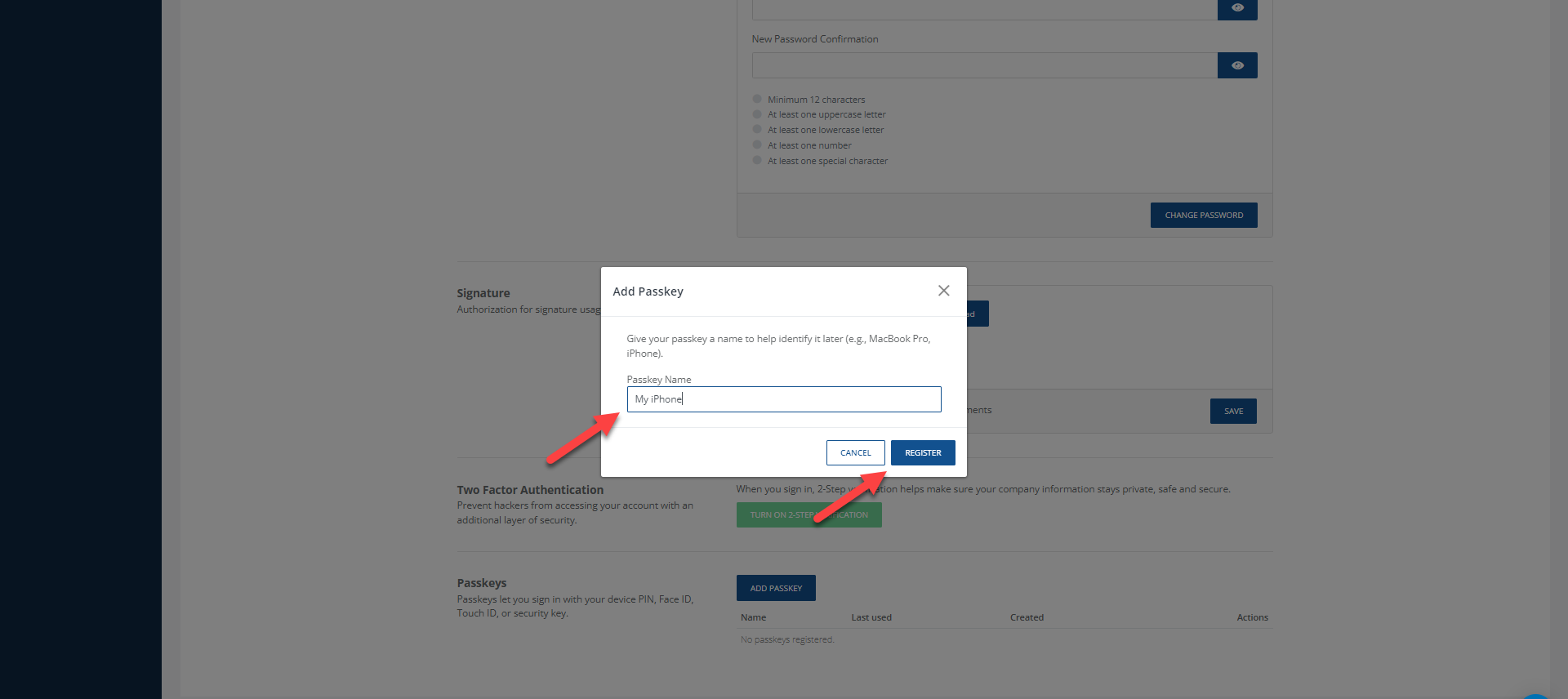
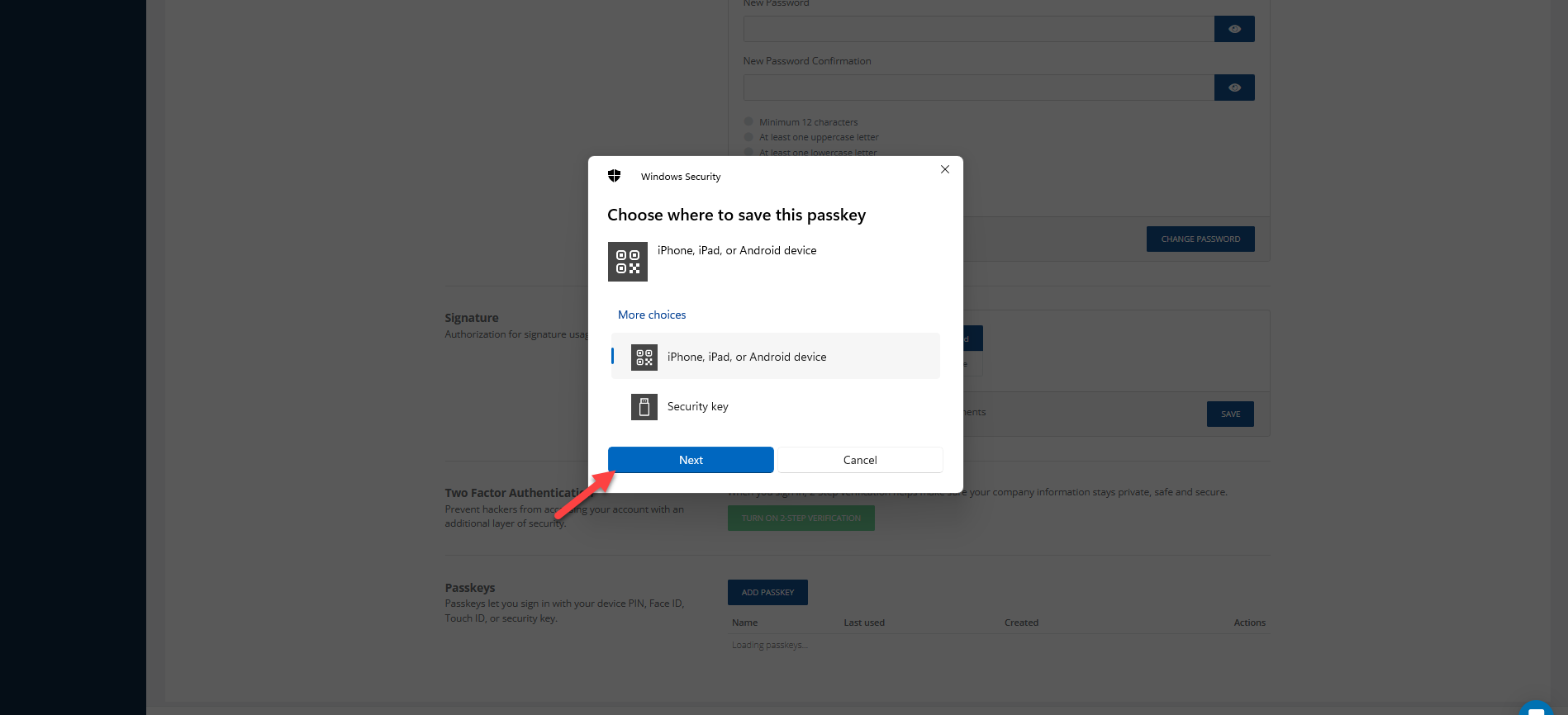
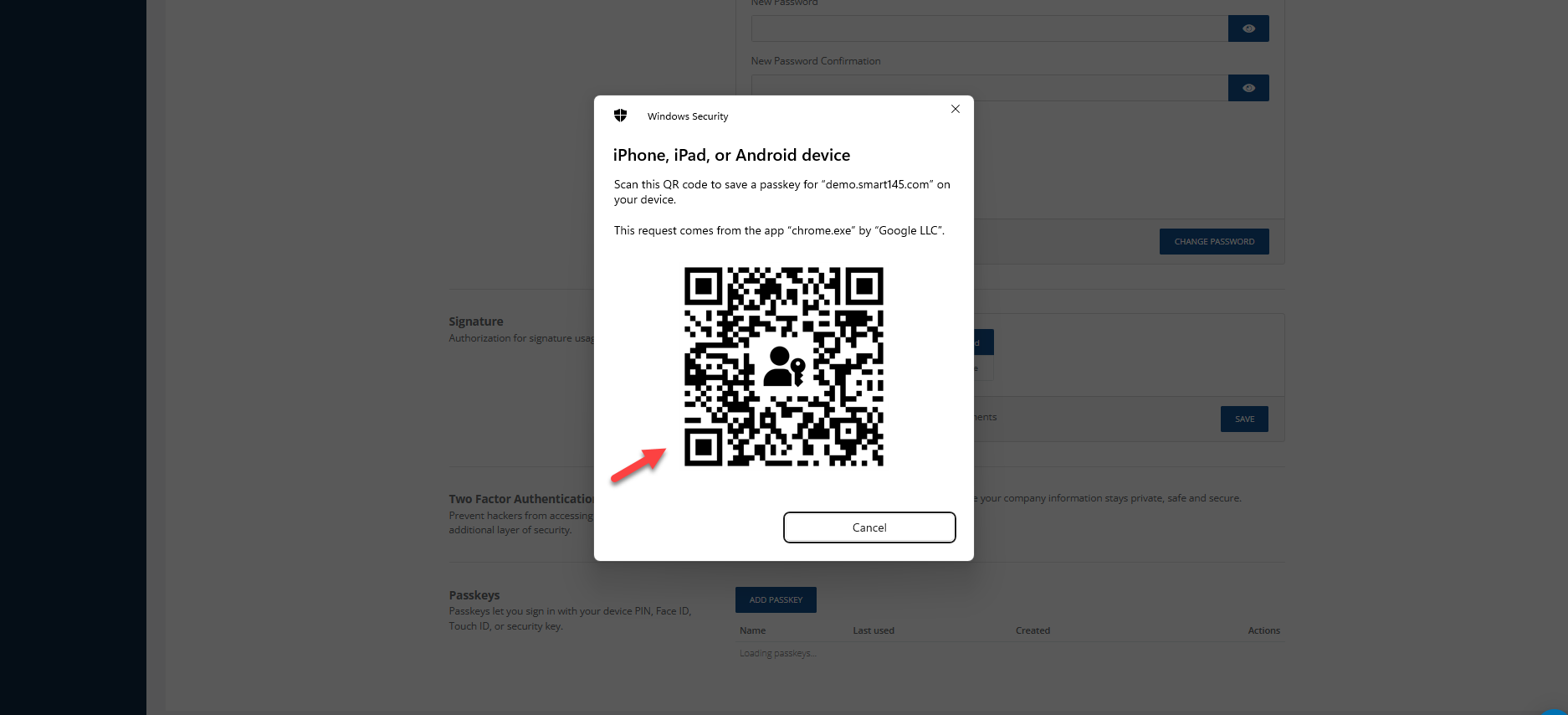
3. Enter a name (identifier) for your passkey. For example: "My iPhone", "Office Laptop", or "Personal iPad". 4. Select your preferred method to save the passkey (iOS, Android, or iPad).
5. Scan the QR code and complete the setup on your device. 6. Select the "Sign In With Passkey" option when trying to log in to your Smart 145 account and choose the previously configured method.