How to Partially Invoice a Sales Order in Smart 145?
The ability to partially invoice a Sales Order allows MROs to manage billing more flexibly as products or services are delivered to the customer. This functionality makes it possible to invoice only the completed items or quantities without having to wait until the entire Sales Order has been fulfilled. It also provides clear traceability between invoiced and outstanding items, giving MROs greater control over their operations and accounts receivable. As a result, MROs can streamline their billing process while keeping their financial records aligned with the actual progress of each order.
To carry out this process, you must first ensure that this functionality is enabled in your system. To do so, please contact the Smart 145 Customer Service team at support@smart145.com, and they will take care of this for you.
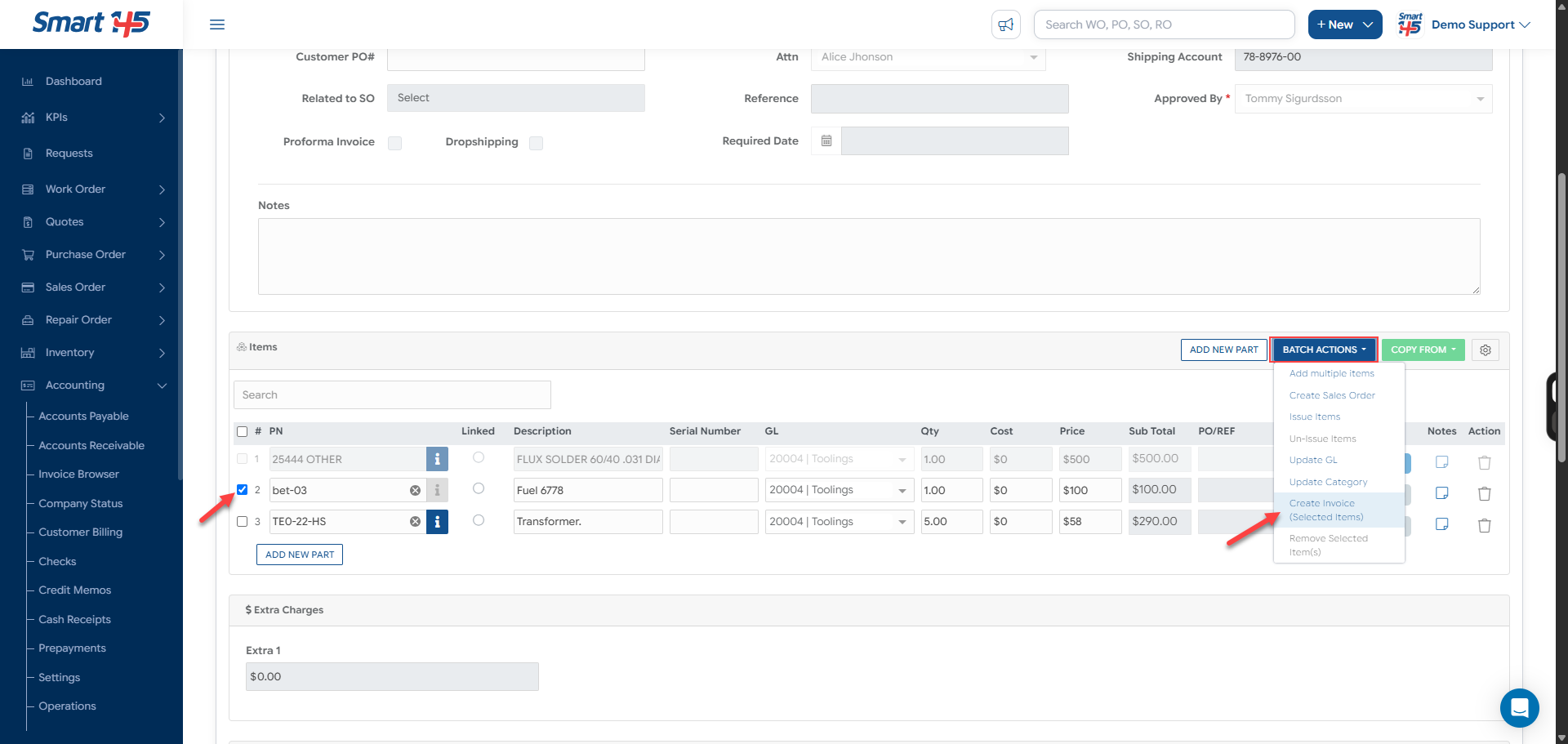
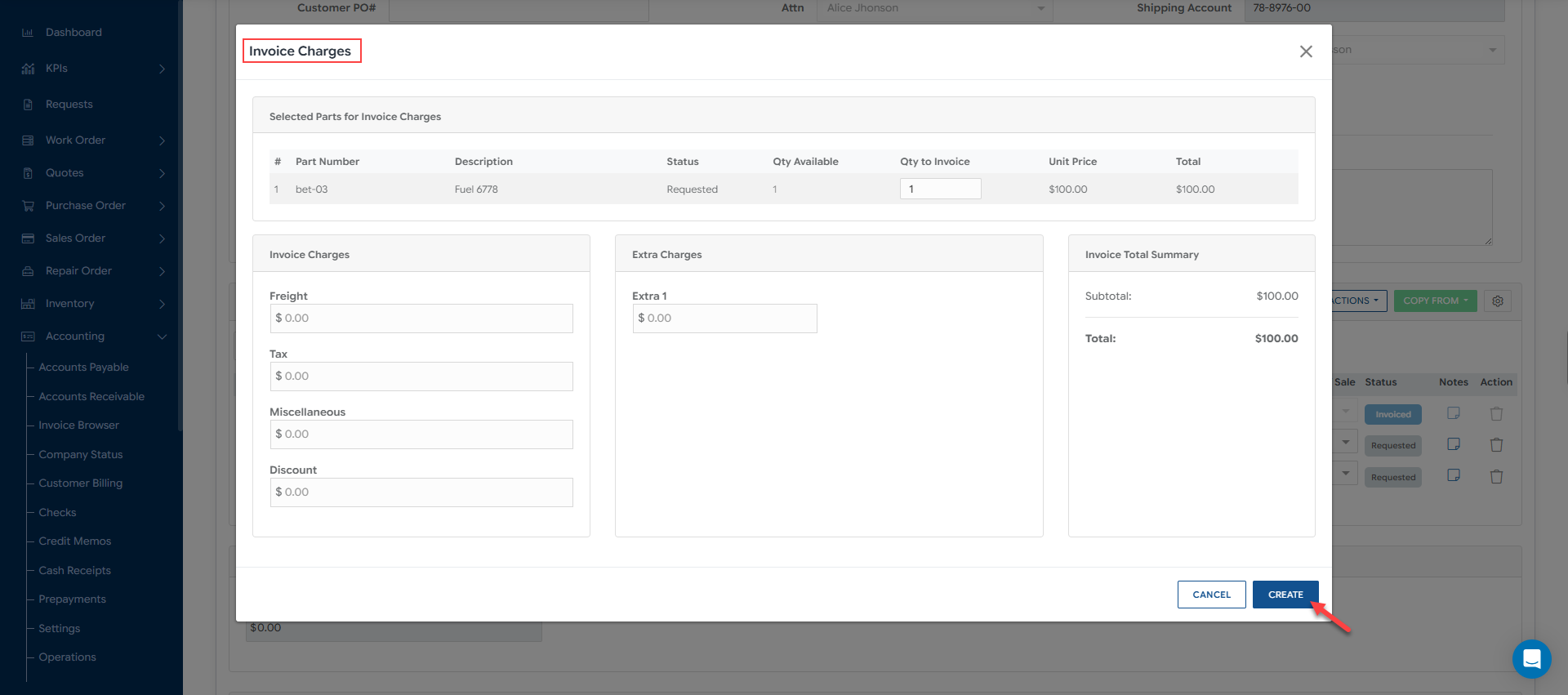
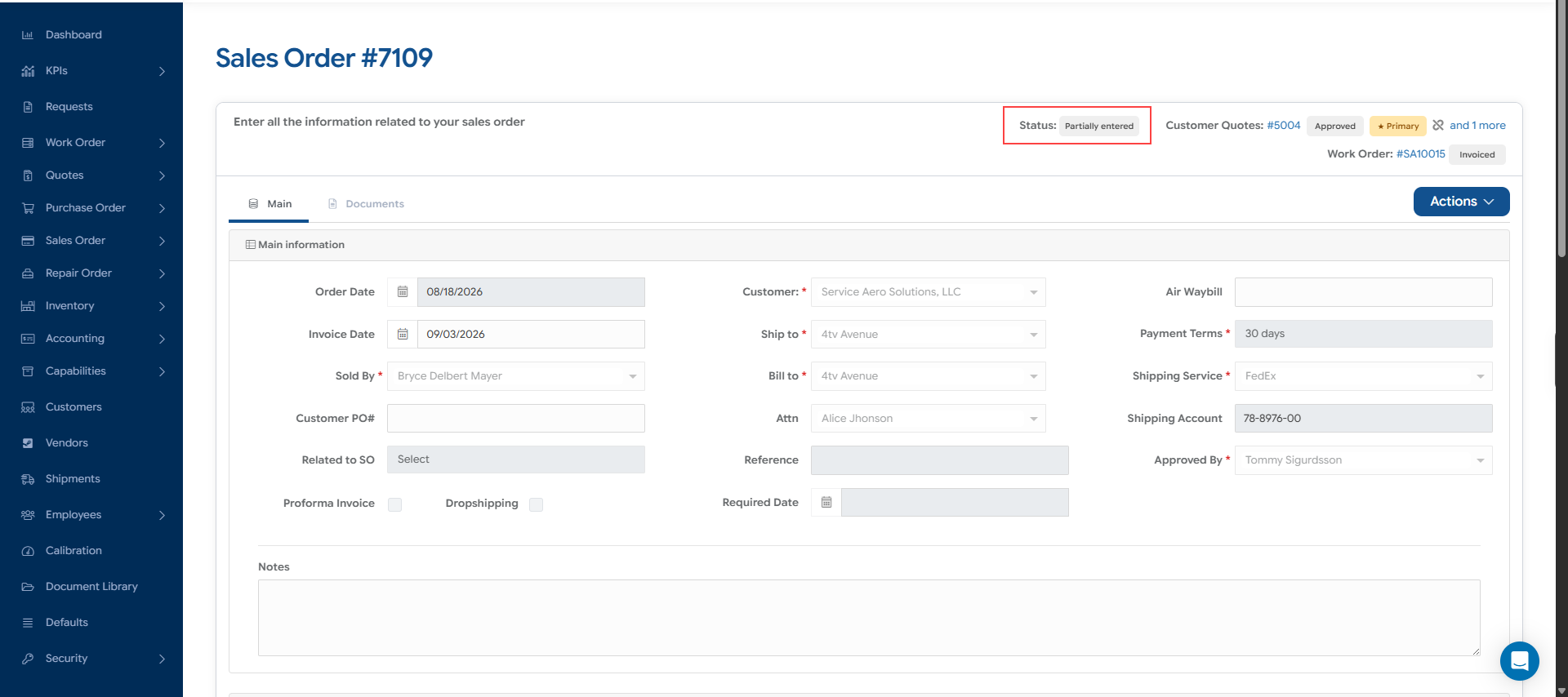
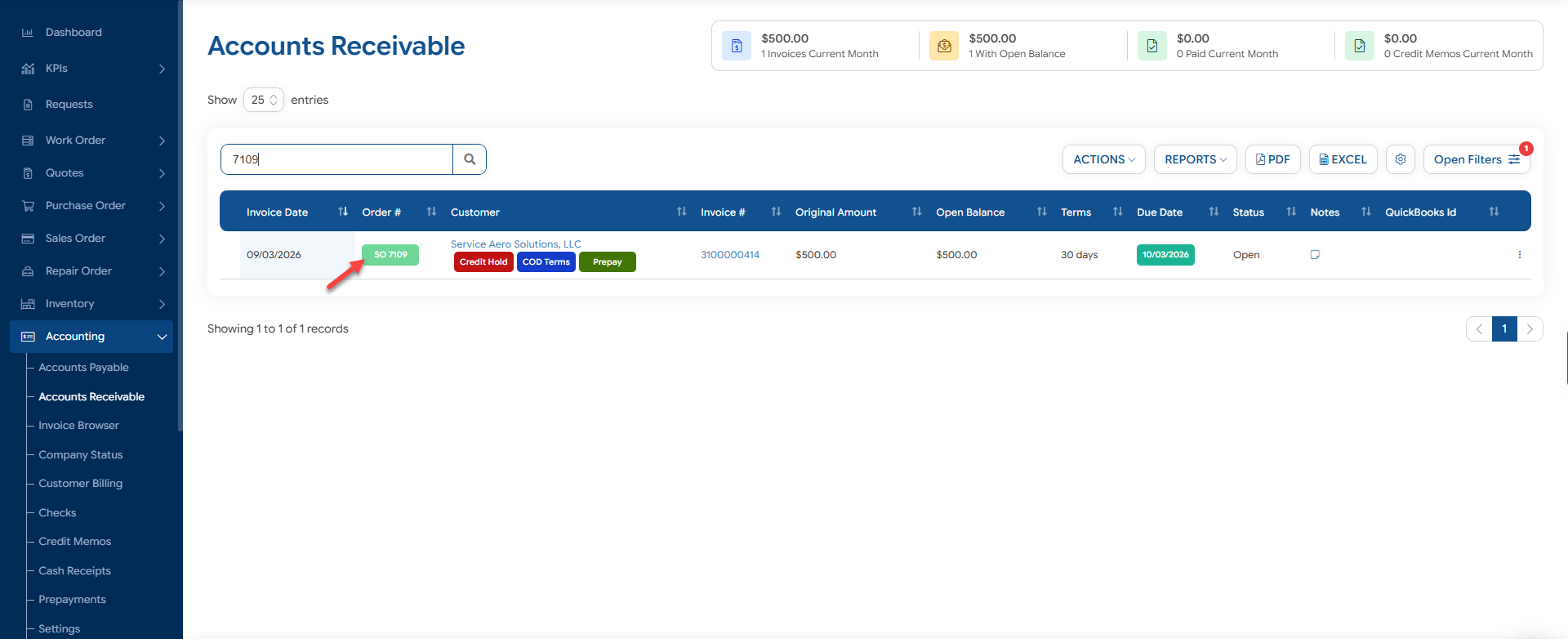
Once this functionality is enabled, it can be used through the "Batch Actions" button in the "Items" section of the Sales Order. Simply select one or more items, and the option will become available. Clicking on it will open a window where you can enter all the necessary information to invoice the previously selected items: As soon as the invoicing process has been completed, the order status will change to "Partially Entered", and the corresponding invoice record will be properly reflected in the Accounts Receivable module:
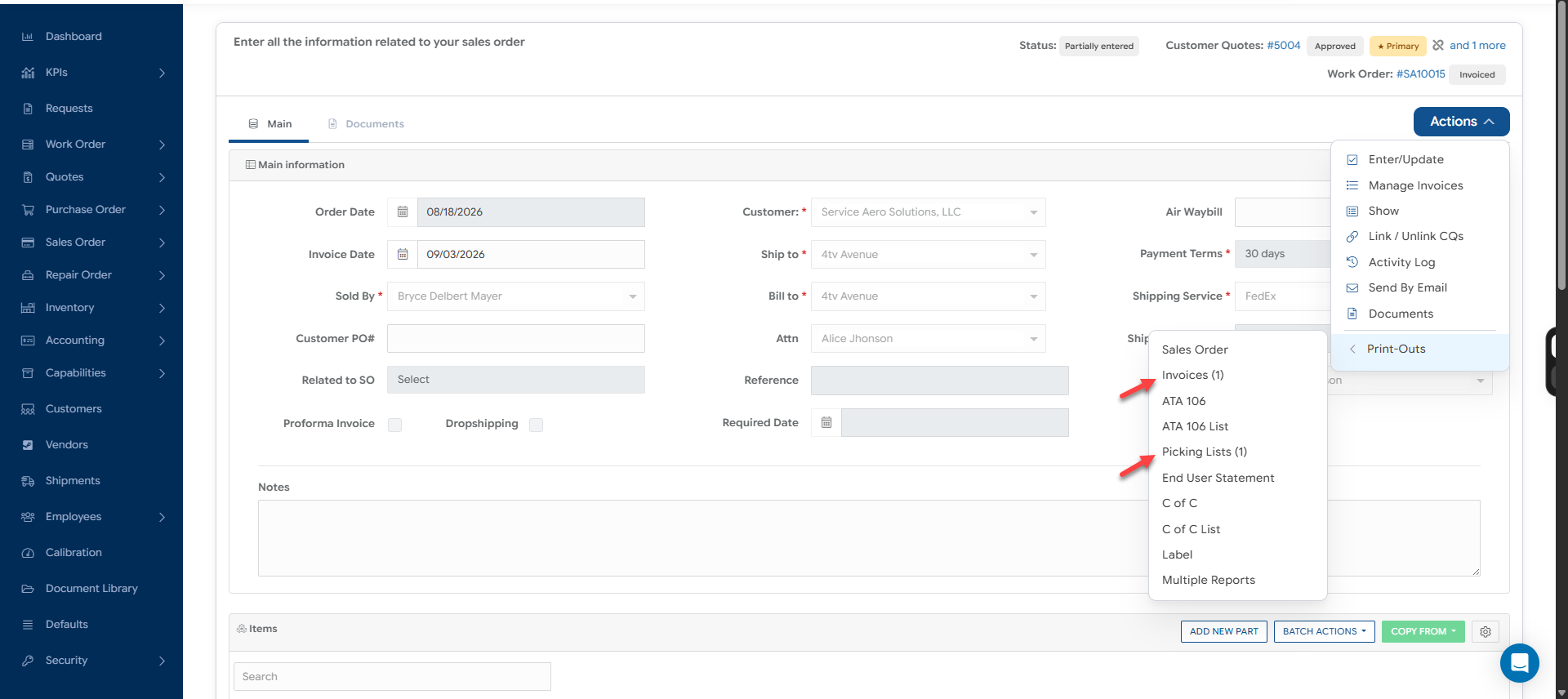
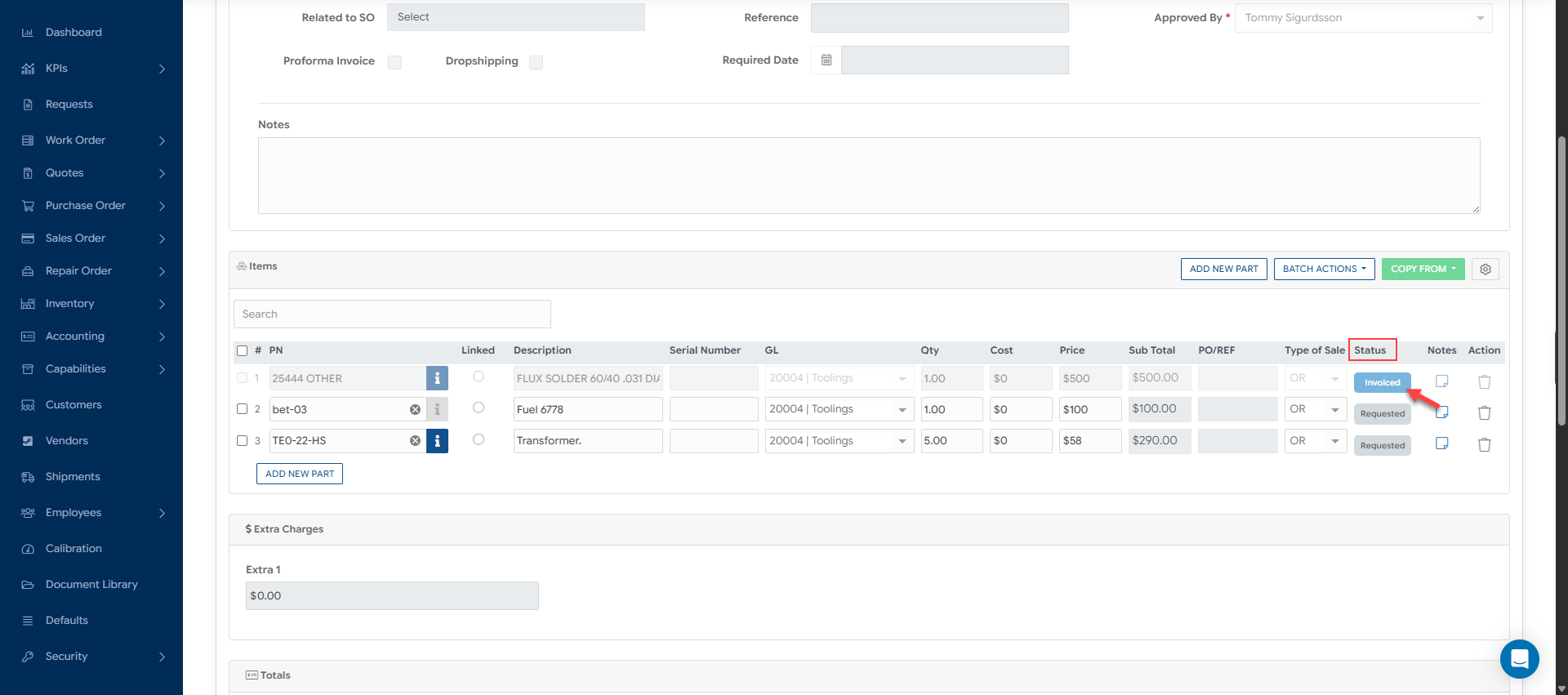
You will be able to easily identify when one or more items on a Sales Order have already been invoiced, as their status will change to "Invoiced" within the order. For these items, you will be able to independently print the corresponding invoice from the "Print-Outs" section.
Please note that the invoices will be available for printing under the "Invoice" option, which will display in parentheses the number of items that have been invoiced on the order.
The same functionality applies to the "Picking List" report:
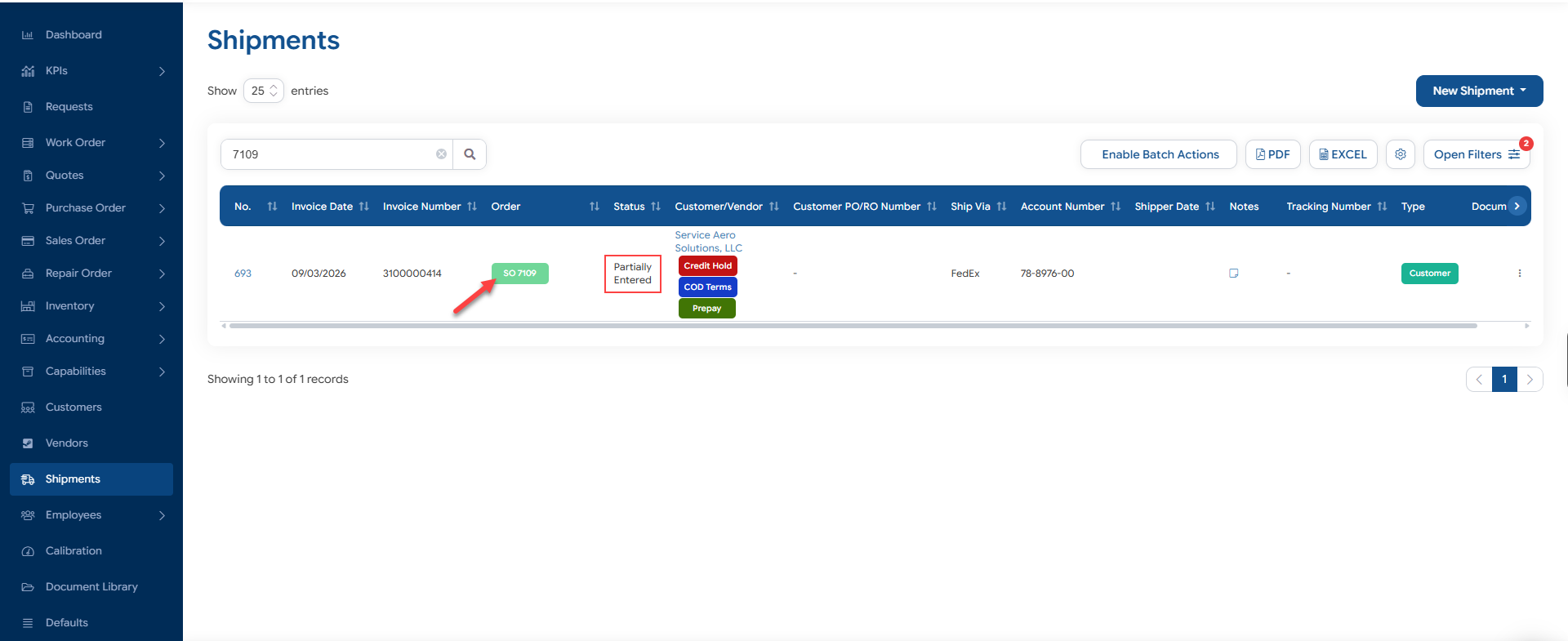
Additionally, these records will create their own Shipment record in the system, which will be available in the "Shipments" module:
How to Reverse the Invoicing of an Item on a Partially Invoiced SO?
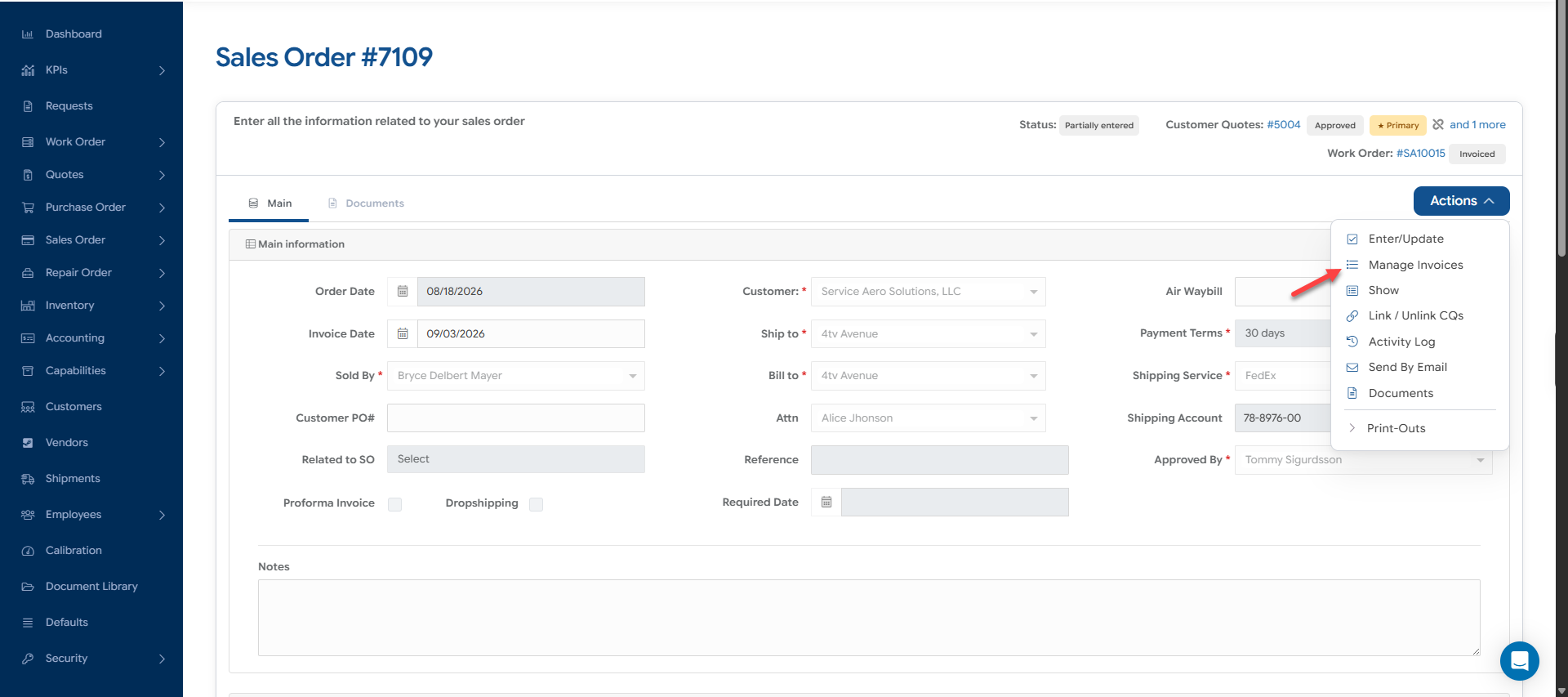
To reverse the invoicing of one or more items independently, this must be done through the "Manage Invoices" option, which becomes available once the previously described invoicing process has been completed.
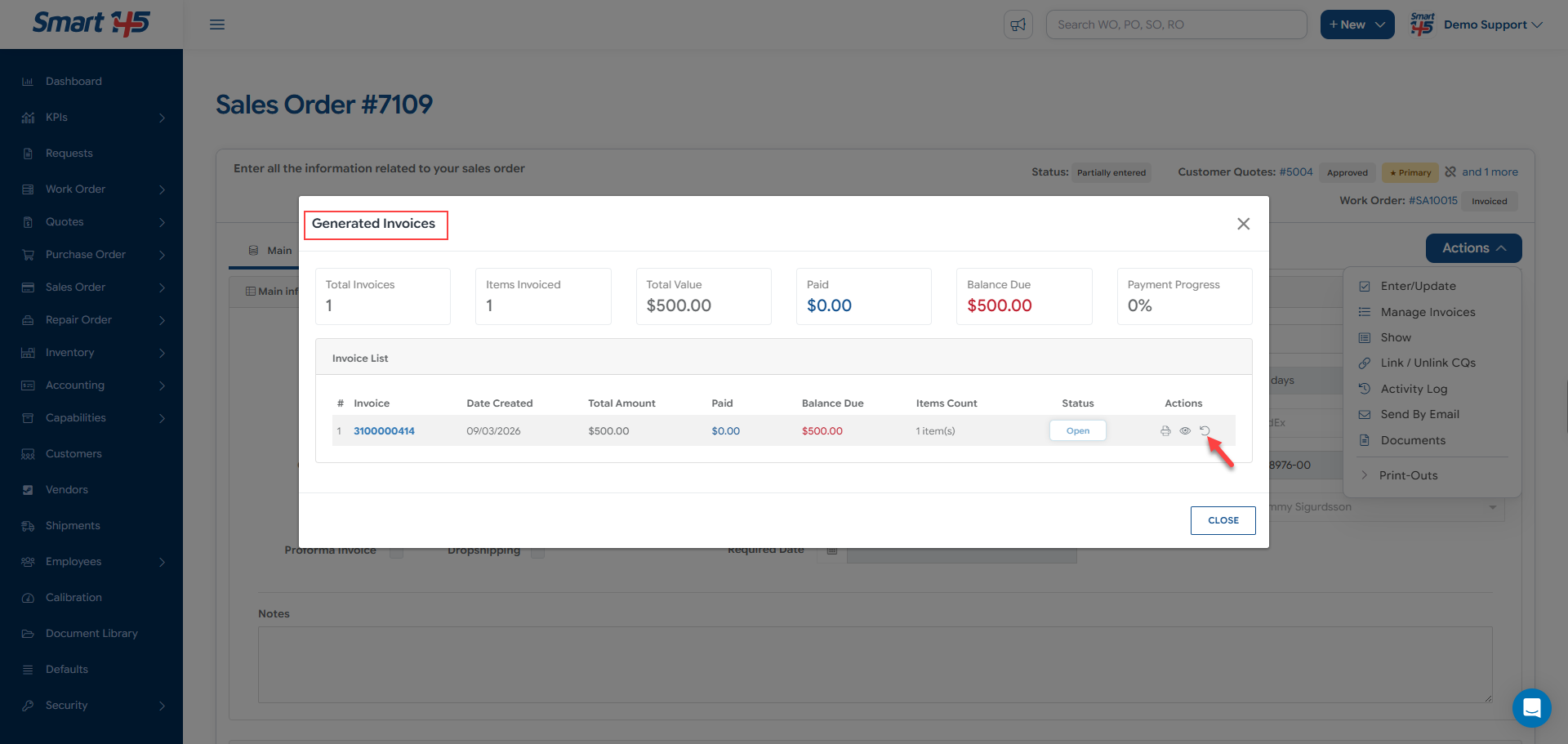
This option will open a new window where you can view all the items that have been invoiced on the order and, from there, reverse the corresponding invoicing actions.