
Power BI is a powerful platform that connects, transforms, and visualizes data, enabling the creation of insightful reports and dashboards. It consists of a suite of applications, services, and connectors that collaborate to turn data from various sources into engaging, interactive visual representations. By integrating Power BI with Smart 145, you can bring your MRO data to life and gain better insights into your operations. Follow the steps below to get started.
1. Create a Generic Power BI Account
To enable Smart 145 to build and manage reports for your organization, you need to create a dedicated account in your Microsoft Business tenant that serves as the bridge between your data and our service. This ensures security, continuity, and proper access control for your team.
If you don't have a Microsoft Business Account yet, follow these structured steps to create your organizational tenant and set up a generic admin account in a secure way:
- Subscription Selection: The first step is to choose the plan that best suits your needs. To use Power BI, you can opt for a base subscription, such as Microsoft 365 Business Basic or Standard. However, if the long-term goal is a larger deployment, the Enterprise E5 plan is the most comprehensive option, as it includes Power BI Pro licenses and advanced security features natively.
- Custom Domain Configuration: To maintain a professional image and centralized control, it is recommended to configure a custom domain (e.g., @yourcompany.com). This step ensures that all digital identities and resources remain under the organization's direct administration, avoiding the use of generic personal domains.
- Registration Process: The setup requires a primary email address to receive billing notifications and system alerts. During registration, you will need to provide essential details such as the organization's name, contact information, and employee count. To verify your identity, Microsoft will send a security code via a phone call or text message to the number you provide.
- Administrative Access: Once the payment method is confirmed and the order is finalized, you will gain full access to the Microsoft 365 Admin Center. This will be the central hub from which you can manage all users and services for the account.
- Create the Generic Account for Smart 145:
- In the Microsoft 365 Admin Center, go to Users > Active Users and select Add a user.
- Create a new user with the following details:
- Display Name: Smart 145 Power BI Integration (or similar)
- Username: powerbi@yourcompany.com
- Assign a Power BI Pro license to this account. This is required for publishing and sharing reports.
- Set a strong password and note it down securely to share with Smart 145.
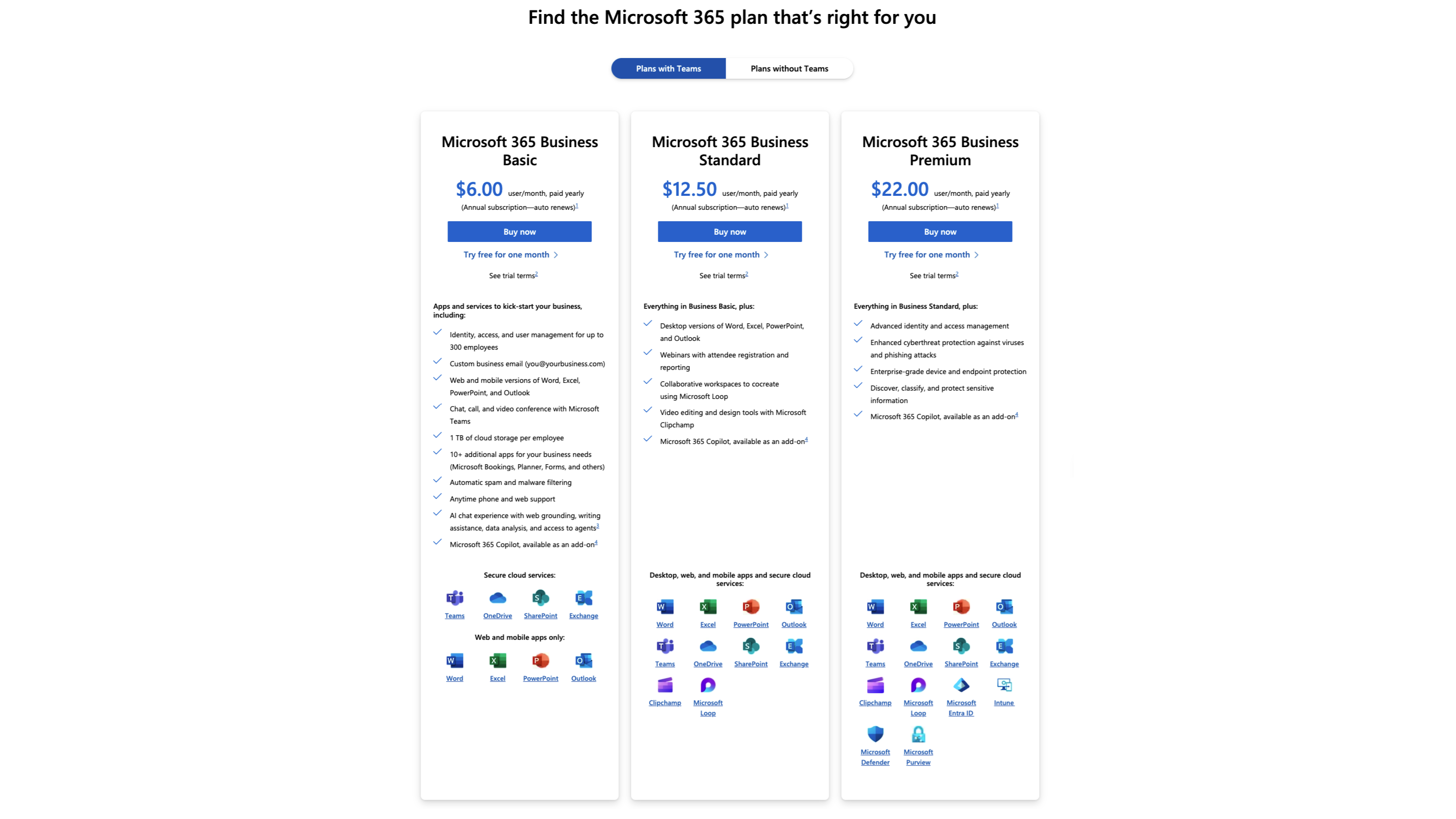
If you already have a Microsoft Business account, you only need to sign up for Power BI
Important: Always make sure that this account is generic (not tied to an individual user) and has administrative privileges in Power BI.
Important: Always make sure that this account is generic (not tied to an individual user) and has administrative privileges in Power BI.
Why Create a Generic Power BI Account with Admin Rights?
- Smart 145 Data Engineer team access
Why: The Smart 145 Data Engineering team requires ongoing access to your Power BI environment to set up and maintain the data models connected to Smart 145.
What it means for you: By granting them the right privileges through a single generic account, the Smart 145 team can efficiently troubleshoot and update the connections or data sets without needing personal employee logins. It also streamlines collaboration and support. - Shared Ownership
Why: A generic (shared) account ensures the organization retains full control and ownership over all Power BI reports and data connections. This prevents interruptions if an employee leaves the company or changes roles.
What it means for you: Any transitions in personnel won’t disrupt the critical reporting or dashboards needed to run your business. - Streamlined Credential Management
Why: Maintaining one username and password for Power BI simplifies password changes, rotations, and overall account administration.
What it means for you: Your team has fewer credentials to track, and the Smart 145 engineers have a stable, dedicated login for ongoing maintenance.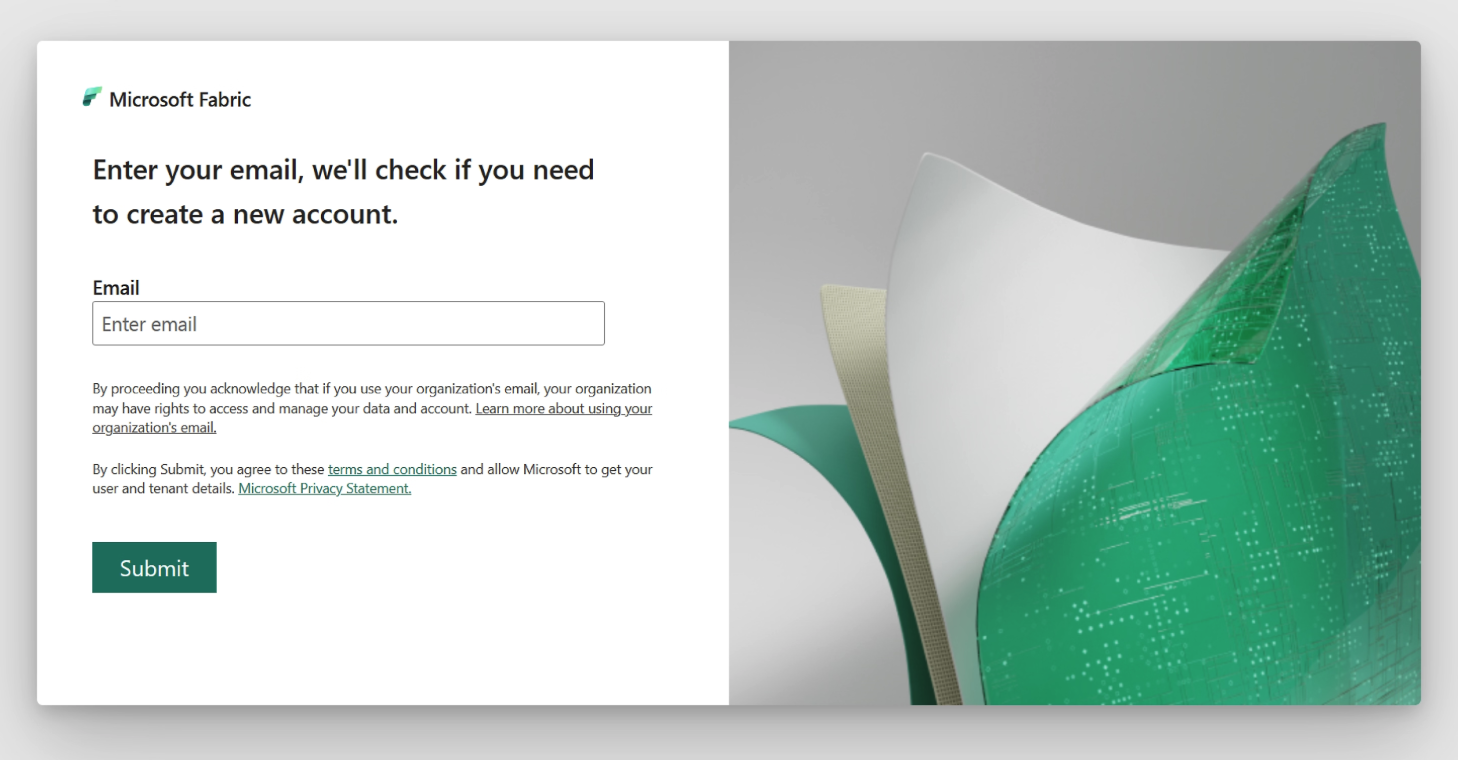
2. Share Your Credentials with Smart 145 Support
Once your new account is set up, email support@smart145.com to inform them.
The support team will provide you with a secure link where you can enter the Power BI credentials. This link ensures your information is handled safely and confidentially.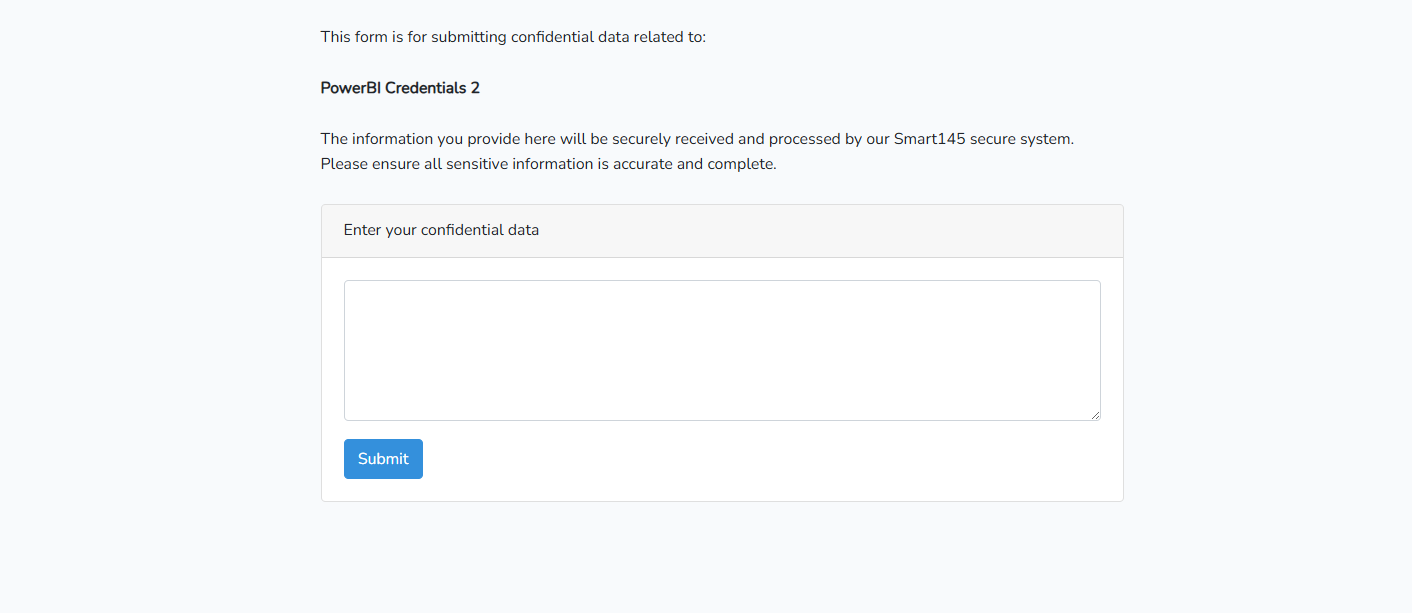
3. Microsoft may require the use of Multi-Factor Authentication (MFA).
Microsoft may require Multi-Factor Authentication (MFA). Either now or in the future. MFA can also be triggered by an activity that Microsoft deems risky (e.g., sudden location changes). If MFA is enabled, our team will not be able to access your account and work effectively.
We recommend proactively setting up MFA and scheduling a short meeting with our team to configure it on one of our devices as well. This will help prevent any future disruptions.
4. Verify Your Power BI License Type (Pro vs. Free)
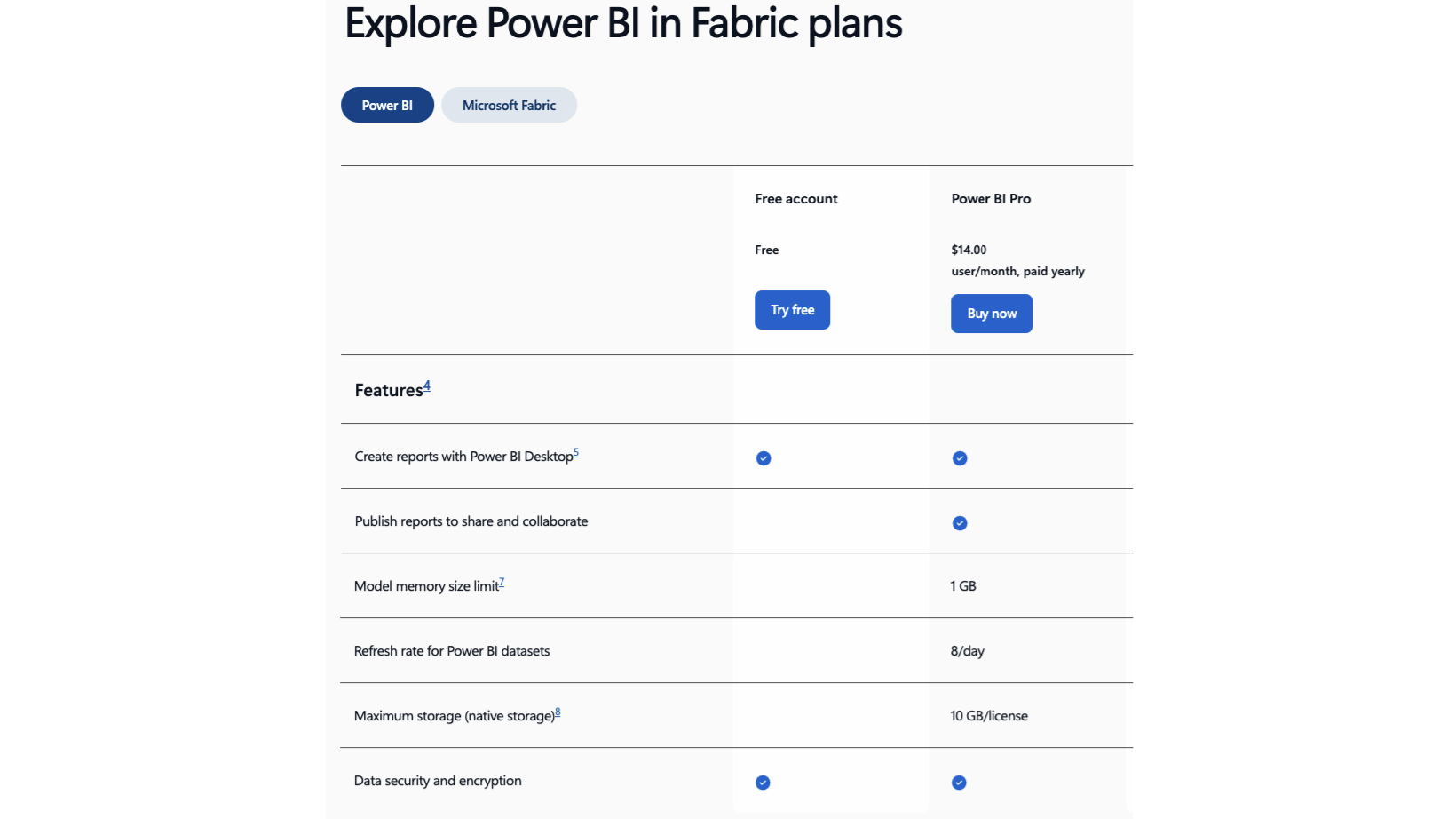
For Smart 145 to establish and maintain the cloud-based data connection, the generic account you create must have a Power BI Pro license (or higher). The free version of Power BI is not compatible with this type of collaborative integration.
Why a Pro License is Required:
- Cloud Publishing: Unlike the free version, which limits report creation to the desktop, Power BI Pro allows you to publish and share datasets and reports to the cloud-based Power BI service. This is the only way our engineering team can securely access the data models remotely to configure them, perform updates, and troubleshoot issues.
- Automated Data Refresh: A Pro license is required to schedule automatic data refreshes. This ensures that the reports connected to Smart 145 update periodically (e.g., multiple times a day), keeping your information current without requiring manual intervention from your team.
- Row-Level Security (RLS): The free version does not allow for managing user permissions within a single report. With Power BI Pro, if you need different departments to see only their specific data (applying security filters by user), this can be implemented later, thanks to the granular security features the Pro license offers.
5. Data Setup by Smart 145
After you submit the credentials, our team will configure the Power BI connection to your Smart 145 data. This includes setting up all modules you have access to in Smart 145.
Once the setup is complete, we will notify you and share any relevant connection details.
6. Customize Dashboards
With the data connection ready, you can build or adjust your Power BI reports and dashboards to meet your organization’s needs. Add or modify KPIs, charts, and visuals to get the most from your MRO data in Smart 145.
By following these steps, you ensure a smooth and secure integration between Power BI and Smart 145 while maintaining control over your organization’s reporting and analytics.