To create a user in Smart from your own profile, you must have the appropriate security permissions. If you do not currently have these permissions, please contact our Support Team to request access.
Once the required permissions have been granted, follow the steps below:
Step 1: Verify or Create the Employee Record
Before creating a user, confirm that the associated employee is already registered in the system.
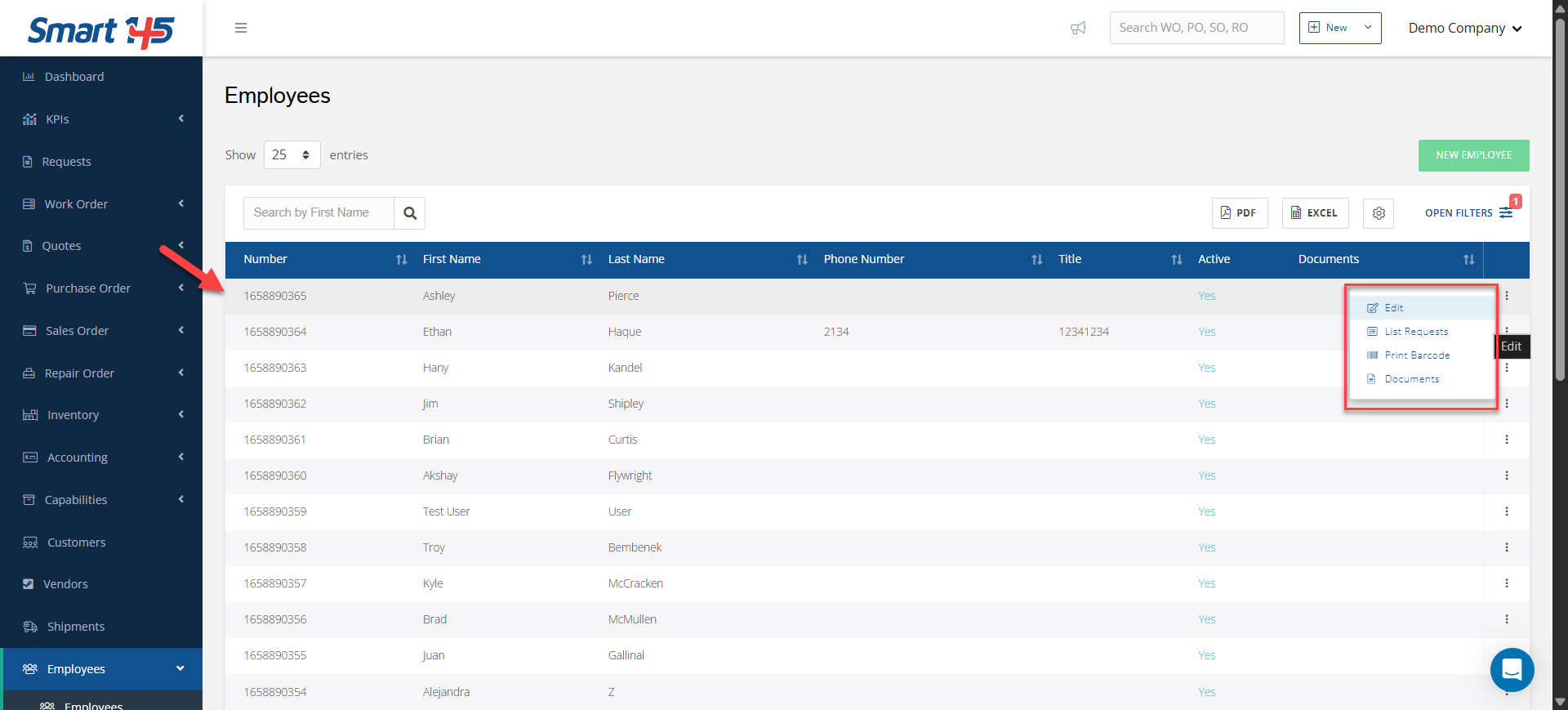
- Navigate to the Employees module.
- Search for the employee in the Employees Browser to ensure the record does not already exist. This step is important to prevent duplicate entries.
If the employee has not yet been created:
- Click New Employee.
- Enter all relevant employee information.
- Click Save.
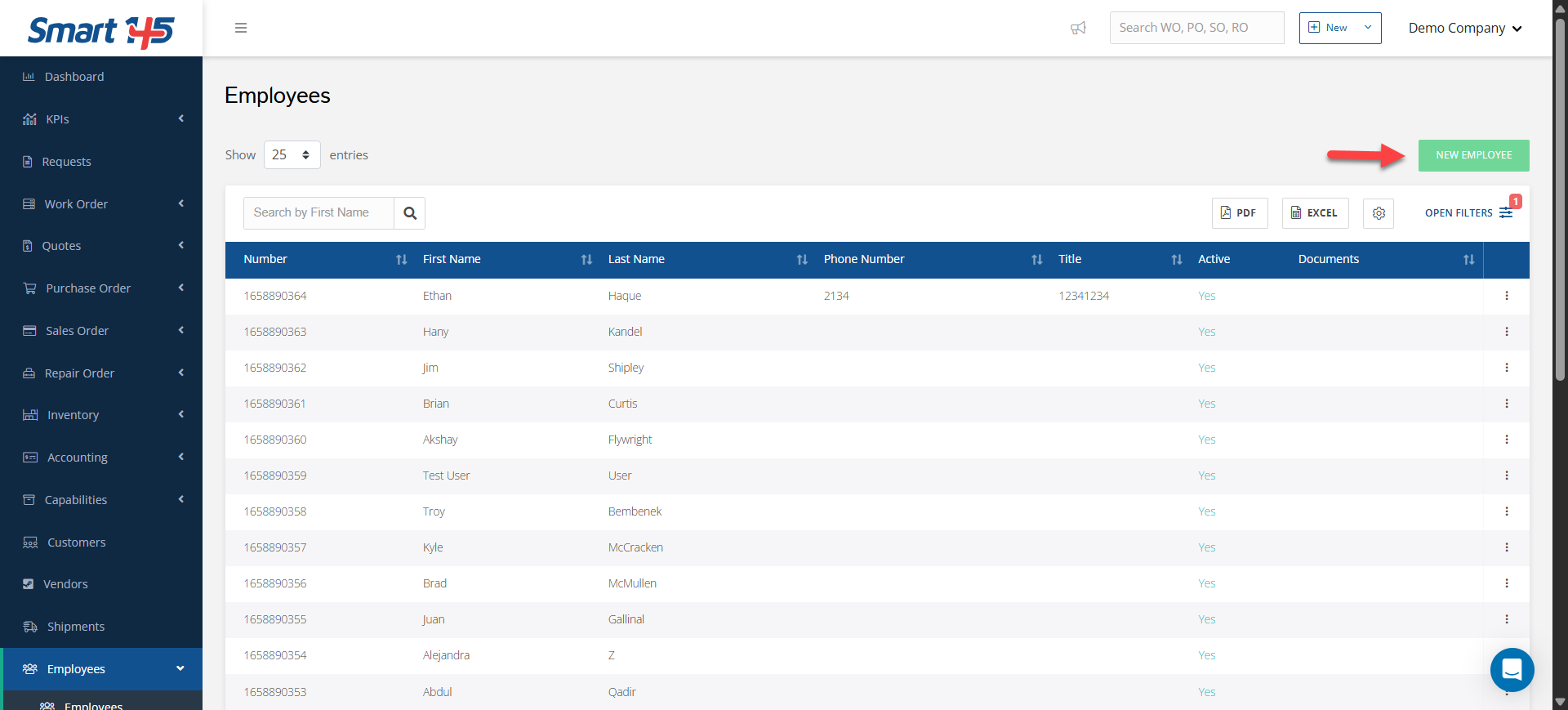
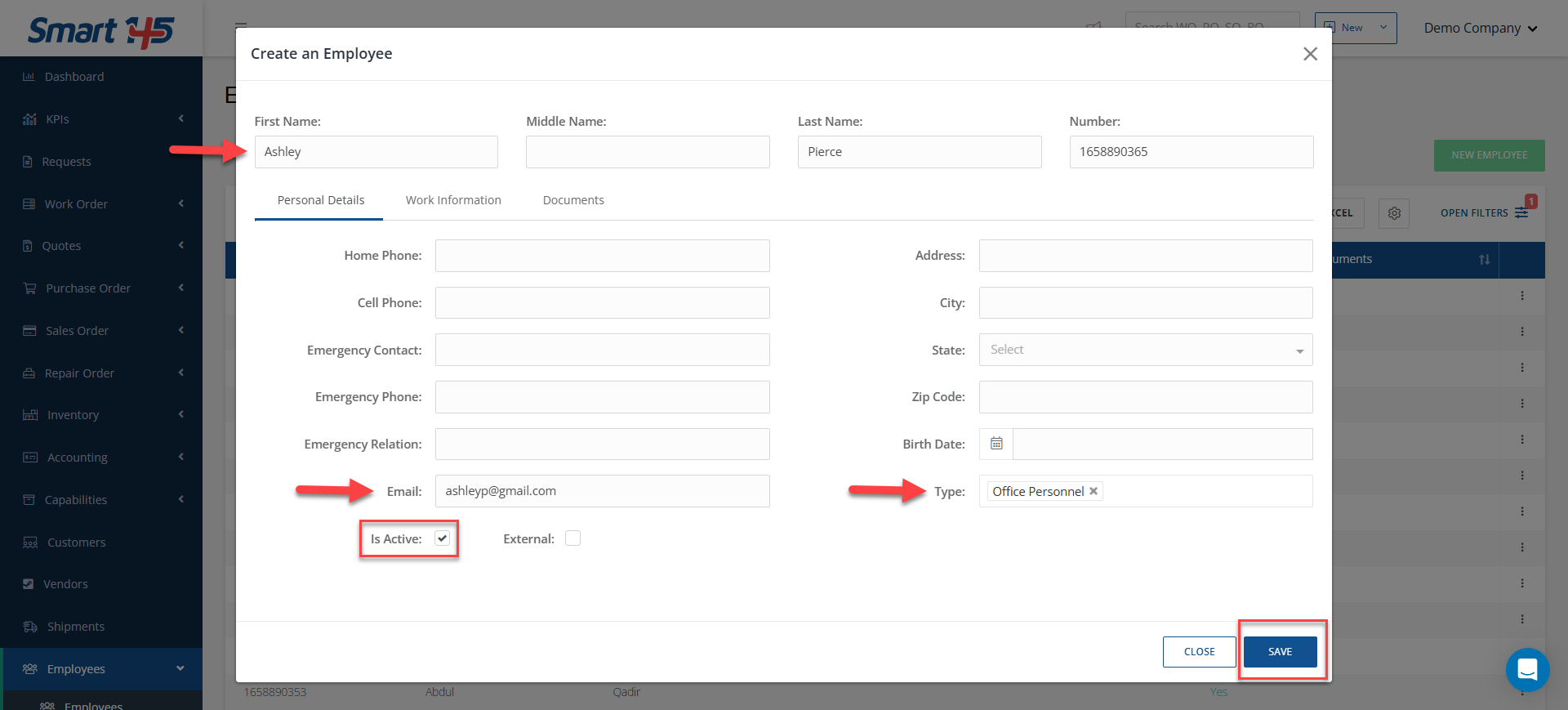
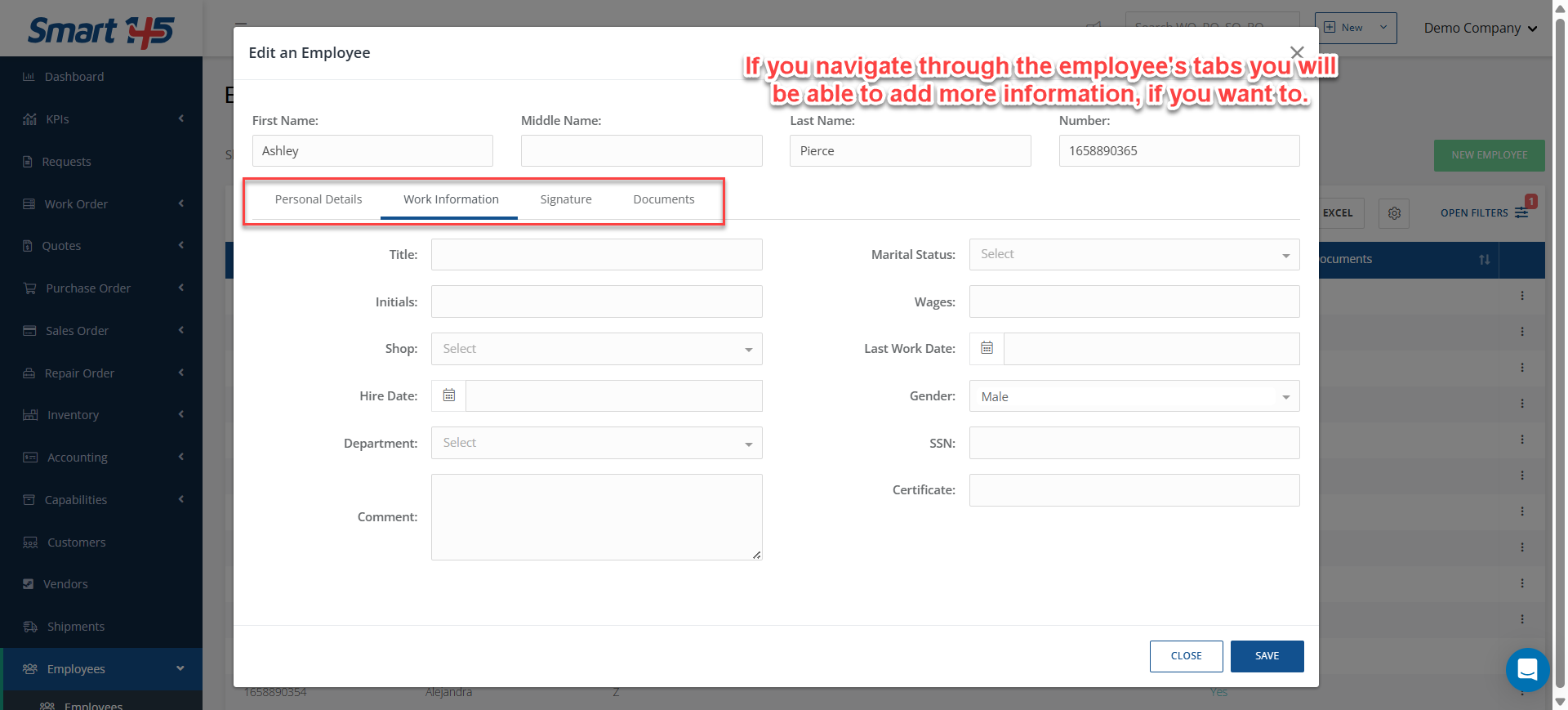
Once saved, the employee record will appear in the Employees Browser, where it can be edited if necessary.
Step 2: Create the User Account
After the employee record has been successfully created:
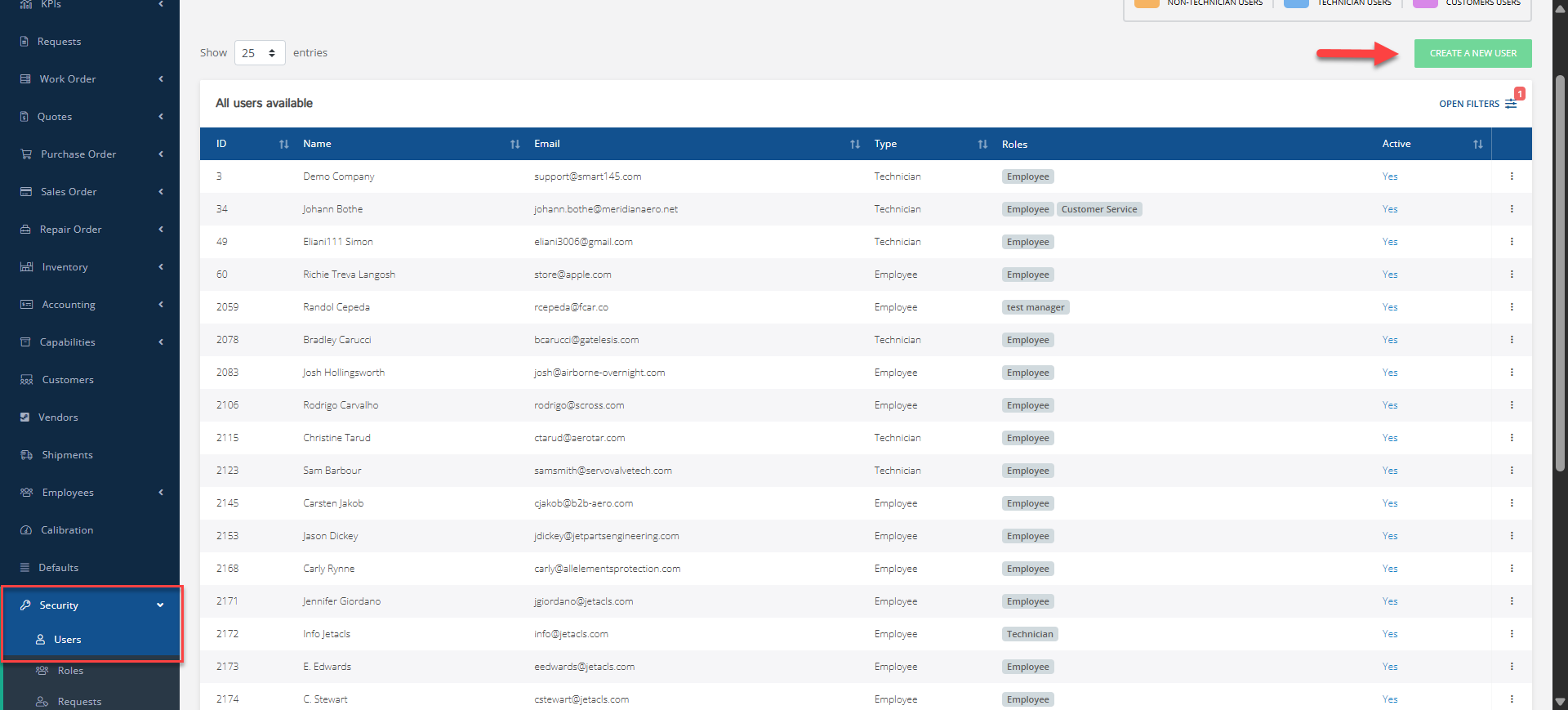
- Navigate within the Security module.
- Select the Users section.
- Click Create a New User.
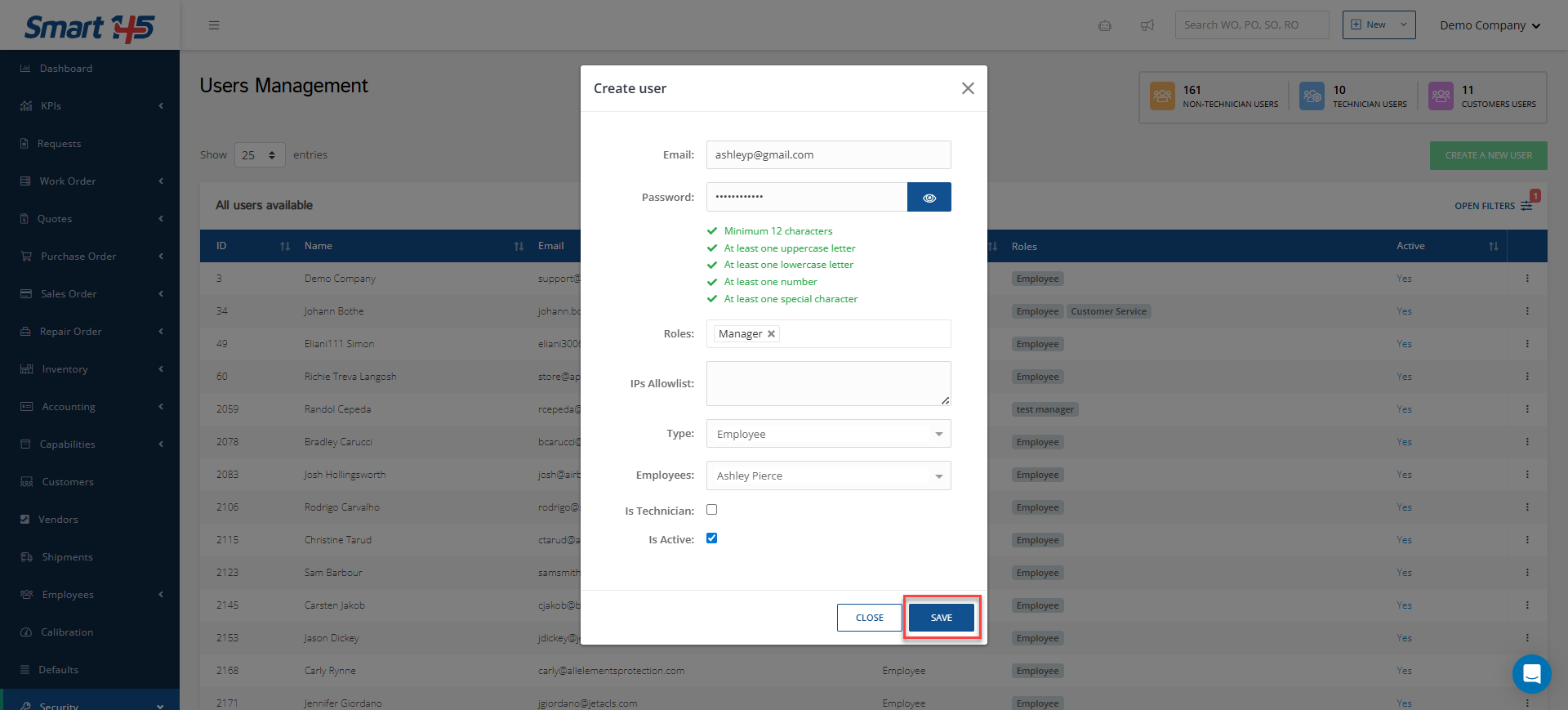
Complete all the fields, including:
- Email address
- Corresponding user role.
- In the Type field, select Employee.
- In the Employee field, choose the name of the employee previously created.
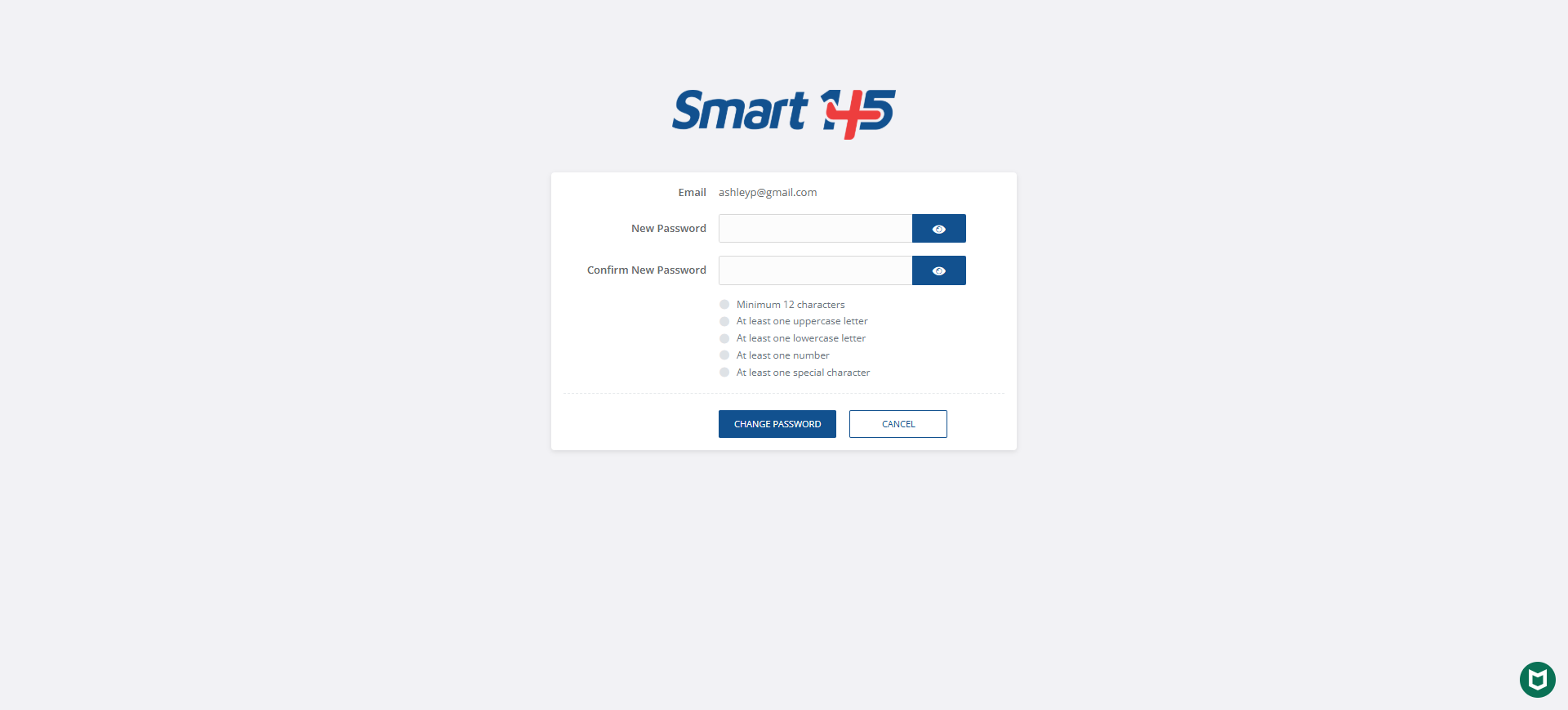
- When entering the password, ensure it complies with the system’s security requirements in order to successfully save the record.
Once all information has been completed, click Save
Step 3: Provide Login Credentials
After the user has been created, send the login credentials to the corresponding employee.
Upon logging in for the first time, the system will prompt the user to change their password. They may choose to keep the same password or create a new one, at their convenience.