How Smart 145 identifies and links Alternate Parts on a PO for a Work Order?
Smart 145 automatically detects and links alternate part numbers when creating a Purchase Order (PO) that is associated with a Work Order (WO). When adding parts to Purchase Orders, if the Part Number to be bought corresponds to an alternate of an item listed in a WO, the system recognizes the relationship and guides you through linking it correctly. This ensures accurate purchasing, maintains data consistency, and provides full WO-PO traceability.
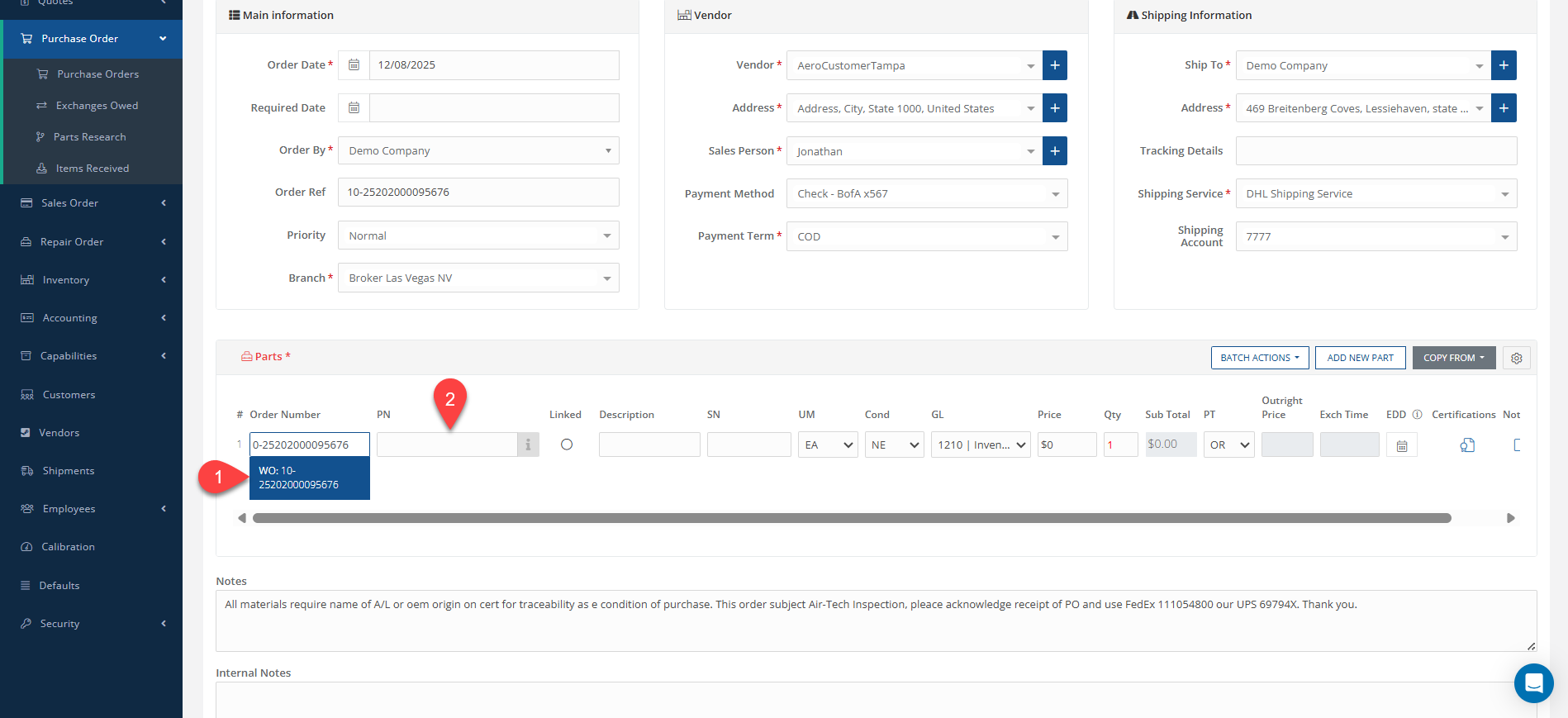
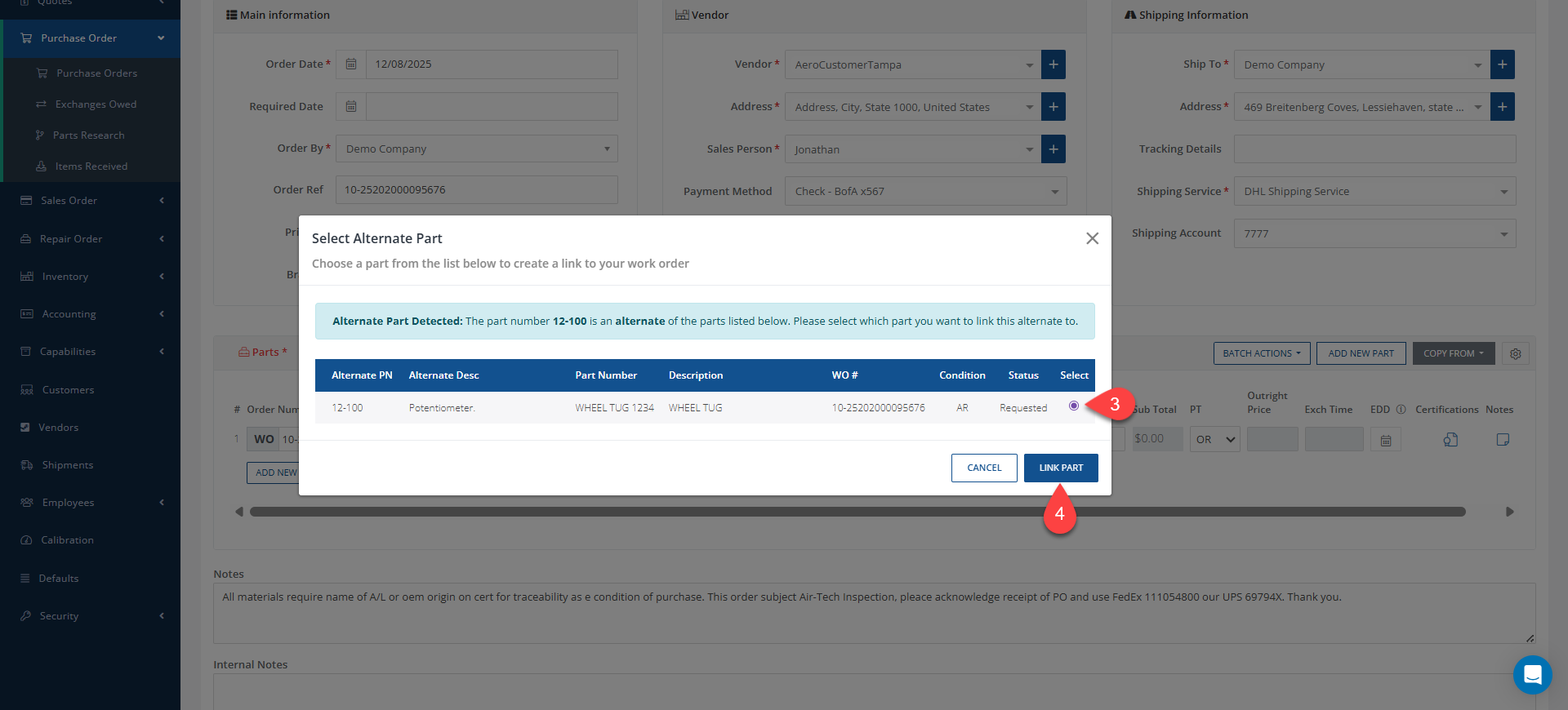
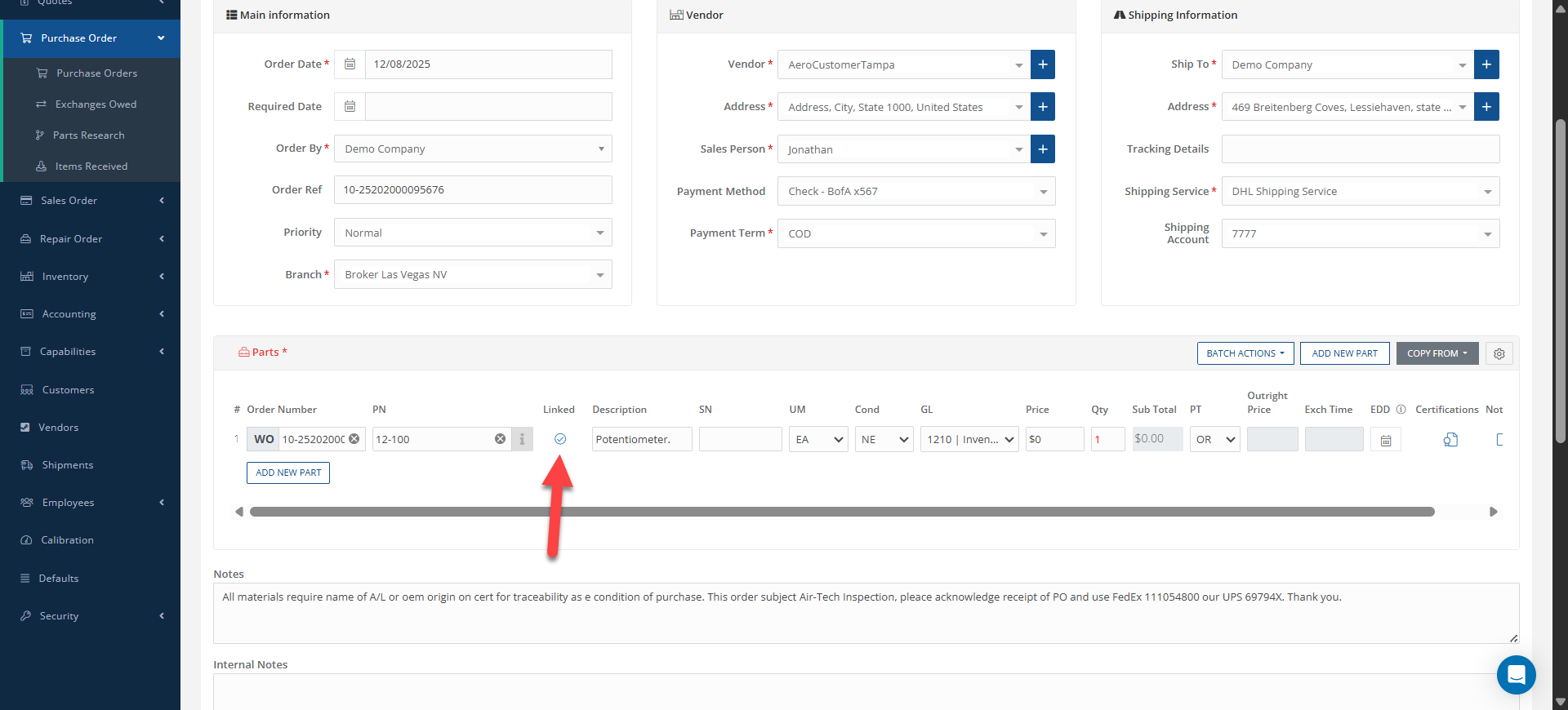
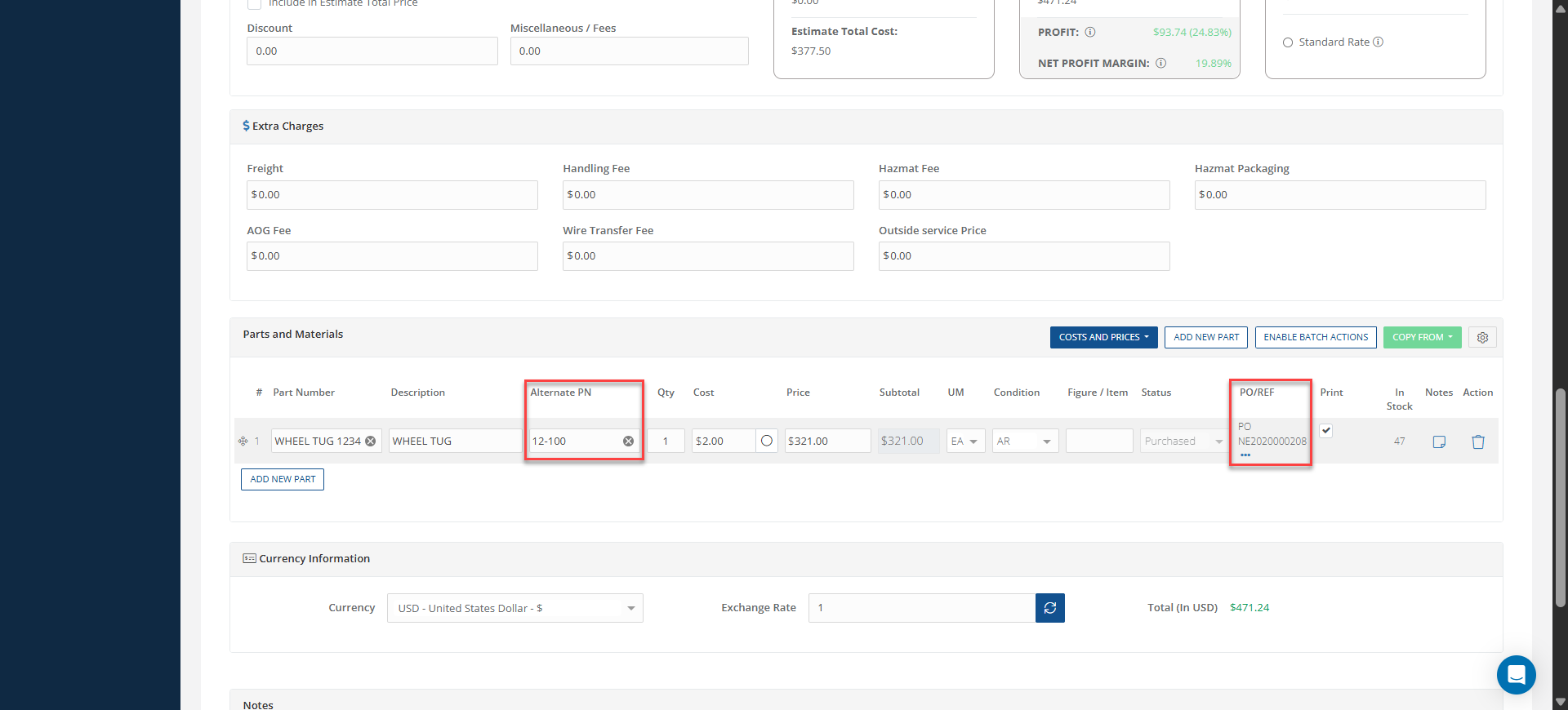
How does it work? When adding parts to a PO, the Work Order number must be entered and selected from the dropdown menu. Then, the Part Number field should be completed with the required alternate item. After the alternate PN is entered, a "Select Alternate Part" window will open, displaying any valid alternates found in your Work Orders. Then, the appropriate line must be selected and linked. Once the part is linked, the PO line displays the Linked indicator and the information icon, confirming that the association with the Work Order has been properly made. In the "Parts and Materials" section of the Quotation tab within the Work Order, after the Purchase Order is entered, the Alternate PN column will be populated automatically, and the PO reference and status will be updated accordingly.